|
||||||||||||||||||||||||||||||||||||||||||||||||||||||||||||||||||||||||||||||||||||||||
|
|
|
Lotus Notes / Lotus Domino Barcode Tutorial |
| "IDAutomation's barcodes quickly and easily integrated with our Lotus Notes Printing and Reporting Tool called Print Merge Express, which allowed us to provide our customers with additional barcode mail merge functionality, as well as displaying barcodes in Notes views." - Lance Zakin, Certified Lotus Professional, IVE Technologies, http://www.PrintMergeExpress.com |

Choose the correct barcode font for the barcode field; make sure it is centered
in the box with some white space before and after the barcode.
Method 2 - Using LotusScript:
This method is only recommended for advanced Lotus Notes / Domino developers.
Code128 and other more complicated barcodes require a LotusScript event
and a LotusScript function. See the Lotus Script in the barcode database
example for an illustration of how to implement these barcodes. In this
database example, the LotusScript code that formats the Code128 field is
located in the "QuerySave" Event of the form.
The LotusScript for the function that formats the text to the barcode font is "Code128b" in the "Globals" definition for the form in this example. These must be imported from IDAutomation's file of LotusScript Functions. In Notes 4.5, there is a limit of how many functions that can be placed here so copy and paste only the functions needed. In Notes 7, right click and choose Import, select the file named "IDAutomationLS.lss" which is provided in the LotusScript download package and skip steps 1 and 2 below.
Import the functions into the form:
Add the LotusScript source code for the QuerySave event:
This code does the following:
For example:
Sub Querysave(Source As Notesuidocument, Continue As Variant)
Dim uiDoc As NotesUIDocument
Dim uiWorkspace As New NotesUIWorkspace
Set uiDoc = uiWorkspace.CurrentDocument
'call the function to format the data from field SSN and save it to field Method2SSN
Call uiDoc.FieldSetText("Method2SSN", Code128(uiDoc.FieldGetText("SSN"),0,0))
End Sub
|
Lotus Approach Barcode Tutorial |
Install the appropriate barcode fonts before the application can display or print them. For instructions, please refer to the font installation procedures.
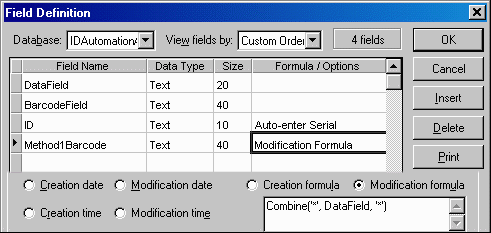
Approach Barcoding Method 1 - Use a formula with self-checking barcode fonts:
To copy the functions into a database:
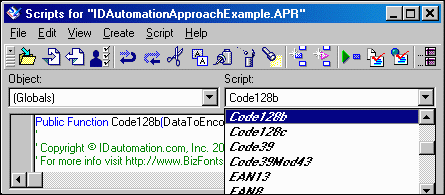
Open a database. Press CTRL - K to open the LotusScript editor. Choose File - Import Script and choose the IDAutomationLS.lss file which is included in the download package. After the scripts are imported, several scripts should be listed in the script drop down box.
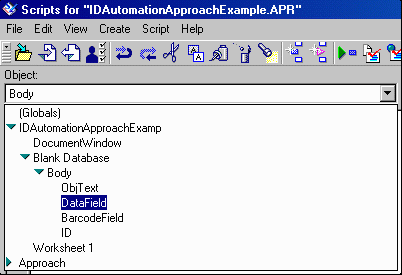
Click the Object drop down box and browse to the field that contains the data to encode in the barcode.
Click the script drop down box and choose Change. Enter the following source code for the change event, changing the function name for the barcode (in this case the function is Code128b) and changing "DataField" and "BarcodeField" to the names of the fields in the database.
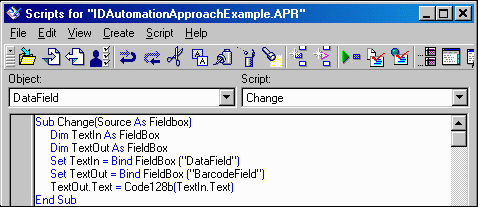
Choose File - Save Scripts. Return to the database file.
Choose Design and choose the field that contains the barcode, in this case it is "BarcodeField". Then choose the appropriate barcode font so the barcode will be in the field. Make sure it is centered in the box with some white space before and after the barcode. Since this field now contains the data formatted to the barcode font, the data from this field can be used in a mail-merge to create barcodes in Lotus Word Pro. And of course, this field can be used to display barcodes in forms, reports, envelopes, labels and letters. When entering the data, the barcode field will be automatically updated when tabbed to the next field, Choose CTRL - R, to refresh or save the database.NOTE: When selecting the font from the pull down menu, please do not use the fonts that begin with the "@" Symbol. Instead, scroll down in the list and select the ones that begin with "IDAutomation".
|
The Following LotusScript Functions are Available: |
For all functions listed below, the DataToEncode is the string data type. Other data types, such as numbers or dates, may need to be converted to the string data type to be properly encoded. All parameters are required. For example, use Code128("123456", 0, 1) instead of Code128("123456"). For all number symbologies, such as POSTNET and UPC, dashes or spaces may be inputted for easier readability which will be filtered out by the function before the barcode is generated. For UPC-A, UPC-E & EAN-13, the +2 and +5 add-on codes may be created by adding the data to the end of the string.
| Function | Font to use | Notes |
| Code128(DataToEncode,
ReturnType, ApplyTilde) |
IDAutomationC128 | If there is a doubt as to which Code
128 set is for an application, then choose this one.
Bar Code Printing Macros & VBA Functions
for Excel and Access This is a "Code 128 Auto" function that
will automatically encode any DataToEncode from ASCII 0 to ASCII
127. It will automatically switch to character set C for numbers
also. Data may be easily encoded without any options. For example,
the formula Code128("123456") will encode the numbers 123456. It may be necessary to use the ReturnType and ApplyTilde for special purposes.
|
| Code128a(DataToEncode) | IDAutomationC128 | Caution: Entering a lower case character will create a function. Use the character values 64 through 95 from set A to print characters not on the keyboard; the scanner will recognize these functions as from set A. Formats output to the Code 128 barcode fonts. |
| Code128b(DataToEncode) | IDAutomationC128 | Returns codes formatted to the Code 128 character set B. Formats output to the Code 128 bar code fonts. |
| Code128c(DataToEncode, ReturnType) |
IDAutomationC128 | This code128 function "interleaves"
numbers into pairs for high density. (DataToEncode, 0) formats output to the Code 128 barcode fonts. (DataToEncode, 1) returns the human readable text with the check digit included. (DataToEncode, 2) returns only the check digit. |
| Code39(DataToEncode) | IDAutomationC39 or IDAutomationHC39 |
Formats the output to print using Code 39 fonts. |
| Code39Mod43(DataToEncode, ReturnType) |
IDAutomationC39 or IDAutomationHC39 |
(DataToEncode, 0) performs the mod43
checksum calculation for increased accuracy and then formats the
output to print using
Code 39 fonts.
The mod43 checksum is usually required for LOGMARS and HIBC applications. (DataToEncode, 1) returns the human readable data with the check digit included. (DataToEncode, 2) returns only the check digit. |
| Code93(DataToEncode) | IDAutomationC93 | Formats the output to print with the 2 required check digits using Code 93 fonts. |
| Codabar(DataToEncode) | IDAutomationCB | Formats the output to print using Codabar fonts. |
| Code11(DataToEncode) | IDAutomationC11 | Formats output to the Code11 barcode fonts. Only the "C" check digit is calculated which is the standard when encoding 10 digits or less. |
| EAN13(DataToEncode) | IDAutomationUPCEAN | DataToEncode is a number string of 12, 13, 14, 15, 17 or 18 digits with or without a check digit, add-ons are supported. Formats output to the UPC/EAN barcode font. Entering incorrect data will create a barcode containing all zeros. |
| EAN8(DataToEncode) | IDAutomationUPCEAN | DataToEncode is a number string of 7 or 8 characters (EAN-8 without the check digit). Formats output to the UPC/EAN barcode font. Entering incorrect data will create a barcode containing all zeros. |
| I2of5(DataToEncode) | IDAutomationI25 or IDAutomationHI25 |
This function "interleaves" numbers into pairs for high density without check digits and formats the return string to the Interleaved 2 of 5 fonts. |
| I2of5Mod10(DataToEncode, ReturnType) |
IDAutomationI25 or IDAutomationHI25 |
(DataToEncode, 0) performs the mod10
checksum calculation for increased accuracy and formats the return
string to the
Interleaved
2 of 5 fonts. MOD 10 checksums are required by USPS for special
services and for SSC-14 when using Interleaved 2 of 5 for that purpose. (DataToEncode, 1) returns the human readable data with the MOD10 check digit included. (DataToEncode, 2) returns the MOD10 check digit. |
| MOD10(DataToEncode) | not applicable | Returns the MOD 10 check digit for a given string of numbers according to the UCC/EAN method. |
| MSI(DataToEncode, ReturnType) |
IDAutomationMSI or IDAutomationHMSI |
(DataToEncode, 0) formats output
to the MSI barcode
fonts. (DataToEncode, 1) returns the human readable data with the check digit included. (DataToEncode, 2) returns only the check digit. |
| Postnet(DataToEncode, ReturnType) |
IDAutomationPOSTNET or IDAutomationPLANET |
Enter a single string of Zip, Zip
+ 4 or Zip + 4 + Delivery Point or any number of digits for the
planet code. The DataToEncode must be a number and can include dashes
and spaces. (DataToEncode, 0) formats output to the POSTNET barcode fonts. (DataToEncode, 1) returns the human readable data with the check digit included. (DataToEncode, 2) returns only the check digit. |
| RM4SCC(DataToEncode) | IDAutomationRM | Formats the output to print using RM4SCC fonts. Checksum calculated according to the mail sort customer bar-coding specification. |
| SpliceText(DataToEncode, SpacingNumber, ApplyTilde) | Text font | Returns text with a space inserted every SpacingNumber of digits to improve readability. If ApplyTilde is set to True, the tilde will be processed as described here. |
| UCC128(DataToEncode) | IDAutomationC128 | This symbology option calls the Code128() method with the Tilde option enabled and the FNC1 character in set C as required. It is often an easier method to use when encoding an even number of number digits. For example, to encode an SSCC-18 barcode, you would enter 00000123455555555558 as the data input. For more information, please visit here. Formats output to the Code 128 barcode fonts. |
| UPCa(DataToEncode) | IDAutomationUPCEAN | DataToEncode is a UPC-A number string of 11, 12, 13, 14, 16 or 17 digits with or without a check digit, add-ons are supported. Formats output to the UPC/EAN barcode font. Entering incorrect data will create a barcode containing all zeros. |
| UPCe(DataToEncode) | IDAutomationUPCEAN | DataToEncode is a UPC-E number of 6, 7 or 8 digits or a UPC-A number string of 11, 12, 13, 14, 16 or 17 digits with or without a check digit, add-ons are supported only with 13, 14, 16 or 17 digits. Formats output to the UPC/EAN barcode font. Entering incorrect data will create a barcode containing "00005000000". UPC-E1 is supported when the first character is "1" instead of "0". |
|
Functions that have changed with this release: These functions are no longer provided and have been replaced by IDAutomation's Code128() function. |
||
| USPS_EAN128 () | IDAutomationC128 | The USPS_EAN128
function is no longer provided because it has been replaced by IDAutomation's
Code128() function. Used for USPS special services labels such as delivery confirmation in EAN128 according to the USPS Delivery Confirmation Service defined in the September 2002 version of Publication 91. This is used with IDAutomation's Code 128 font IDAutomationC128L at 16 points. The following formula will create USPS_EAN128 in Code 128 with the Code128() function: Code128 ("Ê" & "912312214123442441134" & "~m19", 0, True ) Where the number of 912312214123442441134 may be replaced with the data field, for example: Code128 ("Ê" & {Table1.DataField1} & "~m19", 0, True ) This number encoded is made up of the following: 2 digit service code + 9 digit customer ID + 8 digit sequential package ID + MOD 10 check digit. For more information, refer to the USPS portion of the Code 128 FAQ and the UCC/EAN portion of the Code128 Barcode FAQ. |
| SCC14() | IDAutomationC128 | The SCC14
function is no longer provided because it has been replaced by IDAutomation's
Code128() function. The following formula will create SCC14 in Code 128 with the Code128() function: Code128 ("Ê" & "013001234567890" & "~m13", 0, True ) For more information, refer to the UCC/EAN portion of IDAutomation's Code128 Barcode FAQ. |
| SSCC18() | IDAutomationC128 | The SCC18
function is no longer provided because it has been replaced by IDAutomation's
Code128() function. The following formula will create SCC18 in Code 128 with the Code128() function: Code128 ("Ê" & "0000801234999999999" & "~m17", 0, True ) For more information, refer to the UCC/EAN portion of IDAutomation's Code128 Barcode FAQ. |
* NOTE: Interleaved 2 of 5 fonts dated May 1, 2001 or later must be used for Interleaved 2 of 5 functions. Code 128 fonts dated December 2000 or later MUST be used for Code 128 functions.
|
Importing bar code methods into the shared script library |
The barcode functions may be easily imported into the shared script library. For example, in Domino Designer 7 perform the following:
After
the Option Public statement, right click and choose Import. |
|
|
Product Quick Links: [Barcode Fonts | Font Tools | Components | Label Software | Scanners | Printers | RFID | Product Index] |
© Copyright 2001-2009 IDAutomation.com, Inc., All Rights Reserved. Legal Notices.
|
Over 70% of Fortune 100 companies use IDAutomation's products to automate their businesses. |