SQL Reporting
Services Barcode Tutorial
This SSRS Barcode Tutorial provides step-by-step instructions for adding
barcode generation technology to Microsoft SQL Server 2000 Reporting Services
and Visual Studio 2003 environments. This can be accomplished by using
IDAutomation barcode fonts in conjunction with the .NET Report Function Custom
Assembly file, a font encoder that is free to use with IDAutomation demo or
purchased products. When using Reporting Services 2005 or 2008,
IDAutomation recommends using the
Reporting Services Barcode CRI component to create barcodes on reports.
Function List |
Reporting Services Support | Reporting Services Integration
Guide
Reporting Services Barcode Tutorial Overview
The .NET Report Function Custom Assembly file used in this tutorial formats the data-to-encode specifically for use with IDAutomation's
barcode fonts, and is designed to meet the specifications of the symbology laid
out by the AIM and/or ANSI standards. This example will demonstrate how to build a report based
on the "Customers" table of the Northwind database. The report will
include the database fields of CompanyName,
CompanyID, and ContactName.
A custom field will be added to the report, which will provide a Code
128 barcode representation of the Company ID.
To use this tutorial, the following requirements must to be met:
- Visual Studio .NET 2003 should be installed.
- Access will be needed to a SQL Server 2000 SP 3a database. This
tutorial will make use of the Northwind database that is included with the SQL
Server installation.
- Reporting Services must be installed.
- The .NET barcode custom assembly,
IDAutomation.com.FontReportFunctions.dll, should be
downloaded.
SSRS Reporting Services Barcode Tutorial
- Install the purchased or demo barcode fonts on the printers, servers or
computers where the barcode will be utilized.
If not sure which font to use, consider
the code 128
barcode fonts used in this tutorial, which encode numbers, upper and lower
case letters, special symbols and functions.
-
Download IDAutomation's Microsoft Reporting Services Custom Assembly
and unzip the file to an easy-to-remember location. The IDAutomation.com.FontReportFunctions.dll
assembly will be
in the zip file.
Copy the custom assembly DLL to the Report Designer
folder. The default location of the Report Designer is C:\Program Files\Microsoft SQL Server\80\Tools\Report
Designer. The assembly also needs to be copied to the Report Server
directory so that it is available for deployment. The default location
of that directory is C:\Program Files\Microsoft SQL Server\MSSQL\Reporting
Services\ReportServer\bin
- If adding the custom assembly to an existing report, skip to
Step 13.
Create a report by selecting
File | New | Project from
the Visual Studio .NET (VS.NET) IDE menu. In the New Project dialog, highlight
Business
Intelligence Projects in the Project Types
box and Report Project Wizard in the
Templates
box. Name the sample report appropriately in the Name box.
Click OK.

- Select the data source. For this example, the Northwind database
is used.
Ensure that the connection string is edited to properly connect
to the database and click Next.

- Create the query string for generating the report by using the
Query Builder.
Add the Customer table to the query by right-clicking the upper
pane in the query builder and selecting Add Table.
Highlight Customers and click
Add and Close.
Drag the CustomerID, CompanyName, and
ContactName fields into the
query. Click OK.

- Click Next on the Design Query Wizard.
- Choose the type of report (Tabular or Matrix) to create
and click Next.
- Leave the default values for the grouping of the report and
click Next.
- Select the style of the table and click Next.
- Select the Report Server (leave the default value set up
at installation) and the folder
for the deployment of the compiled report and click Next.
- Name the report Barcode Company ID and click Finish. The report
will now be in Layout Mode. A test report may be printed to
see the output display.
- Add the encoded data field to the report by right-clicking the last column
in the table.
Select Insert Column to the right.
Label the column Barcode ID by typing directly into the column
header.

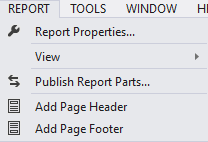
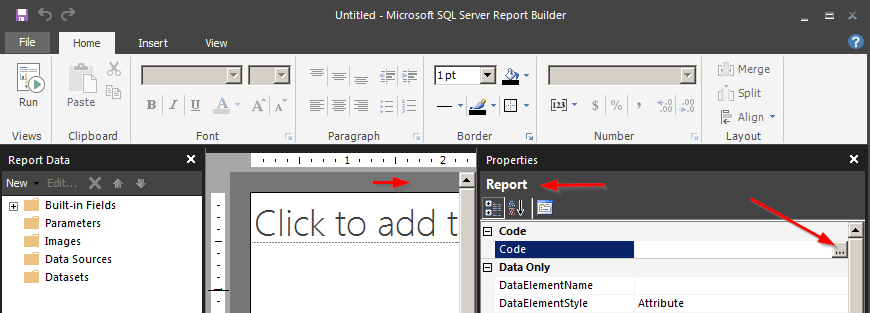
- Click on the body of the report to
activate the Report menu in the VS .NET IDE.
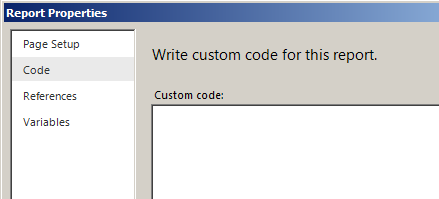
Click the Report Menu | Report Properties.
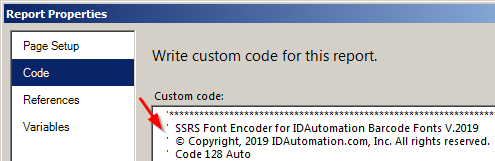
Click the References tab. At this point
IDAutomation.com.FontReportFunctions.dll
will be added to the report project.
- Click the button containing three dots next to the Assembly
column.
- Click the Browse button on the Add Reference dialog
box.
Navigate to the location of IDAutomation.com.FontReportFunctions.dll.
Select the file and click Open. Click OK on the
Add Reference Dialog.
- Select the class name containing the data-encoding
functions. This value is pulled directly from the assembly file.
Also, an instance name is required. The values for these fields
may be pulled directly from the image below:

- Click OK. The encoding functions are now
available for use in the report. In this example, Code128 function is used. Complete lists of available functions are listed below.
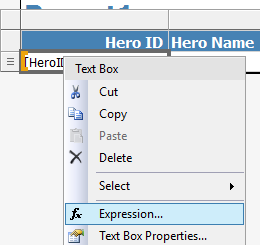
- The encoding functions are added as expressions to the appropriate
field. Right-click the empty area below the Barcode ID field and
select Expressions.
Note:
Because there is no graphical means to enter these functions,
the information must typed into the Expression: area of the
Edit
Expression dialog. The format of the expressions is:
=Code.InstanceName.FunctionName(parameter)
where Code is
a global module for processing custom code requests, InstanceName
is the instance of the class variable assigned in step 16, FunctionName is one of the functions listed below, and
the parameter is the data that needs to be encoded into a barcode.
Enter
=Code.clsIDAutomationBarcode.Code128(Fields!CustomerID.Value)
in the expression field.

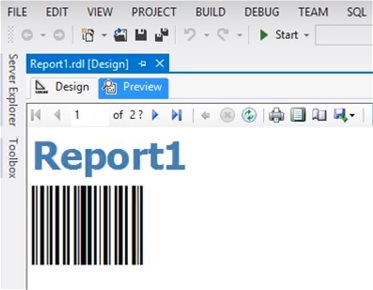
- Click the Preview tab to ensure that the function
is returning data. There should be some strange characters appended
to the beginning and ending of the data from the fields. This is normal for Code 128 and Interleaved 2 of
5 symbologies when numbers need to be compressed within the barcode.

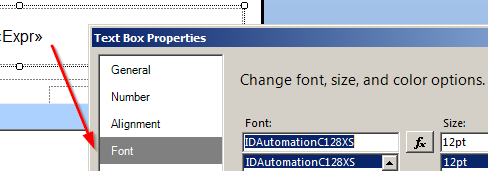
- Click the Layout tab and apply one of the
Code 128 fonts to the field containing the expression. The report
may now be previewed.

- Click Build | Deploy Solution to deploy the solution
to the Report Server.
For all Reporting Services barcode functions below, the data input type is a single string.
For all number symbologies such as Postnet and UPC, dashes or spaces
may be entered for greater readability, but will be filtered out by
the function before the barcode is generated. For UPC-A, UPC-E & EAN-13,
the +2 and +5 add-on barcodes may be created by appending them to the
end of the string.
| Function |
Function Notes and
Additional Information |
| Code128(Data,
ApplyTilde) |
This is a "Code 128 Auto" function that
will automatically encode any data from ASCII 0 to ASCII
127, and will automatically switch to character set C for numbers.
Code 128 barcode fonts have many options:
UCC/EAN-128
Encoding: to encode alpha-numeric
UCC/EAN128, the character set must be "0" or "AUTO" for
automatic (the default setting). ASCII 202 or character
Ê is recognized as the FNC1 before each AI. When a barcode
begins with an AI, the required start C is included automatically.
For example, the UCC number of (8100)712345(21)12WH5678
should be entered as: Ê8100712345Ê2112WH5678.
In most cases, the AIs will be properly represented in the
human readable text. If the parenthesis is not around the
correct number for the AI, enter the following extended
ASCII character as the FNC1 for the correct number of digits
in the user's AI:
ASCII 212 = 2 digits ASCII 213 = 3 digits
ASCII 214 = 4 digits ASCII 215 = 5 digits
ASCII 216 = 6 digits ASCII 217 = 7 digits
For example, to encode (1277)56, enter Ö127756.
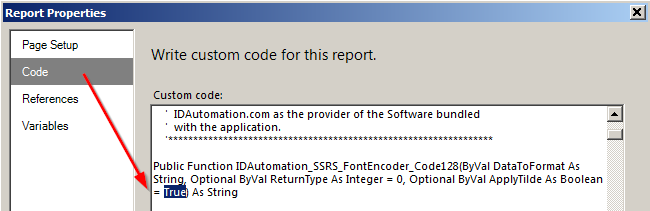
Apply Tilde: when using
Code 128, the character set is Auto and ApplyTilde is True,
the following options are available:
- Encode ASCII Characters:
The format ~ddd may be used to specify the ASCII code
of the character being encoded. For example, if the
user enters
128~029TEST in the data field, the user will be encoding
128GSTEST
Where GS
is a delimiter ASCII 29 character. Other commonly used
ASCII codes are ~032 the space, ~202 the FNC1, ~197
the FNC2, ~009 the tab and ~013 which is a return function.
For encoding other functions, please refer to the
ASCII chart.
- Create a Mod-10 Check-Digit:
To create a Mod-10 check-digit
for xx number of characters, add the following to the
DataToEncode: ~mnn (where nn is a 2 digit number representing
the number of characters preceding the tilde in which
to base the Mod 10 calculation). The additional MOD-10 check digit is commonly used in UCC or EAN barcode
types. For example, setting the DataToEncode property
to Ê4021234567890123456~m16 will create a mod-10 check-digit based on all 16 characters before
the tilde. The human-readable text and scanned data
will display as (402)12345678901234566. The final 6
is the mod-10 check-digit, and replaces ~m16.
Review the
Code 128 Barcode FAQ and Tutorial for more information.
|
|
Code128HumanReadable(Data, ApplyTilde) |
Returns the human-readable text that displays above or below the barcode, which
describes the data encoded in the barcode. The second parameter (a true or false
value) determines if the tilde character (~) should be interpreted for special
processing when
using
the ApplyTilde Character. |
| Code128a(Data) |
Use character set B to print characters not on the keyboard; the
scanner will scan characters from set A. Formats output
to the Code 128 barcode fonts. |
|
Code128b(Data) |
Returns codes formatted to the Code 128 character
set B. Formats output to the Code 128 barcode fonts. |
| Code128c(Data) |
Requiring an even number of digits, this Code 128 function "interleaves" numbers
into pairs for high density barcodes. |
|
UCC128(Data) |
Creates a UCC/EAN-128 barcode. |
| I2of5() |
Requiring an even number of digits, this function
"interleaves" numbers into pairs for high density without
check digits and formats the return string to
Interleaved
2 of 5 barcode fonts. |
|
I2of5Mod10(Data, Number) |
(Data, 0) performs the mod10 checksum calculation
for increased accuracy and formats the return string to
the Interleaved 2 of 5 fonts. MOD 10 checksums are required
for SSC-14 when using Interleaved 2 of 5 for that purpose.
An odd number of digits is required.
(Data, 1) returns the human readable data with the MOD10
check digit included.
(Data, 2) returns the MOD10 check digit. |
| Code39() |
Formats the output
to print using Code 39
barcode fonts. |
|
Code39Mod43(Data, Number) |
(Data, 0) performs the mod43 checksum calculation
for increased accuracy and then formats the output to print
using Code 39 fonts. The mod43 checksum is usually required
for LOGMARS applications.
(Data, 1) returns the human readable data with the check
digit included.
(Data, 2) returns only the check digit. |
| Codabar() |
Formats the output
to print using Codabar
barcode fonts. |
|
Postnet(Data, Number) |
Enter a single string of Zip, Zip + 4 or
Zip + 4 + Delivery Point. The input for Data must
be a number and may include dashes and spaces.
(Data, 0) formats output to Postnet barcode fonts.
(Data, 1) returns the human-readable data with the check
digit included.
(Data, 2) returns the check digit only. |
| MSI(Data, Number) |
(Data, 0) formats
output to the MSI barcode fonts.
(Data, 1) returns the human-readable data with the check
digit included.
(Data, 2) returns the check digit only. |
|
Code11() |
Only the C check digit is calculated which
is the standard when encoding 10 digits or less. |
| UPCa(Data) |
A UPC-A
number string of 11, 12, 13, 14, 16 or 17 digits with or
without a check digit, add-ons are supported. Formats output
to the UPC/EAN barcode font. Entering incorrect data will
create a barcode containing all zeros. |
|
UPCe(Data) |
A UPC-A number string of 11, 12,
13, 14, 16 or 17 digits with or without a check digit, add-ons
are supported. The purpose of this function is to print
the UPC-E barcode from a UPC-A barcode that may be compressed.
It will print a UPC-A if it can not be compressed by zero
suppression rules. Formats output to the UPC/EAN barcode
font. Entering incorrect data will create a barcode containing
"00005000000". |
| EAN13(Data) |
A number
string of 12, 13, 14, 15, 17 or 18 digits with or without
a check digit, add-ons are supported. Formats output to
the UPC/EAN barcode font. Entering incorrect data will create
a barcode containing all zeros. |
|
mod10(Data) |
A number string. A MOD 10 check digit
is returned. This is useful in calculating check digits
for UCC/EAN 128 barcodes where a MOD check digit is needed.
|
| EAN8(Data) |
Data is a number
string of 7 or 8 characters (EAN-8 without the check digit).
Formats output to the UPC/EAN barcode font. Entering incorrect
data will create a barcode containing all zeros.
|
This Code 128 function allows for the encoding of unprintable ASCII
characters and calculation of a Mod 10 check character by denoting the
tilde character (~) as a special processing delimiter. When the
ApplyTilde
parameter is set to true, the function assumes that special processing
will occur, and thus does not encode the tilde character. When encoding a tilde character in the
Code 128 barcode font, set the ApplyTilde
property to false.
- Encode an ASCII Character: The format ~ddd may be used
to specify the ASCII code of the character to be encoded. For example,
if entering 66~02977 in the Data field,
66GS77 will be encoded
where GS is a delimiter ASCII
29 character. Other commonly-used ASCII codes are ~009 for a tab
and ~013 for a return function. Please refer to
the
ASCII chart when
encoding other functions.
- Create a Mod 10 Check Digit: To create a Mod 10 check
digit for xx number of characters, add the following to the
DataToEncode:
~mnn where nn is a 2-digit number representing the number
of characters preceding the tilde in which to base the Mod 10 calculation.
The additional MOD 10 check digit is commonly used in UCC or EAN
barcode types. For example, setting the DataToEncode property to
Ê4021234567890123456~m16 will create a mod 10 check digit
based on all 16 characters before the tilde. The human-readable
text and scanned data will display as (402)12345678901234566. The
final 6 is the mod 10 check digit and replaces ~m16.
Additional Code 128 Auto Function Features
- Manual Setting of the Number of AI Characters:
In most cases, the Application Identifiers will be represented properly in the human-readable text. If the parenthesis is not around the correct number
for the AI, enter the following extended ASCII character as the
FNC1 for the correct number of digits in the AI:
ASCII 212 = 2 digits
ASCII 213 = 3 digits
ASCII 214 = 4 digits
ASCII 215 = 5 digits
ASCII 216 = 6 digits
ASCII 217 = 7 digits
For example, to encode (1277)56, enter
Ö127756.
- FNC2: The FNC2 character may be inserted
into the DataToEncode string by using ASCII 197. For example,
Å8012349091. The IDAutomation
USB
Barcode Scanner may be programmed to hold the barcode starting with
the FNC2 in memory, and only transmit it to the computer after scanning
a barcode containing the FNC1.
Related Links and Information
|