

Barcode Add-in for Word and Excel
NOTE: This Barcode Add-in is a legacy product only compatible with Office 2010 and earlier.
For later versions of Office, use one of the following:
- Excel - use the Native Barcode Generator for Excel for locally installed versions of Excel on Windows and Mac. This product also functions as an Excel Barcode Add-in. When using barcode fonts in Excel, use the VBA Font Encoder.
- Excel 365 Online (Web Version) - refer to the Excel 365 Barcode Streaming Tutorial.
- Word - use the VBA Macro with Barcode Fonts.
- Access - use the Native Barcode Generator for Access.
NOTE: This Barcode Add-in is a legacy product only compatible with Office 2010 and earlier.
-
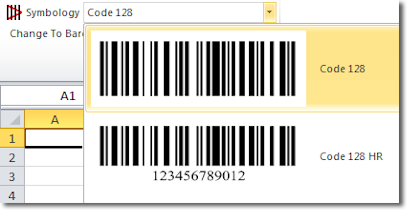 Easily
generate barcodes in Microsoft® Word and Microsoft® Excel® with a single click
after highlighting the data to be encoded in the barcode.
Easily
generate barcodes in Microsoft® Word and Microsoft® Excel® with a single click
after highlighting the data to be encoded in the barcode. - Quickly change an entire data column or row to barcodes.
- Royalty-free with the purchase of any IDAutomation barcode font package.
- Supports all linear and 2D barcode fonts, including DataBar and the IDAutomation Universal fonts.
- Compatible with Word & Excel 2003, 2007, and 2010* for Microsoft Windows or Word & Excel 2004 and 2011 for Mac OSX.
- Windows Users: This barcode add-in will not be visible unless the associated barcode fonts are installed.
- Mac Users: The add-in will only encode the data and will not generate a readable barcode unless the appropriate font is installed.
*The Barcode Add-in is not compatible with online versions of Office 365 or with versions after Office 2013.
Installing the Barcode Add-in for Windows
- If the barcode font of choice is not already installed, be sure to install it on the system first.
-
Download and install the Add-in for Word and Excel
- If using Office 2007 or above, click the setup.exe install file located in the "2007 and Above" folder.
- If using Office 2003, click the IDAutomation_WordExcelAdd-in.exe installation located in the "2003" folder.
Barcode Add-In Toolbar in Microsoft® Office® 2003

Barcode Add-In Toolbar in Microsoft® Office® 2007, 2010 & 2013

*The Barcode Add-in is not compatible with online versions of Office 365 or with versions after Office 2013. The VBA Module is the recommended solution for natively installed versions of Office 365, Office 2013, and 2016.
Installing the Barcode Add-in for Mac
- If the barcode font of choice is not already installed, be sure to install it on the system first.
- Quit Word and Excel if they are running.
-
Download and extract the Add-in for Word and Excel, and open the Mac folder.
- If using Office version 2004, copy the IDAutomation_Excel_Addin.xla file to the Applications/Microsoft Office 2004/Office/Add-ins folder and copy the IDAutomation_Word_Addin.dot file to the Applications/Microsoft Office 2004/Office/Startup/Word folder.
- If using Office version 2011, copy the IDAutomation_Excel_Addin.xla file to the Applications/Microsoft Office 2011/Office/Add-ins folder and copy the IDAutomation_Word_Addin.dot file to the Applications/Microsoft Office 2011/Office/Startup/Word folder.
- Open Excel and select the Add-Ins option in the Tools menu
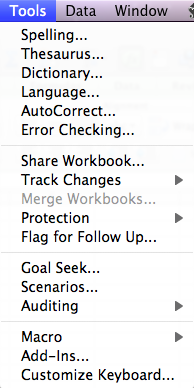
- Make sure the IDAutomation_Excel_Addin.xla option is selected with a check.
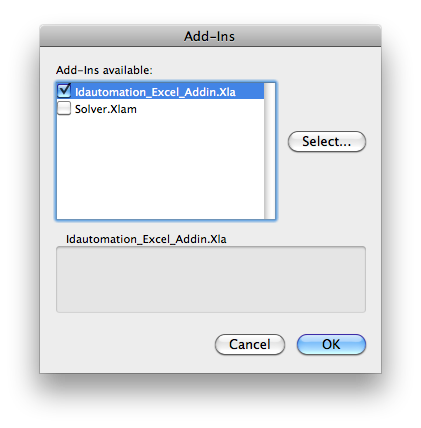
This will enable the add-in toolbar within Excel.
Barcode Add-In Toolbar in Microsoft® Office® for Mac

The toolbar allows easy generation of barcodes with the click of a button. It is important to note that if an IDAutomation font is not installed on the computer, either licensed or demo, then the user will simply view the encoded data because the appropriate font is needed to display the barcode.
Barcode Add-in for Microsoft Word Tutorial
Creating Barcodes in Word
This tutorial will demonstrate how to create a static barcode in a Microsoft Word document.
- If the barcode font required is not already installed, be sure to install it on the system first.
- Then, Download the Barcode Add-in for Word and Excel and install it to enable the add-in toolbar.
- Open a Word document, and the add-in toolbar should be displayed in the Add-Ins tab.
- Highlight the data that will be encoded in the barcode.
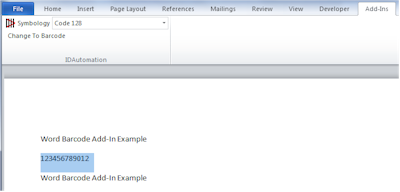
- Microsoft Word 2003: With the data highlighted, select the
appropriate barcode font from the list. Multiple
barcode fonts have been installed for the following screenshots, and users will see
only the barcode options for the fonts installed on their computers.

Microsoft Word 2007 through 2013: Select the barcode font of choice from the list and then click the Change To Barcode button to encode and generate the barcode.

Microsoft Word 2004 or 2011 for Mac: Click the button of the desired barcode type to generate the barcode. The barcode font will only be applied if the appropriate barcode font is installed.

The following is an example of the same data shown above being changed to a Code 128 barcode. A red line may appear in the barcode from the spell-checker, but this is normal and may be ignored in barcode symbols.
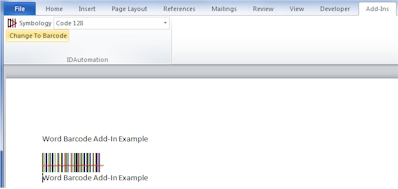
- The data is formatted for the selected barcode type, and when the appropriate font is applied to it, an accurate barcode will be displayed. Once the data is formatted and changed to a barcode, it cannot be modified to another barcode type. The only way to change to a different barcode is by clicking the undo button several times until the data is changed back to the original data before formatting.
- Print and scan the barcode to verify that the correct data is being encoded. If a scanner is needed to verify barcodes, IDAutomation IDAutomation recommends these Barcode Scanners.
- When distributing a Word document, the font should be embedded so the barcode is visible without the need to install the font package. This type of distribution requires at least a Developer License for the associated font.
Using the Barcode Add-In for Word Mail-Merge
How to Create a Dynamic Barcode in Mail-Merge for Word
This tutorial demonstrates how to generate a dynamic barcode for Word mail merge. When performing a mail merge with Word using Excel, the add-in would only be used to encode the data in Excel. Then this encoded data will be merged into the Word document, at which time the barcode font will be applied to the merged field. To create a single static barcode in a normal Word document, refer to the Word Barcode Add-In Tutorial.
-
 Install
the barcode font
of choice if it is not already installed.
Install
the barcode font
of choice if it is not already installed. - Download the Barcode Add-In for Word & Excel, then install it.
- Create an Excel spreadsheet as the mail merge data source.
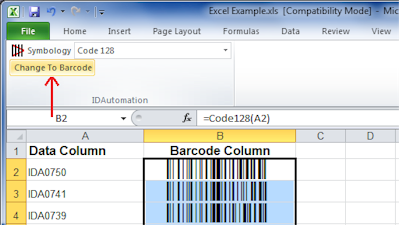
- The barcode columns in the Excel spreadsheet should be created in the far-right column. The formula in the column should contain the data that needs to be encoded in the barcode.
- Row 1 in this column should be titled Barcode Column, as in the example.
- Select the entire barcode column, excluding row 1, and convert this row to barcodes by choosing the appropriate barcode type in the toolbar.
- Save the spreadsheet.
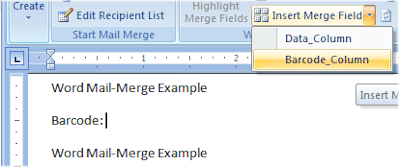
- Follow the Word mail merge process. When asked to "select
recipients" or for the "data source," choose the newly created Excel spreadsheet. Place the cursor where the barcode should appear and choose to
insert the barcode Column.
- Select the entire <<Barcode_Column>> (including the arrow
indicators), right-click, and choose the appropriate barcode font.
The font type must match the font button that was clicked above in Step 4.
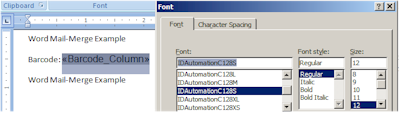
- When the mail merge is complete, barcodes will be generated in the <<Barcode_Column>> merge field with the barcode font.
- Print and scan the barcodes to verify that the correct data is encoded. If a scanner is needed to verify barcodes, IDAutomation recommends these Barcode Scanners.
- When distributing a mail-merge document, the font should be embedded in Word, and the Excel data source must be accessible. Distribution in this way requires at least a Developer License for the associated font.
Barcode Add-in for Excel Tutorial
The unique method used in IDAutomation's Barcode Add-In for Excel converts selected cells, rows, and columns from data to encode into barcodes. Because formulas and functions are used, the barcodes are dynamic in the sheet; when data in Excel changes, the barcodes change automatically. Excel Barcode Add-In Video Tutorial
Create a Barcode in Excel
- If not already installed, be sure to install the barcode font of your choice.
- Download and install the Barcode Add-in for Word and Excel to activate the toolbar.
- Open an Excel spreadsheet. The Barcode Add-In toolbar should now be visible.
- Select the cells that need to be changed into a barcode.
Microsoft Excel 2003: Click the button for the desired barcode type. In the following screenshots, multiple barcode fonts have been installed. Users will only see symbology options for the fonts installed on their computers.
Microsoft Excel 2007 through 2013: Click the Change To Barcode button to change the data to the selected barcode type from the Symbology drop-down list.
*On Windows 8, Excel 2013 is unable to access the encoding routines to format the data to encode and generate a scannable barcode. To resolve this issue, the user must install the barcode fonts, install the Barcode Add-In for Excel, and then import the VBA functions.
Microsoft Excel 2004 or 2011 for Mac: Click the button for the desired barcode type to generate the barcode. The barcode font will only be applied if the appropriate font is installed.
Selecting the entire column may take a few seconds to calculate because of the large number of rows. When selecting an entire column, be sure to deselect the header row, or it will also be converted to a barcode.
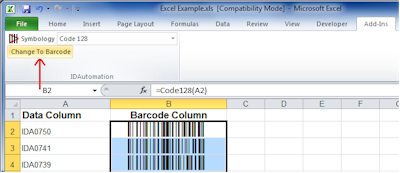
- Once clicked, the appropriate function is entered automatically, and the font is applied, generating a readable barcode.
- If changing the barcode type, first select the cells containing the barcode,
then:
Windows 2003 or Mac 2004 and 2011: Select the appropriate button.
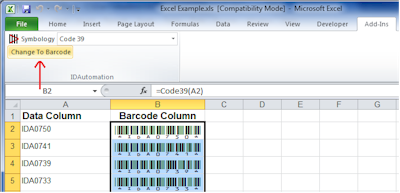
Windows 2007 through 2013: Select another barcode type from the Symbology drop-down list and click Change To Barcode.
The example below shows the barcode changed to Code 39.
- Print and scan the barcodes to verify that the correct data is being encoded. If a scanner is needed to verify barcodes, IDAutomation recommends these Barcode Scanners.
Support
This is a legacy product that is only compatible with Office 2010 and earlier. Support is no longer available for this product.
Common Issues
- The Add-In Toolbar Does Not Appear
A demo or purchased IDAutomation barcode font must be installed for the toolbar to appear. If the Add-in was installed before the fonts, close all instances of Microsoft Office, install the barcode font, and then reopen Excel or Word to activate the add-in. - There is no Button for the Desired Barcode Type
If the desired barcode button does not appear as an option, install the appropriate font and restart Word or Excel to activate the button. For example, to enable the Code 39 button, install the Code 39 Fonts. In some cases, it may be necessary to restart the entire computer so that cached components are updated. - Changing the Barcode Size
The size of the barcode may be modified by selecting a different size font or changing the point size. Here is how:
1. Highlight the entire barcode
2. Right-click and change the point size or font height. Common font heights are XS (extra small) to L (large).
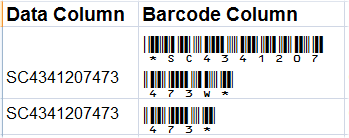
- Barcode Appears Truncated or Wraps in Excel and Will Not Scan
This issue will occur if the column is not wide enough to contain the entire barcode. To resolve this issue, simply widen the column as necessary.
- The Add-In Toolbar Does Not Appear for Additional Users on the Same PC
When the add-in is installed, it is only activated in Word and Excel for the user profile where it is being installed. Therefore, each user must install the add-in to make use of it within their user profile. - The Undo Button Does Not Undo the Barcode
If the undo button does not undo the barcode, delete it and attempt to create a new one using the same method. - Red Line Appears in the Barcode
A red line may appear in the barcode as a result of the spell-checking process. This is normal and occurs when the spell checker cannot associate the converted barcode with a defined word. The spell-check symbol may be ignored in all barcode symbols, as it will not impact scanning in any way. - ApplyTilde Required for GS1-128
When using the add-in, ApplyTilde is enabled by default. This enables GS1-128 barcodes to be easily generated in Word or Excel with the parentheses method. To encode the Tilde directly, use ~126. - If Office 97 or Office 2000 Compatibility is Needed
Compatibility for versions not mentioned here may be achieved by implementing IDAutomation's VBA Macros. - Need More Barcode Functionality or Customization
More functionality and customization may be achieved by implementing IDAutomation's VBA Macros, which are functions that can be easily edited in Visual Basic code. - Rectangular Boxes or Strange Symbols Appear with the Code-128-HR Button
The Code-128-HR button should not be used in a Word Mail-Merge from Excel. The rectangular boxes indicate a Unicode or double-byte incompatibility. If rectangular boxes appear in a barcode generated when selecting the Code-128-HR button, use the standard Code 128 button instead. - Horizontal Lines Appear or Barcode Splits if Creating DataBar Stacked or
2D Barcodes
This may occur because of the line spacing property or the text justification issue with fonts that require more than one line of encoding. - Additional Microsoft Excel barcoding options
- Video Tutorials:
