

JavaScript PDF417 Barcode Generator
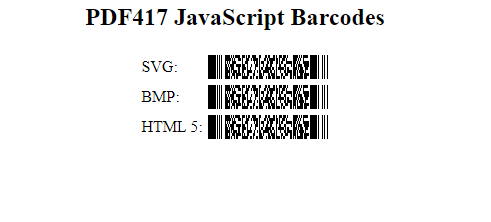
- Generate PDF417 barcode images in JavaScript-based web applications or environments like JQuery, Apache Cordova, Adobe PhoneGap, and others.
- Supports standards and specifications based on the PDF417 barcode symbology.
- Supports image formats for SVG, HTML5 Canvas, BMP, and Font Image.
- Barcode options may be changed within the top of the referenced .js file or as function parameters.
- Easy function encoding capability for easy methods of encoding functions like returns and tabs in PDF417.
- Compressed and uncompressed source code provided.
User Manual Integration Download Demo Buy License
JavaScript PDF417 Barcode Generator Overview
The JavaScript PDF417 Barcode Generator integrates with web applications, Oracle Reports, and HTML to display static or dynamic PDF417 barcode images without additional components, fonts, or plug-ins.
PDF417 Integration with VSCode
The Native JavaScript Barcode Generator may be utilized in any environment supporting JavaScript or HTML5.
- Extract the files from the installation package.
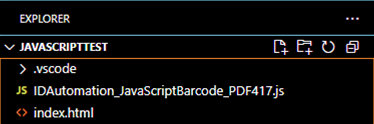
- Locate the PDF417 JS file; there are compressed and uncompressed versions depending on the project requirements.
- Open the IDE of choice; this tutorial uses VSCode.
- Add the Idautomation_JavaScriptBarcode_PDF417.js file to the project.
- Place the code below in the HTML file of choice:
- The #barcode-container pre rules ensure the barcode stays readable, never too wide, and scrolls horizontally if necessary.
- The #barcode-container width (200px) controls how much space the barcode is allowed to occupy on the page.
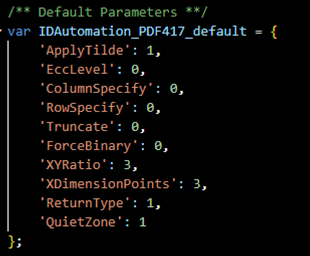
- Verify the parameters; these may be edited in the JS file or in the function above.
<!DOCTYPE html>
<html lang="en">
<head>
    <meta charset="UTF-8">
    <meta name="viewport" content="width=device-width, initial-scale=1.0">
    <title>Barcode Demo</title>
    <script src="IDAutomation_JavaScriptBarcode_PDF417.js"></script>
</head>
<body>
    <div id="barcode-container">
        <script>
          document.write(IDAutomation_JavaScriptBarcode_PDF417("some test data"));
        </script>
    </div>

    <style>
        #barcode-container pre {
          width: 100% !important;
          max-width: 500px;
          overflow-x: auto;
          padding: none;
        }
        #barcode-container{
          width: 200px;
        }
    </style>
</body>
</html>
PDF417 Barcode Properties
The following options control the size, shape, and encoding behavior of the generated PDF417 barcode.
- ApplyTilde (0 or 1) - When set to “1,” the format ~ddd is used to specify the ASCII code of the character to be encoded.
- EccLevel (0-8) - Sets the error correction level. Higher values increase redundancy, making the barcode more resistant to damage, but also increase the size of the symbol.
- ColumnSpecify (0-30) - Allows users to set the number of data columns in the symbol. A higher number of columns makes the barcode wider.
- RowSpecify (0-90) - Allows you to set the number of rows in the symbol. A higher number of rows makes the barcode taller.
- Truncate (0 or 1) - When set to 1, the barcode is truncated, which removes the right-hand stop pattern to make the symbol smaller. This reduces scan reliability, so truncation should only be used when space is very limited.
- ForceBinary (0 or 1) - When set to 1, all data is encoded in binary mode (byte compaction). Otherwise, it uses ASCII mode.
- XYRatio (1-10) - Adjusts the width-to-height ratio of the barcode cells. The default is 3 (modules are 3 times as tall as they are wide).
- XDimensionsPoints (1-10) - Defines the narrow bar width in printer’s points (1 point = 1/72 inch). Larger values create bigger barcodes, which are easier to scan at the cost of space.
- ReturnType (1-3) - The ReturnType parameter may be changed to return images other than the default. This may be necessary if the image does not produce the desired result.
- 0 = SVG (Default): Produces a scalable vector image of the barcode.
- 1 = BMP Image: When the X Dimension is set to 1, the BMP images may appear to have clearer HR text.
- 2 = HTML5 Canvas: HTML5 images may appear blurry on some devices when XDimensionPoints is less than 3.
- 3 = Font Image: Generates a symbol from text using a mono-spaced system font (Unicode image). XDimensionPoints should be increased to about 6 or 8 when using this option.
- QuietZone (0-10) - Defines the margin of white space around the barcode, in multiples of the X dimension. Recommended minimum = 1. Increasing this improves scan reliability, especially on cluttered backgrounds.
- IDElement (string, optional) - If provided (e.g., "barcodeTarget"), the function writes the barcode output directly into that element.
