

Create Barcode Labels from QuickBooks
This tutorial will explain how to export data out of QuickBooks to create labels using IDAutomation's Barcode Label Software. This method can be used to create mailing or shipping labels or add barcodes to containers in the warehouse to assist with inventory.
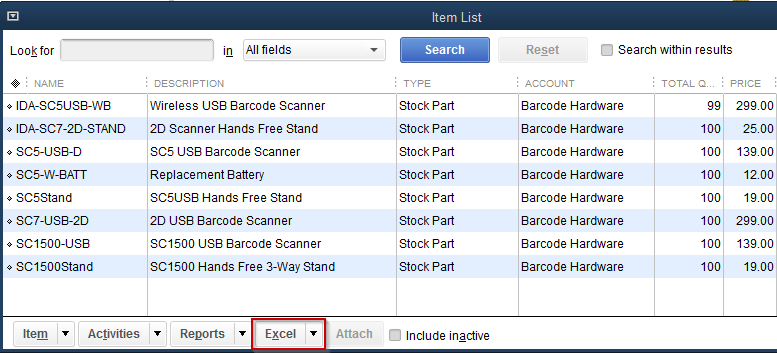
- Assuming that an item list has been created in QuickBooks, click the
Excel button at the bottom. This option will allow users to save the file
either in an Excel Spreadsheet or as a CSV file:
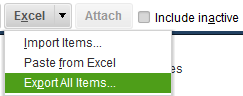
- Choose Export All Items:
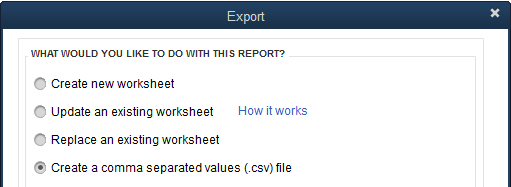
- Then select whether to save as a new spreadsheet, update the current
spreadsheet, or save as a CSV file, as in this tutorial:
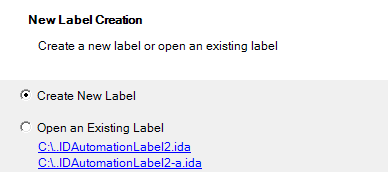
- Now open the
Barcode Label Software and choose to Create New Label:
Follow the instructions to set up the new label in the Barcode Label Software User Manual. - To import the QuickBooks data into the Barcode Label Software, go to
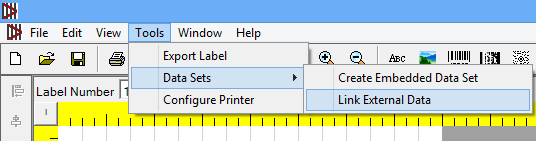
Tools > Data Sets > Link External Data:
- Locate the spreadsheet or csv file to import the data:
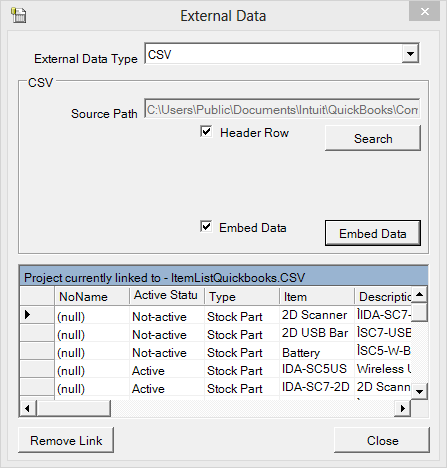
- The data exported out of QuickBooks and imported into the Barcode Label
Software is now available to use on the label when accessing it from the
Value tab of the barcode properties window:

- Additional assistance in setting up and using the Barcode Label Software can be found in the User Manual.
