

How to Display Barcodes in Power BI Desktop
Integrating barcodes into Power BI Desktop allows data to be represented visually in a compact, scannable format. This guide provides a complete walkthrough of how to connect to a data source, configure a barcode column, and display barcodes directly in reports. Whether working with an Excel workbook or another data source, these steps make it easy to generate barcodes dynamically and add professional polish to dashboards.
Requirements
- IDAutomation SaaS License or Demo
- Power BI Desktop
- A Data Source
Creating Code-128 Barcodes
Generate linear barcodes with data fields by utilizing IDAutomation's SaaS. Select from multiple symbologies along with the ability to fine-tune parameters to fit any project or workflow. View more properties for different parameters.
Step 1: Connect to a Data Source
Start by launching Power BI Desktop. Connect to a data source that contains the information intended for encoding. In this example, an Excel workbook is used, but the process works the same for databases. Selecting the right data source ensures that barcodes remain accurate and aligned with reporting needs.
Step 2: Create a Barcode Column
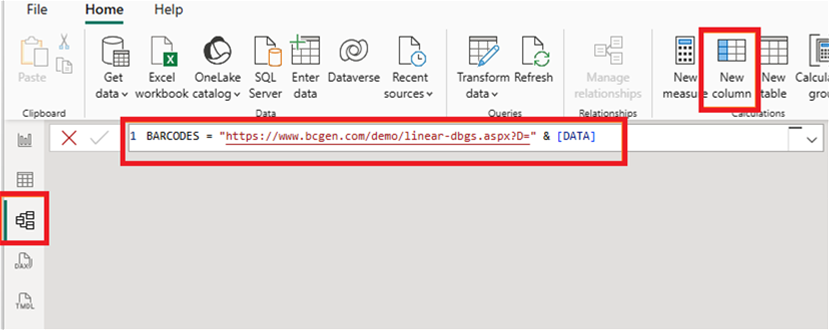
For barcodes to display correctly, add a new calculated column in the model view to store the function with the image URL. This tutorial names the column BARCODES. Once created, adjust the following properties:
- Data type: Change to Text to handle the URL values.
- Summarization: Set to Don’t summarize to avoid aggregation issues.
- Data category: Assign to Image URL so Power BI recognizes it as a link to images.
These settings ensure the column correctly renders barcode images instead of text strings.
Step 3: Assign the Barcode URL
Next, populate the new BARCODES column with a formula that generates the barcode. The following example appends the data field to the live barcode generator:
BARCODES = "https://www.bcgen.com/demo/linear-dbgs.aspx?D=" & [DATA]With this approach, each row in the dataset dynamically creates a barcode image URL based on its corresponding [DATA] value. This makes the barcodes unique to each record and ensures that any updates to the data are automatically reflected in the generated barcode.
Step 4: Load the Report View
After the column is configured, switch to Report View in Power BI. Add the table visual that contains the barcode column. Once loaded, the barcodes should render as scannable images directly in the report, providing an interactive and professional touch to the visualization.
Barcodes can now be scanned directly from the report or exported PDF, making them ideal for supply chain dashboards, inventory management, retail reporting, or any scenario where quick machine-readable identifiers add value.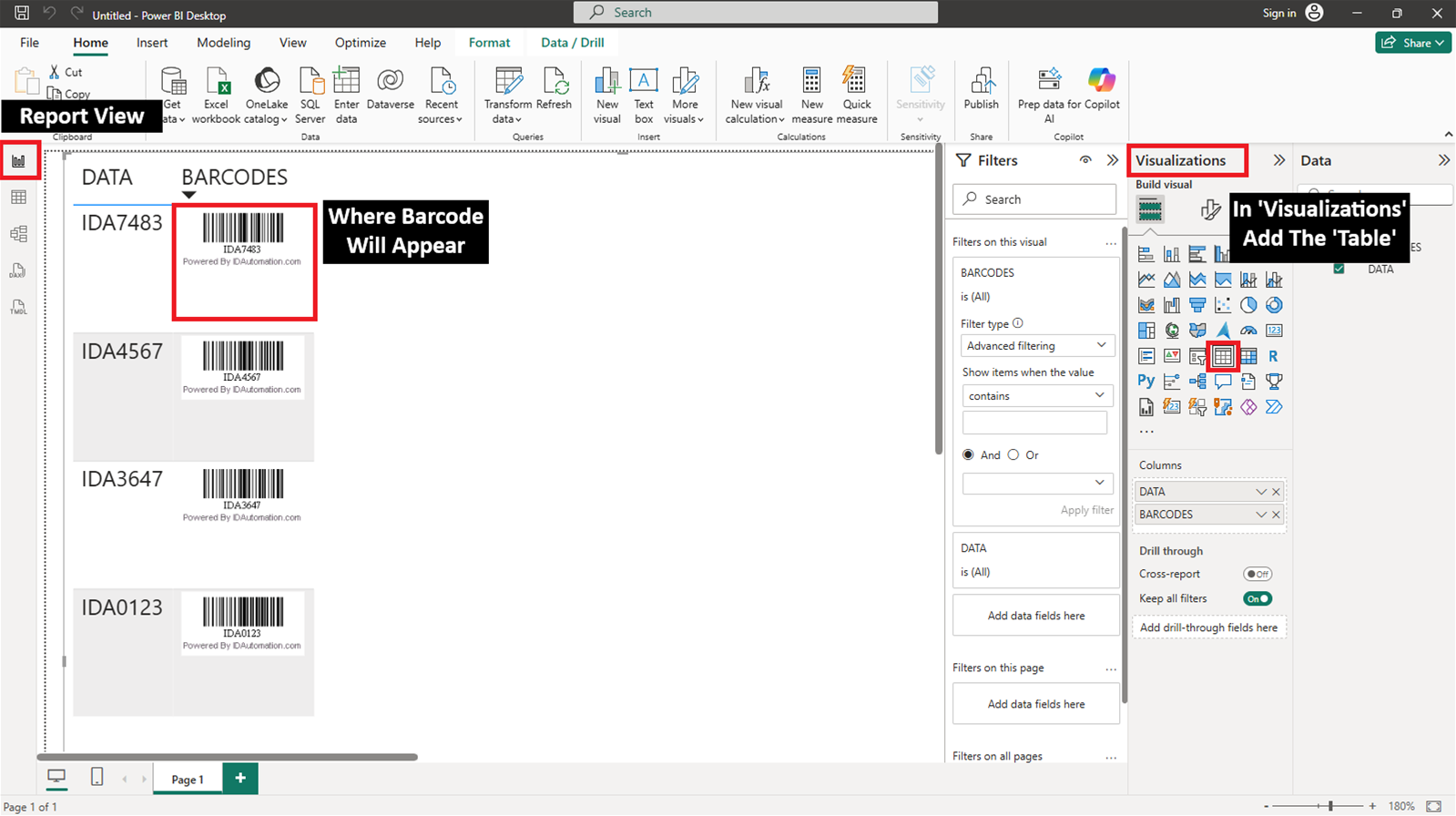
Generating QR-Codes
Generate QR-Codes with data fields by utilizing IDAutomation's SaaS. Select from multiple symbologies along with the ability to fine-tune parameters to fit any project or workflow. View more properties for different parameters.
Step 1: Connect to a Data Source
Start by launching Power BI Desktop. Connect to a data source that contains the information intended for encoding. In this example, an Excel workbook is used, but the process works the same for databases. Selecting the right data source ensures that barcodes remain accurate and aligned with reporting needs.
Step 2: Create a Barcode Column
For QR codes to display correctly, add a new calculated column in the model view to store the function with the image URL. This tutorial names the column BARCODES. Once created, adjust the following properties:
- Data type: Change to Text to handle the URL values.
- Summarization: Set to Don’t summarize to avoid aggregation issues.
- Data category: Assign to Image URL so Power BI recognizes it as a link to images.
These settings ensure the column correctly renders barcode images instead of text strings.
Step 3: Assign the QR-Code URL
Next, populate the new BARCODES column with a formula that generates the barcode. The following example appends the data field to the live barcode generator:
BARCODES = "https://www.bcgen.com/demo/IDAutomationStreamingQRCode.aspx?D=" & [DATA]With this approach, each row in the dataset dynamically creates a barcode image URL based on its corresponding [DATA] value. This makes the barcodes unique to each record and ensures that any updates to the data are automatically reflected in the generated barcode.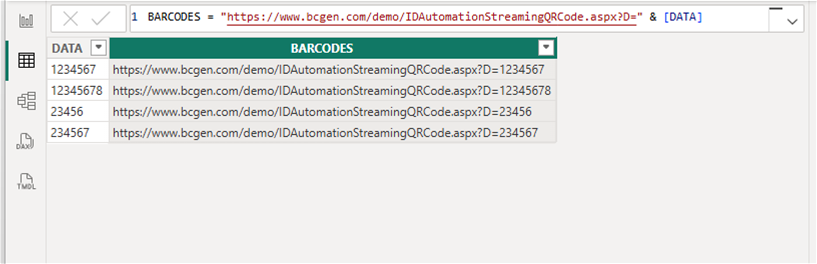
Step 4: Load the Report View
After the column is configured, switch to Report View in Power BI. Add the table visual that contains the barcode column. Once loaded, the QR Codes should render as scannable images directly in the report, providing an interactive and professional touch to the visualization.
QR Codes can now be scanned directly from the report or exported PDF, making them ideal for supply chain dashboards, inventory management, retail reporting, or any scenario where quick machine-readable identifiers add value.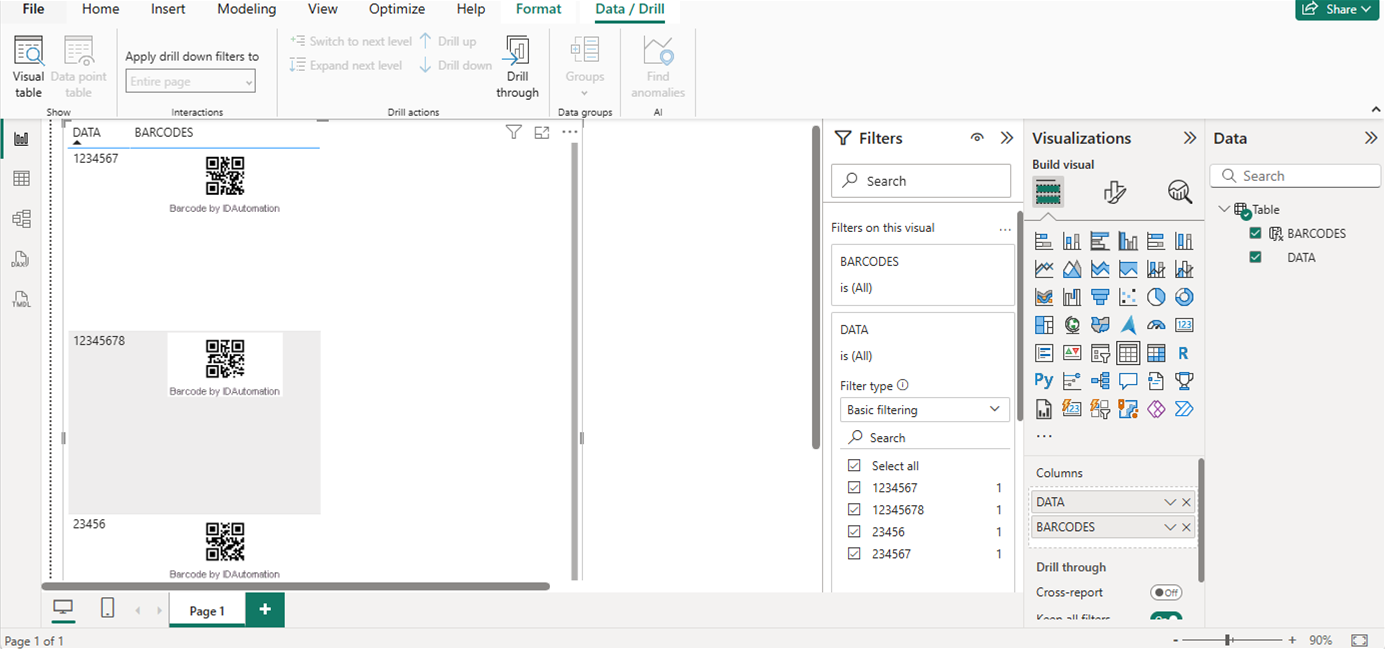
Adding Additional Parameters
Additional parameters can be added to the URL in the same way as other data fields. Simply include an ampersand (&) followed by the parameter inside the quotes, and remember to place another ampersand within the quotes to connect the data to the URL.
BARCODES = "https://www.bcgen.com/demo/linear-dbgs.aspx?D=" & [DATA] & "&S=4"