

Oracle Reports Barcode PL/SQL Font Encoder
This tutorial should be used when implementing barcode generation in Oracle Reports with the IDAutomation PL/SQL Barcode Library and IDAutomation barcode fonts. The barcode library is a PLL file that formats data from fields in the report to create an accurate barcode when combined with IDAutomation barcode fonts.
The library contains functions for Code 128, Code 39, GS1-128, Codabar, Interleaved 2 of 5 (ITF), UPC/EAN, and Universal Barcode Font packages according to the functions listed below. Separate PLL files are provided for Windows and Linux systems, compatible with Oracle 9i and above.
IDAutomation also provides Java barcode generation for Oracle Reports, which is easier to implement in versions 9i, 10g, and above and in Unix and Linux environments. Other solutions are also provided in the Oracle Reports Barcode Integration Guide.
Note: Use of this pll, requires a Developer License or above. This font encoder is supplied with the purchase of a Developer's License or above of any Barcode Font Package.
Oracle Barcode Font Implementation Tutorial
Step 1: Install the Barcode Fonts
IDAutomation offers many different barcode fonts for a variety of purposes. If unsure which to use, consider the Universal Barcode Font with the Code 128 function. The IDAutomation.pll is a standard font encoder and does not format data for the GS1-128 barcode standard. The IDAutomation_Universal.pll (compatible with Oracle 9i and above) can encode data for GS1-128 barcodes. To install these barcode fonts on Windows for Oracle Reports, run the Install.exe file included in the font package or follow the font installation procedures. Because of the complexities and variety of Unix and Linux system distributions, IDAutomation does not provide installation assistance for these systems. However, IDAutomation does provide two sets of installation instructions that may help as a guide:
Consider using Java Barcoding for Oracle Reports for Unix and Linux environments if possible.
Step 2: Install the Oracle Reports Barcode PLL Library
The Oracle Reports Barcode PLL Library is compatible with all versions of Oracle Reports that support attached libraries. The IDAutomation.pll was developed and tested against Reports 6i, and the IDAutomation_Universal.pll is compatible with 10g and above. If used in the database itself, the version of the database would be any version that supports PL/SQL. PL/SQL source code is also provided for advanced Oracle developers in the IDAutomation.pkg file.
- Open Oracle Reports Builder.
- Open the report rdf file that will contain the barcodes.
- Select the attached libraries option.
- Press the Create button (Green Plus symbol) on the left toolbar.
- In the dialog box, select the File System radio button, and click
on the Browse button.
- Included in the Developer Tool's folder of the licensed font package will be the
Oracle Barcode Library Tool, which contains the IDAutomation.pll
and IDAutomation_Universal.pll files. After decompressing, save
these files to an appropriate directory.
- Select the IDAutomation.pll
or the IDAutomation_Universal.pll
file and choose the Attach button. If not sure which to use,
consider the
IDAutomation_Universal.pll
file with the
IDAutomation
Universal Barcode Font.
- A dialog box will appear asking to remove the path. If Yes
is selected, the PL/SQL library will need to be reattached to the
report every time the report is opened. If No is selected, it
will always look for the path in the same location. Leaving the library in the
same directory as the report is encouraged.
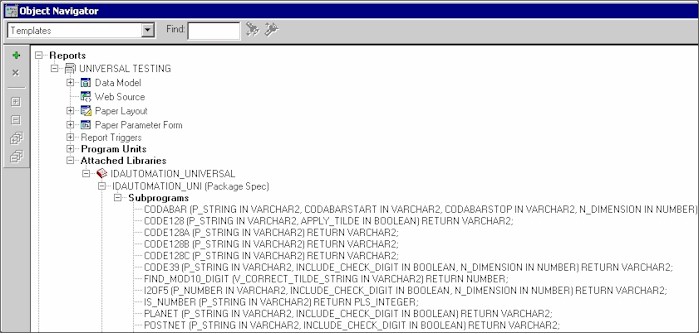
- The barcode functions in the library are now ready to be used
in the report. After the library is attached, the Object Navigator
should look similar to the screenshot below, which shows the attached
IDAutomation_Universal.pll.
Step 3: Set Up the Function Call with the Barcode Font
- IDAutomation's barcode library contains many font functions for linear
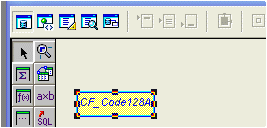
barcodes. Add a Formula Column to the report by using the Data
Model option of the Report Layout, clicking the Formula Column button
on the toolbar, and sizing the column in the layout area.
- The newly added Formula Column properties need to be
adjusted to call the PL/SQL function from the IDAutomation.pll library.
Access the property page for the Formula Column by selecting the
Formula Column and pressing the F4 key. The following window will
appear:
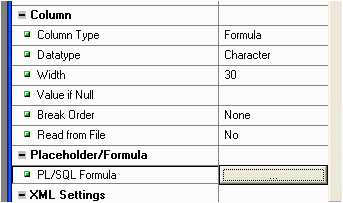
- Adjust the following properties:
- Name: Choose a descriptive name for the Formula Column because the columns will need to be referenced when designing the layout of the actual report.
- Datatype: This must be selected as Character from the drop-down menu.
- Width: Ensure the width of the field is large enough to hold all
encoded characters.
- Click on the PL/SQL Formula button within the Property Inspector
to call the appropriate barcode function. The following screen should
appear:
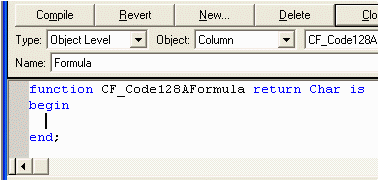
- Insert the appropriate function call where the cursor is positioned within
the report to add the appropriate start and stop characters, encode the data
if necessary, and add the checksum character when required.
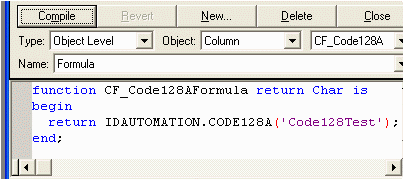
- In the above example, a constant value (Code128Test)
was passed into this function. If necessary, the appropriate character field may
be substituted from the database.
- Click Close in the above window and ensure the report has been
saved.
- To add this Formula Column to the report, switch to Paper Layout
mode for the report and add a Field object to the report by clicking
the appropriate item in the toolbar and dragging it into position on
the report.
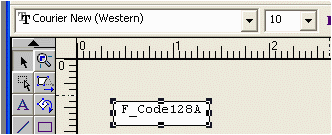
- Once the Field has been added to the report, link it to the Formula Column that was created earlier. To link the
Field to the Formula Column, select the field and hit the
F4 button
to bring up the Property Inspector for the Field. The Property Inspector
should look similar to the following:
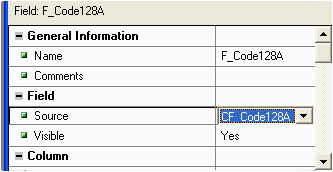
- Adjust the following properties:
- Name: Choose a descriptive name for the field (optional).
- Source: Select the name of the Formula Column that was created earlier (required).
- Modify the font of the field to the appropriate barcode font according to the Oracle Reports Barcode Font Functions chart below.
| Standard Barcode Font Functions | ||
| The methods listed below may only be used with IDAutomation.pll and the appropriate barcode font. IDAutomation strongly recommends using the Universal Barcode Font with the appropriate Universal Function when generating Code 128, GS1-128, or Interleaved 2 of 5 (ITF) barcodes. | ||
| Function | Font Name | Function Notes and Additional Information |
| Code128 (DataToEncode, ReturnType) |
IDAutomationC128 * | Automatically encodes text data from ASCII 1 to ASCII 127. Using the
Universal Barcode Font with the
Universal Font Methods
in the following situations is recommended:
It may be necessary to use the optional ReturnType
for special purposes: |
| Code128a(DataToEncode) | IDAutomationC128 * | Formats output to the Code 128 barcode fonts, character set A. |
| Code128b(DataToEncode) | IDAutomationC128 * | Returns codes formatted to the Code 128 character set B. Formats output to the Code 128 barcode fonts. |
| Code128c(DataToEncode) | IDAutomationC128 * | Interleaves numbers into pairs for high density. |
| I2of5(DataToEncode) |
IDAutomationI25 * IDAutomationI25 * |
Interleaves numbers into pairs for high density without check digits, and formats the return string to the Interleaved 2 of 5 barcode fonts. |
| I2of5Mod10(DataToEncode, ReturnType) |
IDAutomationI25 * IDAutomationI25 * |
(DataToEncode, 0) performs the mod10 checksum
calculation for increased accuracy and formats the return string
to the Interleaved 2 of 5 barcode fonts. (DataToEncode, 1) returns the human-readable data with the MOD10 check digit included. (DataToEncode, 2) returns the MOD10 check digit. |
| * When using the IDAutomationC128 or IDAutomationI25 fonts outside of the USA or for GS1-128, consider using the Universal Barcode Font with the appropriate Universal Function to avoid language and locale incompatibilities. | ||
| Code39Mod43(DataToEncode, ReturnType) | IDAutomationC39 IDAutomationC39 |
(DataToEncode, 0) performs the mod43 checksum
calculation for increased accuracy and formats the output
to print using Code 39 fonts. The mod43 checksum is usually required for LOGMARS
and HIBC applications. (DataToEncode, 1) returns the human-readable data with the check digit included. (DataToEncode, 2) returns only the check digit. |
| Code93(DataToEncode) | IDAutomationC93 | Formats the output to print with the 2 required check digits using Code 93 fonts. |
| Codabar(DataToEncode) | IDAutomationCB | Formats the output to print using Codabar fonts. |
| EAN13(DataToEncode) | IDAutomationUPCEAN | A number string of 12, 13, 14, 15, 17, or 18 digits with or without a check digit. Formats output to the UPC/EAN fonts. Add-ons are supported. |
| EAN8(DataToEncode) | IDAutomationUPCEAN | A number string of 7 or 8 characters (EAN-8 without the check digit). Formats output to the UPC/EAN fonts. Entering incorrect data will create a barcode containing all zeros. |
| Postnet(DataToEncode,ReturnType) | IDAutomationPOSTNET | Enter a single string of Zip, Zip + 4, or
Zip + 4 + Delivery Point or any number of digits for the planet
code. The DataToEncode must be a number and can include dashes
and spaces. (DataToEncode, 0) formats output to the Postnet fonts. (DataToEncode, 1) returns the human-readable data with the check digit included. (DataToEncode, 2) returns only the check digit. |
| UPCa(DataToEncode) | IDAutomationUPCEAN | A UPC-A number string of 11, 12, 13, 14, 16, or 17 digits with or without a check digit. Formats output to the UPC/EAN fonts. Add-ons are supported. |
| Universal & GS1-128 Barcode Font Functions | ||
| These methods may only be used with IDAutomation_Universal.pll and the Universal Barcode Fonts or the GS1-128 Fonts. | ||
| Function | Font Name | Function Notes |
| Code128(DataToEncode, ApplyTilde) | IDAutomation_Uni | Automatically encodes all text from ASCII 1 to ASCII 127. This method contains many options for encoding GS1-128 and includes tilde options to encode functions such as tabs and returns. |
| Code128A(DataToEncode) | IDAutomation_Uni | Formats output to set A of Code-128. Use caution with this option because any lowercase character creates a function. Use the letter "i" for a tab and "m" for a return. For most purposes, it is better to use the C128() function instead of this one. |
| Code128B(DataToEncode) | IDAutomation_Uni | Formats output to Code-128, character set B. For most purposes, it is better to use the C128() function instead of this one. |
| Code128C(DataToEncode) | IDAutomation_Uni | This code128 function "interleaves" even numbers into pairs for high density. An even number of digits is required. For most purposes, it is better to use the C128() function instead of this one. |
| Code39(DataToEncode, N_Dimension, IncludeCheckDigit) | IDAutomation_Uni | Formats the output to Code 39 with the Universal barcode font. A MOD 43 checksum will be calculated if IncludeCheckDigit is true. |
| Codabar(DataToEncode,
N_Dimension, StartChar, StopChar) |
IDAutomation_Uni | Creates Codabar (aka NW7) with the Universal barcode font. StartChar and StopChar are also required as the start and stop characters. Valid start and stop characters are A, B, C, and D. |
| I2of5(DataToEncode, N_Dimension, IncludeCheckDigit) | IDAutomation_Uni | Interleaves numbers into pairs for high density without check digits, and formats the return string to the Universal font. An even number of digits is required. A MOD 10 checksum will be calculated if IncludeCheckDigit is true. |
| Planet(DataToEncode, IncludeCheckDigit) | IDAutomation_Uni | This barcode
type has a specific height requirement, and this function only works
with the XS, S, or M size of the Universal Font.
XS is the normal version, S has the bars narrow by 10% and the M font has the bars narrow by 20%. DataToEncode is a single string of Zip, Zip + 4, or Zip + 4 + Delivery Point. A MOD 10 checksum will be calculated if IncludeCheckDigit is true. |
| Postnet(DataToEncode, IncludeCheckDigit) | IDAutomation_Uni | This barcode type has a specific height requirement, and this function only works with the XS, S, or M size of the Universal Font. XS is the normal version, S has the bars narrow by 10% and the M font has the bars narrow by 20%. DataToEncode is a single string of Zip, Zip + 4, or Zip + 4 + Delivery Point. A MOD 10 checksum will be calculated if IncludeCheckDigit is true. |
Function Property Descriptions
- DataToEncode: A string value that represents the data being encoded.
- N_Dimension: Determines the width of the wide bars which is a multiple of the X dimension. Valid values are 2, 2.5, and 3. The default is 2. The X dimension is determined by the font point size.
- IncludeCheckDigit: A Boolean value that determines whether a check digit should be automatically calculated and included for the DataToEncode.
- ApplyTilde: If set to True, characters following the tilde may be used to perform additional calculations or encode ASCII characters directly.
