

ActiveX Controls For Dynamic Barcode Cells
IDAutomation's ActiveX Barcode Controls may be used in Excel on Windows systems. The Licensed or Demo version may be dragged, dropped, and sized on a spreadsheet. This control can only be linked to one cell. If an entire column of cells should be linked, consider using barcode fonts as an alternative.
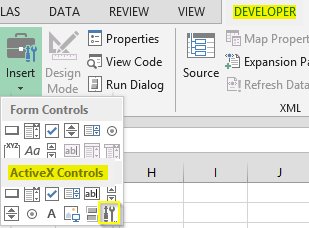
- In Microsoft Excel, on the Developer tab, click Insert, and
under the ActiveX Controls section, click on the More
Controls icon.
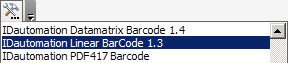
- Select the barcode control from the list of available
ActiveX Controls. Select the control that was installed starting
with "IDAutomation," and drop it onto the spreadsheet.
- Draw the image for the control to appear
in the spreadsheet as if it were a graphic image.
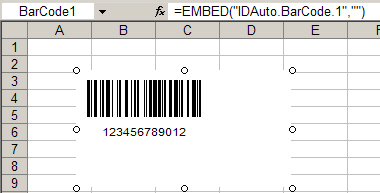
- Size the ActiveX Control as necessary. To modify properties such as barcode height and symbology type, right-click
on the control and select Properties.
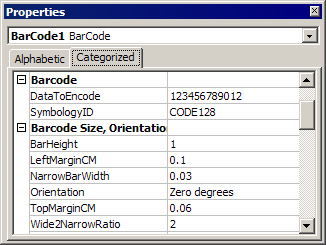
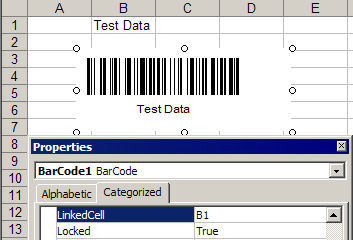
- To link a cell to the data that will be encoded in the barcode,
enter the cell location in the "LinkedCell" property of the control. To
link an entire column of cells into one barcode, consider using barcode fonts as
an option.
- You are finished! Exit design mode by selecting the design mode icon:

- Print and scan the barcode(s) to verify that the correct data is encoded. If a scanner is needed to verify barcodes, consider the IDAutomation Recommended Scanners.
Note: Design mode must be used to edit the properties of the control. If problems are encountered when editing the control properties, select the Design Mode icon to enable it. Be sure to print and scan the barcode(s) to verify the correct data is encoded. If a scanner is needed to verify barcodes, consider one of these IDAutomation Recommended Scanners
