

Microsoft Word Add-In for QR-Code User Manual
This product provides QR Code generation capability to the O365 Word Web App, along with the Desktop Version of Microsoft Word. A connection to the Internet is required to utilize the product.
Compatibility
Compatible with locally installed versions of Word 2016 and greater in Windows and Microsoft 365 Online.
Word Add-In QR-Code Integration
This tutorial demonstrates how to upload the manifest.xml file to access the QR Code generation add-in TaskPane for easy QR Code creation in Microsoft Word. This product uses the Microsoft JavaScript API and the IDAutomation proprietary JavaScript code to generate QR Codes directly in Microsoft Word so that even when it is distributed, the document maintains its QR Codes. There are two ways to upload the manifest.xml file: the first option is for O365 Microsoft Word Online, the second option is for the Desktop version of Microsoft Word. The Desktop integration does require a network share. For the quickest set-up, we recommend using the online Web App. If the Desktop version is the only option, then a network share is required, and consulting your company's IT department may be paramount to getting the service to function.
Word Web App Integration (for the O365 online version of Microsoft Word)
- Locate the manifest.xml file from the IDAutomation download. If using the DESKTOP version of Microsoft Word, skip below.
- Open a new Word Document online.
- Click the Add-ins Icon (a red square) in the ribbon.

- Select More Add-Ins from the dropdown menu.
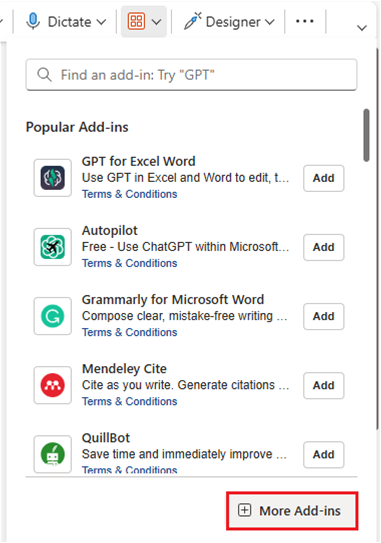
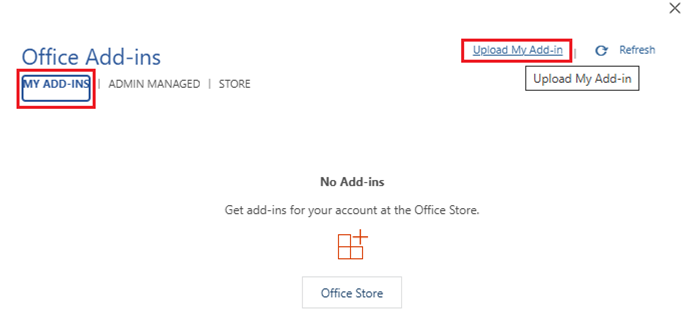
- In the My Add-ins section, click Upload My Add-in
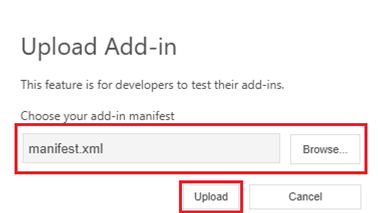
- In the Upload Add-in modal, locate and select the manifest.xml file.
- Click the ellipsis (three dots) in the far-right corner of the ribbon.
- The IDAutomation logo will appear with an option to Show Task Pane.
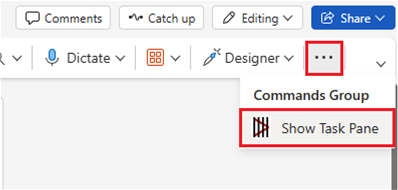
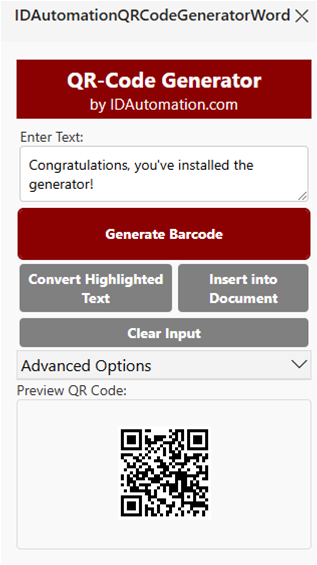
- Click Show Task Pane to open the QR Code Generator.
- Start creating QR Codes!
Word Desktop Integration (for the Desktop version of Microsoft Word)
- Locate the manifest.xml file from the IDAutomation download. A Network Share is required for the Desktop Version of Word; consulting the IT department or Admin may be required should the user not have sufficient access rights to perform this task.
- Create or locate a folder to store the manifest.xml file. The folder cannot have spaces in the name; underscores _ and dashes - are acceptable, but no spaces. Even if in a nested folder, the parent folders cannot have a space in them; otherwise, the add-in install will not be successful.
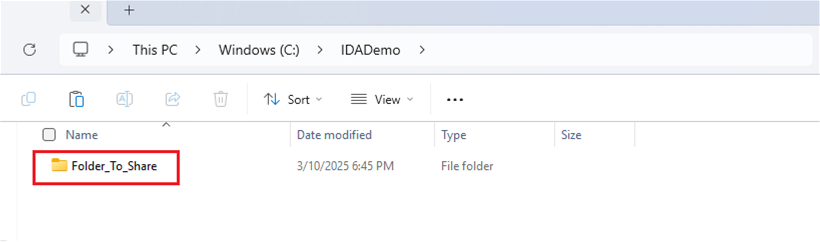
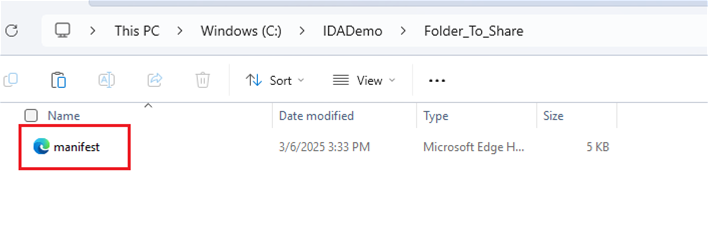
- Move the manifest.xml file into this folder.
- Right-click the folder and select Properties.
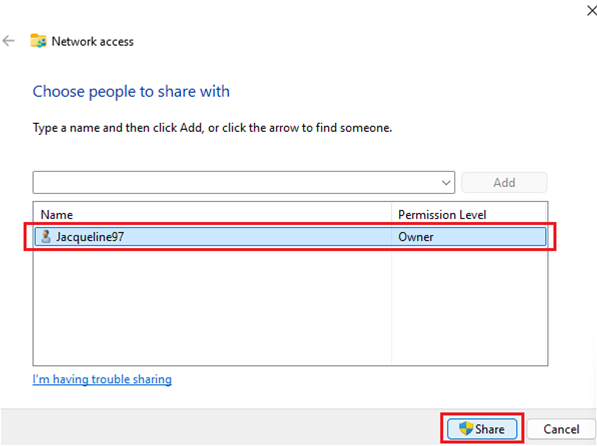
- Navigate to the Sharing tab and click Share.
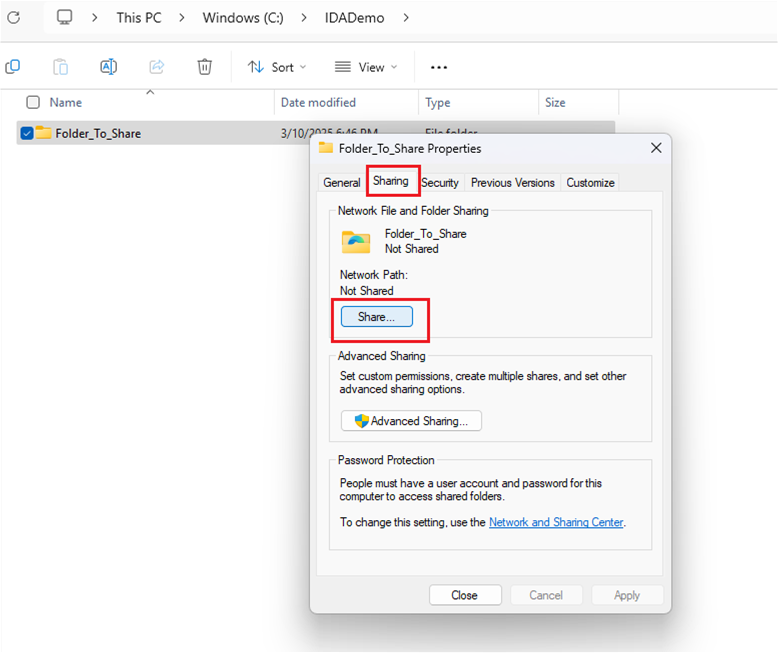
- Choose the user to share with (yourself) and confirm the sharing settings.
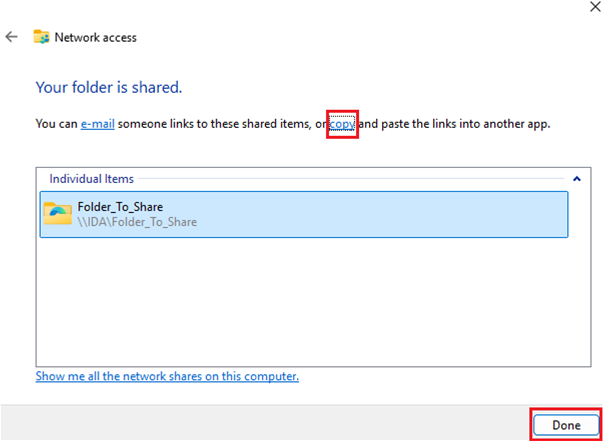
- Once shared, copy the network path to the folder.
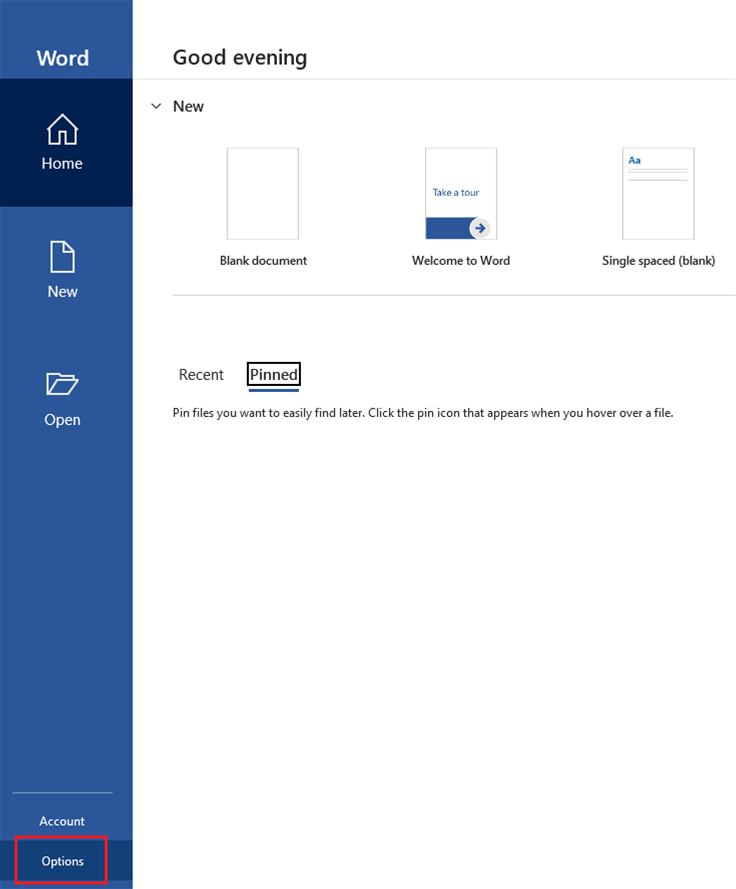
- Open Microsoft Word and on the left-hand side, find Options.
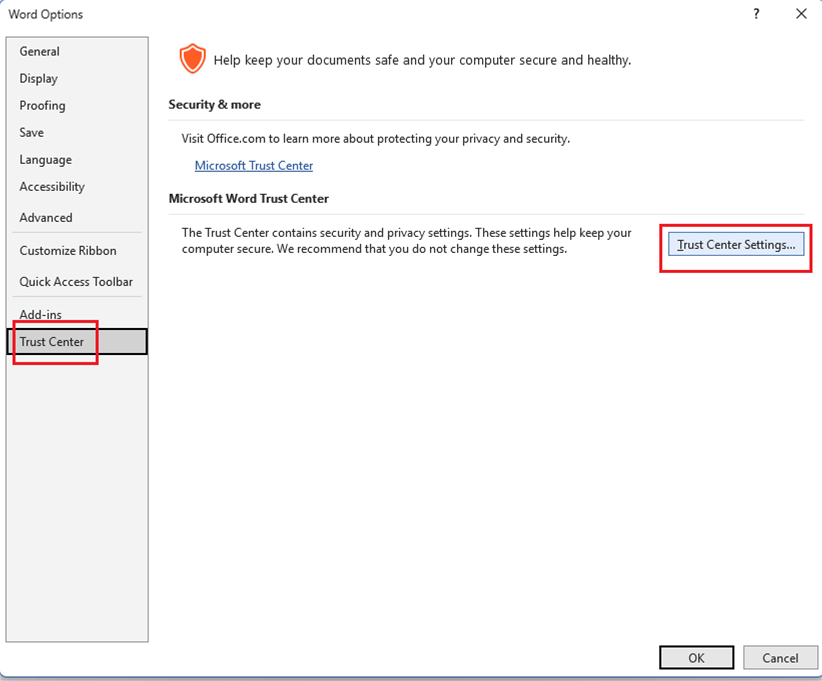
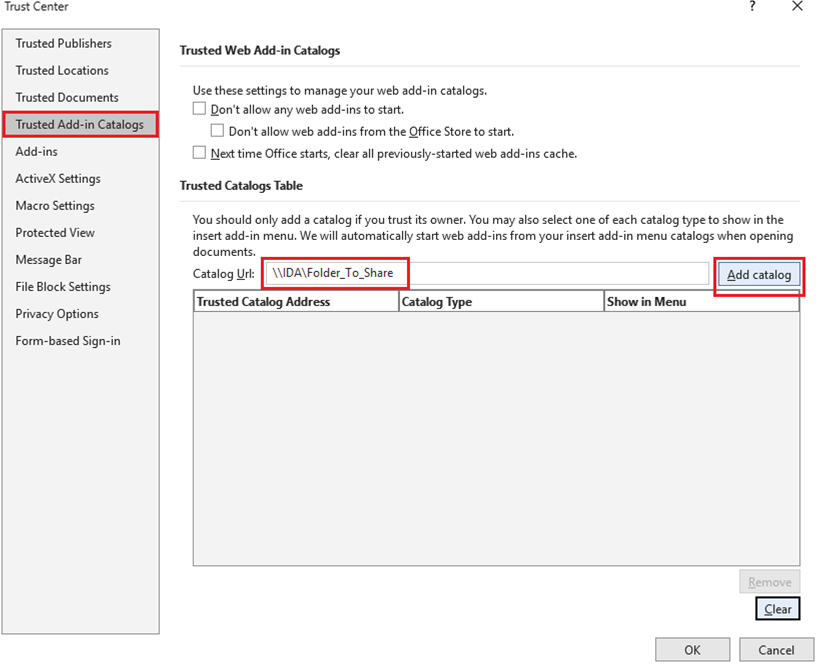
- Select Trust Center, then click Trust Center Settings.
- In the left menu, select Trusted Add-in Catalogs.
- Add the network path to the Catalog URL field (e.g., \\IDA\Folder_To_Share). The paste may look like Folder_To_Share (file://IDA/Folder_To_Share), remove the Folder_To_Share(file: ) leaving only the file path //IDA/Folder_To_Share
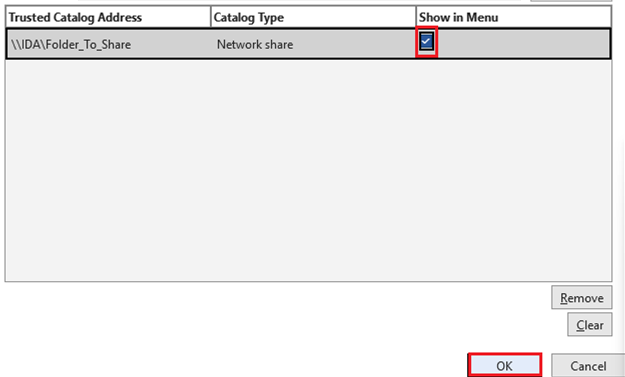
- Check the Show in Menu box and click OK.
- Close Word and reopen it with a new document.
- Click on the Add-ins button located in the ribbon (far right).

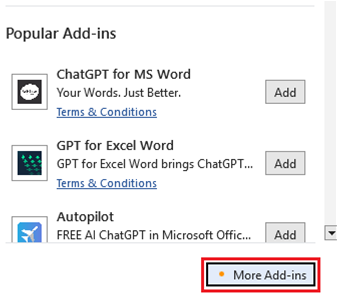
- Select More Add-ins from the dropdown menu.
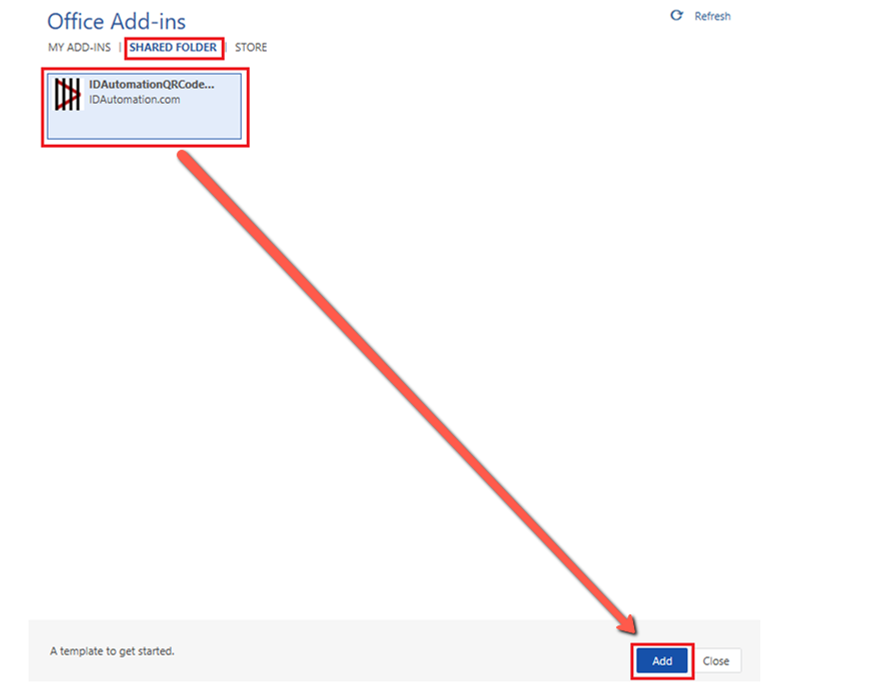
- Navigate to the Shared Folder section.
- Select IDAutomationQRCodeGenerator and click Add.
- The IDAutomation QR Code Generator will now appear in the ribbon.

- Click the IDAutomation logo in the ribbon to open the Task Pane.
- Start generating QR Codes!
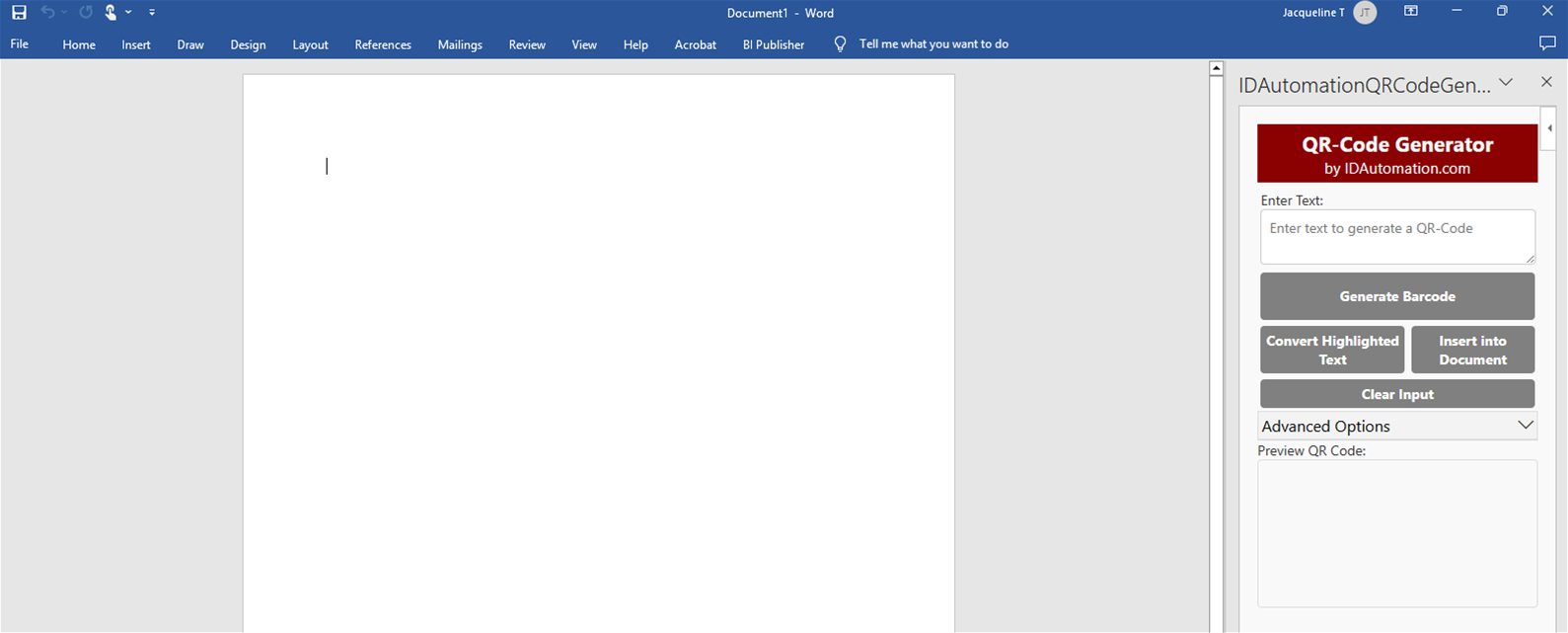
- To customize your QR Code, select Advanced Options and modify the settings as needed.
Priority phone, email, and forum support are provided up to 30 days after purchase. Additional priority phone, email, and forum support may be obtained if the Level 2 Support and Upgrade Subscription is active.
