

Generating QR Code with Logo Images in SAP Crystal Reports
This tutorial describes how to use the Enhanced QR Code with a Logo in the middle in SAP Crystal Reports. Supports Crystal Reports versions 11 and above with IDAutomation's QR Code Enhanced version of the Dynamic Barcode Generator SaaS or a local streaming EXE that is provided with the .NET Generator. This same functionality is also provided in the Linear + 2D version of the Streaming Barcode Server for IIS.
Crystal Reports QR Code with Logo Tutorial
- Download the Crystal Reports QR Code Logo Streaming Download and extract the files.
- Open the IDAutomation_CrystalReportsQRCodeLogoStreamingExample.rpt file in Crystal Reports 11 or greater. This example displays a QR Code with the free demo version of the IDAutomation Dynamic Barcode Generator SaaS, which contains an intermittent watermark in the barcode and a rate limiter of about 10 symbols per minute. The licensed version does not contain these limitations. The download also contains a IDAutomation_Local_CrystalReportsQRCodeLogoStreamingExample.rpt report that was set up to use barcodes from a local streaming EXE that is provided with the .NET Generator.
- Choose View - Preview and verify that a QR Code Symbol appears.
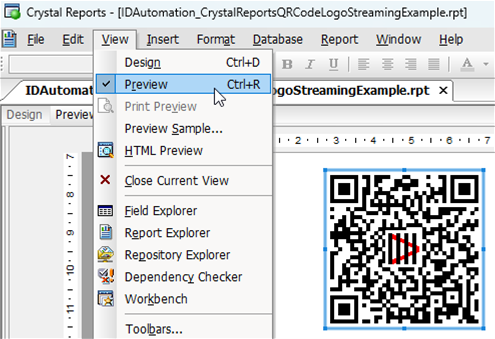
- Right-click on the symbol, choose Copy, and paste it into the report that needs the barcode.
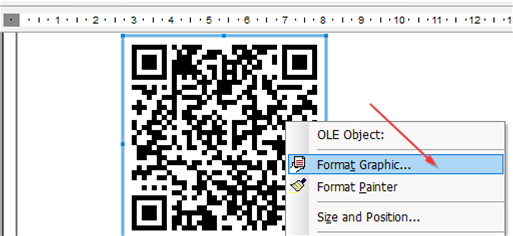
- In the report, Right-click on the symbol and choose Format Graphic.
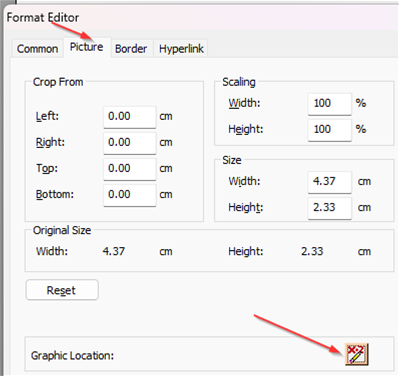
- When the dialog opens, choose Picture - Graphic Location to open the formula workshop.
- In the Formula Workshop, modify the DataToEncode, CustomParameters, and CustomURL as necessary.
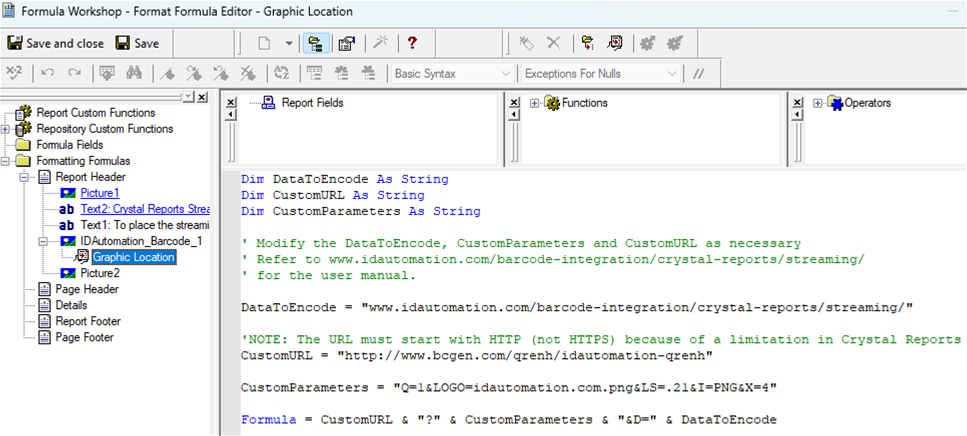
Modify the DataToEncode to include the data that needs to be encoded in the barcode symbol, for example:
DataToEncode = ({TestData.DataField})
Text or function may be included in the data to encode, and multiple fields may be combined with the & symbol. In the example below, ~d009 performs a tab function in QR Code between two fields in a QR Code:
DataToEncode = ({Table.Field1})&"~d009"&({Table.Field2})
If an error such as "A string is required" appears, the data will need to be converted to a string with a Visual Basic Crystal function. For example: DataToEncode = cStr( {Table1.FloatValueField},0 )
Modify CustomParameters with QR Code Parameters if necessary. The parameters must be separated by the & character and cannot include any spaces.
Modify the CustomURL with the URL provided when you purchased the SaaS Dynamic Barcode Generator Service. The demo version URLs or Streaming EXE may be used for testing purposes. As per SAP documentation, Crystal Reports cannot display an image from a secure URL with https; therefore, make sure you change https to http in the CustomURL. - Choose the options to save and close the Formula Workshop and return to the preview. If the barcode symbols do not appear as expected, use the example provided to perform a process of elimination to find the issue.
Compatible with the following products
- .NET Streaming API | A streaming EXE is provided in this package | Available in 2D or Linear +2D versions
- SaaS Dynamic Barcode Generator Service | No software to install with this version | Available in the Linear +2D version
- Streaming Barcode Server for IIS | A streaming EXE is provided in this package | Available in QR Code Enhanced version
