

Barcode Streaming for .NET Core | .NET 8+ | User Manual
- Availability
- .NET Barcode Streaming
- Streaming Parameters
- Enhanced QR Code Parameters
- Custom Development
- Live API Demo
- Support
Buy License Live Demo Download Demo Support Release Log
Streaming .NET Barcode Generator Availability
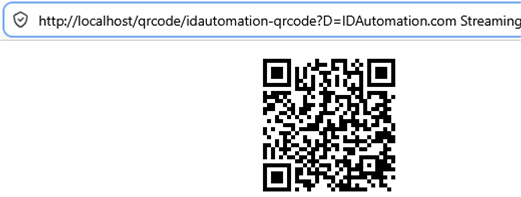
The streaming component is licensed with the following products:
- .NET Generator - complete Visual Studio source code is provided in this package that can be used to create a custom streaming EXE for stand-alone use or for use in IIS.
- Streaming Barcode Server for IIS - only the compiled streaming API is provided with this product in the ".NET 8+ Streaming" folder of the download.
- Developer Licensed Font Packages - provided with the Universal Barcode Font, GS1-128 Barcode Font, Aztec, Data Matrix, DotCode, MaxiCode, PDF417, and QR-Code fonts. The streaming API may be used with the I=FT parameter to return the font-encoded text that, when combined with the barcode font, will create a barcode symbol.
.NET Barcode Streaming
The .NET Streaming Component is compatible with .NET8 and up. It streams an image or font text to any requesting application. It is provided as a standalone EXE file that, when executed, enables streaming from that system without a web server. It can also be installed on IIS*. The Visual Studio Project for streaming is included in the "Streaming API Project" folder to allow changing the port number or for custom development.
The data is changed in the barcode symbol with streaming parameters. Use ? to specify the first parameter and & for additional parameters. For example, when using the standalone EXE, the URL of http://localhost:5000/idautomation-qrcode?X=4&D=Hello_World&ECL=L encodes "Hello_World" with an X of "4" and ECL of "L" and returns the default image type of PNG. The URL of http://localhost/qrcode/idautomation-qrcode?X=4&D=Hello_World&I=FT returns font text (with I=FT) that is used for the IDAutomation2D font.
*When installed on IIS, the web.config file must also be included.
Types of Streaming
This advanced product can stream multiple types of data for barcoding in applications with unique requirements. IDAutomation provides a Streaming Integration Guide to assist with streaming into applications, such as the Streaming QR Codes with a Logo into Crystal Reports tutorial.
- Image Streaming is the default type of streaming and is used for most purposes. The default image type is PNG; a 1-bit BMP option is also available with the I=BMP parameter.
- Font Text Streaming returns only text that displays the correct symbol when combined with the barcode font. This is useful when using WOFF web fonts to generate barcode symbols that rasterize well in certain situations, and is implemented with the I=FT parameter.
- Unicode Image Streaming returns the Unicode Image that can be displayed in a standard text field. This is useful when images or a barcode font cannot be used for the barcode symbol. The symbol is generated from standard text and is implemented with the I=UI parameter.
Standalone EXE Streaming for Windows
Open the EXE file from the "Streaming API .NET 8+" folder. Once executed, the PC running this EXE file can easily stream barcodes. The following URLs may be opened in the browser to view the streamed image:
- http://localhost:5000/idautomation-aztec
- http://localhost:5000/idautomation-datamatrix
- http://localhost:5000/idautomation-dotcode
- http://localhost:5000/idautomation-maxicode
- http://localhost:5000/idautomation-linear
- http://localhost:5000/idautomation-pdf417
- http://localhost:5000/idautomation-qrcode
- http://localhost:5000/idautomation-qrenh
Note: Only run one EXE at a time; an error will occur if two are running on the same port at the same time.
IIS Streaming for Windows Server
The streaming IIS component is designed to be installed on an existing IIS website using SSL and a valid domain. This example uses the QR Code Generator; other barcode types are implemented in the same way. Each barcode type implemented will need its own application pool and a separate application.
- Install the .NET Hosting Bundle if it is not already installed on the IIS server. This is required for the application to function correctly in IIS.
- Copy all of the files from the "Streaming API .NET 8+" folder of the zip file to a folder named "qrcode" from the root of the website.
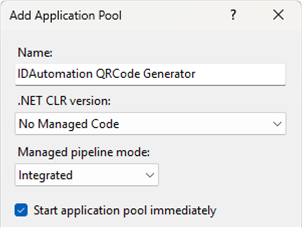
- In IIS Manager, right-click on Application Pools and create an Application Pool. Name it "IDAutomation QRCode Generator", choose No Managed Code and Integrated Managed pipeline mode.
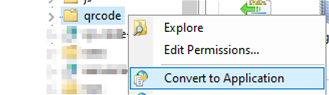
- In IIS Manager, select the qrcode folder, and choose Convert to Application.
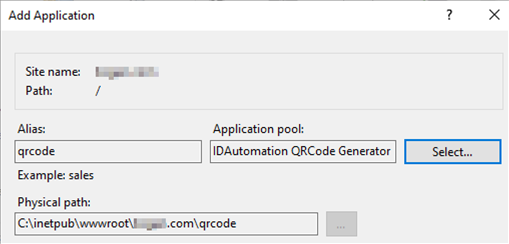
- Within the properties of the IIS Application, select the "IDAutomation QRCode Generator" Application Pool. In a production system with heavy usage, implement the
IIS Application Pool Streaming Best Practices.
- Access the URL from the root of the website to view the generated barcode. For example, https://www.yoursite.com/qrcode/idautomation-qrcode?D=Hello_World&X=4 would
generate a QR Code encoding the data of Hello_World with an X of 4. Additional parameters may be added as necessary from the information provided below. The following URLs may be opened in the browser
to view the streamed image:
- /aztec/idautomation-aztec
- /datamatrix/idautomation-datamatrix
- /dotcode/idautomation-dotcode
- /maxicode/idautomation-maxicode
- /linear/idautomation-linear
- /pdf417/idautomation-pdf417
- /qrcode/idautomation-qrcode
- /qrenh/idautomation-qrenh
Common Streaming Parameters
When you create a barcode using the streaming version of the encoder, you control what it produces by adding options to the end of the URL. The first option starts with a ? and any additional options use &.
Examples:
URL: http://localhost:5000/idautomation-qrcode?X=4&D=Hello_World&ECL=L
This tells the encoder to:
- Use Hello_World as the data
- Set X (the module size) to 4
- Set the error-correction level (ECL) to L
- Return a PNG image (the default)
URL: http://localhost/qrcode/idautomation-qrcode?X=4&D=Hello_World&I=FT
This uses the same data and X value, but adding I=FT tells the encoder to return font text instead of an image.
That font text is what the IDAutomation2D font uses to draw the barcode.
NOTE: If linear barcodes are difficult to scan on screen, try increasing the Q and X values incrementally until the barcodes can be scanned. Printing the barcodes to PDF or a printer will scan without increasing those values.
- Apply Tilde | Process Tilde (PT): When True, several ApplyTilde Options are enabled. (Default: T)
- Data Encoded (D): The data that is to be encoded in the barcode.
- Image Type (I): The image type streamed. Valid values are PNG, BMP, UI for Unicode Image, or FT for font text, as listed below. (Default: PNG)
FT - returns text for the IDAutomation 2D font with the common CR and LF for a new line.
FTLF - returns text for the IDAutomation 2D font with only the LF included for a new line.
FTBR - returns text for the IDAutomation 2D font with <BR> for a new line, useful in HTML.
UI - returns text in Unicode Image format for use with a monospaced font such as Courier New. Dotcode and the
enhanced QRCode have slightly different parameters; see their specific sections for more information.
- Orientation (O): The orientation of the barcode. Valid values are 0, 90, 180, and 270. (Default: 0)
- Quiet Zone (Q): The margin around the symbol. (Default: 1)
- XDimension (X): The size of the smallest module in the symbol. When X < 1, the value is in CM; when X >= 1, the value is in pixels. 1 pixel = .03CM or 1/96 of an inch. Default is 1 for linear barcode types and 2 for 2D barcode types such as QR Code, PDF417, and Data Matrix. X must be an even number in linear barcodes when N is 2.5.
Linear Specific
- Bar Height (BH): The barcode height in CM. (Default: 1)
- Character Set (CS): The set of characters to be used for Code 128. Valid values are: 0 (Auto), 1 (A), 2(B), 3(C). (Default: 0)
- Check Character (CC): Automatically adds the check digit to the barcode when equal to "T". (Default: T for ITF and F for C39)
- Check Character in Text (CT): Automatically adds the check digit that is encoded in the barcode to the human-readable text when equal to "T". (Default: T)
- Font Size (FS): The font size used for human-readable text. (Default: 12)
- Narrow to Wide Ratio (N): The narrow-to-wide ratio of symbologies that only contain narrow and wide bars, such as Code 39 and Interleaved 2 of 5 (ITF). Valid values are 2, 2.5, and 3. (Default 2.5, when X is an even number)
- ShowText (ST): If set to F, the human-readable text interpretation will not be displayed. (Default: F)
- Symbology ID (S): Select which linear barcode type to display. Valid values are: 0 (Code 39), 1 (Code 128), 2 (ITF). (Default: 1 | Code 128)
Aztec Specific
- Error Correction Level (ECL): The Reed-Solomon error correction level encoded in the symbol, specified as a value from 1 to 99. More error correction creates a larger symbol that can withstand more damage. The default setting of 0 performs automatic selection, which is usually a value of 23. (Default: 0)
Data Matrix Specific
- Encoding Mode (MODE): Sets the mode for data being encoded (-1=Auto, 0=BASE256, 1=C40, 2=TEXT, 3=ASCII). (Default: -1)
- Preferred Format (PFMT): Sets the preferred format represented by a number from 1 to 29; '0' is for automatic formatting. Format 29 is 16x48. (Default: 0)
PDF417 Specific
- Columns (COL): The number of data columns in the symbol; 0 = automatic. (Default: 0)
- Rows (ROWS): Sets the number of rows. It is recommended to leave this property at 0, the default. (Default: 0)
- Error Correction Level (ECL): The amount of error correction in the symbol; 0 = automatic. (Default: 0)
- Mode (MODE): The mode of compaction used; "Binary" for Binary or "Text" for TEXT. (Default: Binary)
- Truncation (TRN): If True, creates a more area-efficient truncated PDF417 symbol. (Default: F)
- X to Y Ratio (XYR): The X multiple height of individual cells from 2 to 5. (Default: 3)
QR-Code Specific
- Error Correction Level (ECL): The level of error correction. Valid values are L, M, Q, and H. (Default: M)
- Encoding Mode (MODE): The mode used to encode data. Valid values are X (Auto), B (binary), A (alphanumeric), and N (numeric). (Default: X)
- Process Mask (BM): When set to F, the mask is not optimized, which improves processing time. (Default: T)
- Version (V): The version of the symbol; setting this to -4 can generate a Micro QR Code. (Default: 1)
QRCode Enhanced Specific (QREnh)
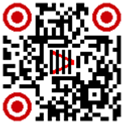
Enhanced QR Code allows users to create custom QR codes, with the use of their own logos, shapes, and brand colors. Explore rounded eyes or modules through our newly added parameters. Only available
in PNG; font text will return, but without the extra cosmetic enhancements (logo, colors, etc) because these cannot be produced with fonts.
- ForeGround (FG): Changes the foreground color of the QR-Code, use hex colors (Default: #000000)
- BackGround (BG): Changes the background color of the QR-Code, use hex colors (Default: #FFFFFF)
- Eye ForeGround (EYEFG): Changes the foreground color of the QR-Code eyes, use hex colors (Default: null)
- Eye BackGround (EYEBG): Changes the background color of the QR-Code eyes, use hex colors (Default: null)
- Rounded Modules (RM): Changes modules to be rounder in apperance when set to RM=R (Default: null) (X must be 3 or greater for rounded modules to appear)
- Rounded Eyes (EYE): Changes eyes to be rounder in apperance when set to EYE=R (Default: null)
- Logo (LOGO): Path to the image or URL to image (Default: null). Logo height and width should be between 16 and 1024 pixels.
- Demo Version: Set 'LOGO=F' to turn the logo feature off. Local installs may put new images in the 'logos' folder for testing.
- Licensed Local Version: To change the logo, place the new image file in the 'logos' folder and point to it. 'LOGO=idautomation.com.png'
- Licensed Advanced Version: The advanced version can accept a URL, the above folder change, or a different address path on the computer. 'LOGO=www.example.com/logos/image.png' The advanced version may raise some security concerns in different environments. If there is no one to secure the workflow, we recommend the Local version. The local version can only load a logo from the local logos folder.
- Logo Size (LS): Set in a float, used to set the image size in the QR-Code (Default: LS=.20) Always ensure the qr-code is scannable; if the logo is too large, it may be unscannable, consider setting the qr-code to a higher ECL, example: ECL=H.
Font Text Options
Font Text options are available in the Enhanced QR Code, however the new cosmetic features are not available- Image Type (I): The image type streamed. Valid values are UI for Unicode Image, or FT for font text, as listed below. (Default: PNG)
FT - returns text for the IDAutomation 2D font with the common CR and LF for a new line.
FTLF - returns text for the IDAutomation 2D font with only the LF included for a new line.
FTBR - returns text for the IDAutomation 2D font with <BR> for a new line, useful in HTML.
UI - returns text in Unicode Image format for use with a monospaced font such as Courier New. - Dot Option(DOTS): This will return encoded text in lowercase when set to Dots=True, works with all FT options above. (If the IDAutomation2D font is installed it will generate the dotted qr-code upon generation with I=UI&DOTS=True)
DotCode Specific
- Ratio (RATIO): The aspect ratio is set with a two-digit number where the first number is for columns and the second for rows. The default ratio is 2:1, which means 2 times more columns than rows. (Default: 21)
- Imagetype (I): The image type streamed. Valid values are BMP, PNG, or Font Text as listed below. (Default: PNG)
- 0 returns FontText in lowercase for the IDAutomation2D font
- 1 returns FontText in uppercase, which creates squares instead of circles in the IDAutomation2D font
- 2 returns Unicode Image
- 3 returns the circles as diamonds in Unicode Image
MaxiCode Specific
- Encoding Mode (M): The mode of compression and encoding used in the symbol. Modes 2 and 3 are designed for use in the transport industry. Mode 4 encodes up to 93 characters or 138 digits. Mode 5 encodes up to 77 characters and provides more error correction capabilities than Mode 4. Mode 6 indicates that the symbol encodes a message used to program a reader system (scanner). (Default: 2)
- Dot Per Millimeter (DOTPM): Defines the size of each module. (Default: 8)
Custom Development and API Source Code
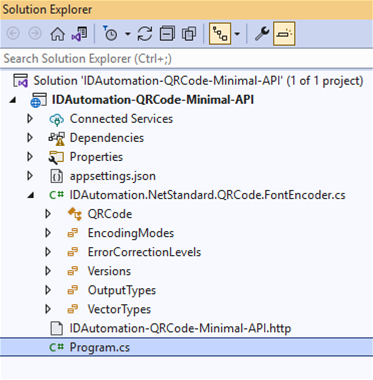 The Visual Studio streaming project and source code are provided with all licenses*. The project is located in the "Streaming API Project" folder in the zip file download for all licensed purchases. This project uses the .FontEncode.cs file for the generation of barcode symbols and Program.cs for the modification of parameters.
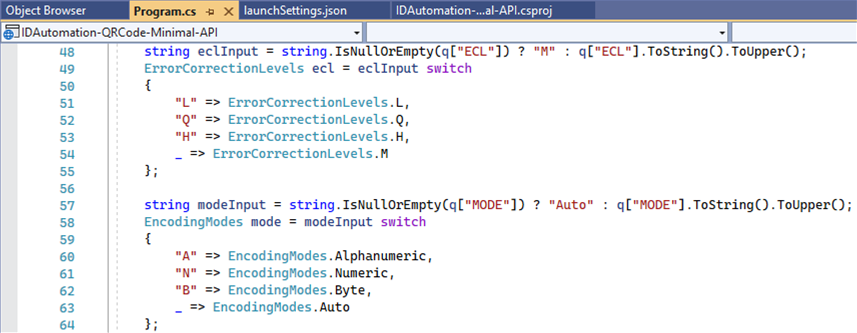 * The Streaming API Project source code is not provided with the Streaming Barcode Server for IIS, because it is a compiled product only and not for custom development.
Live Demos

IDAutomation provides live streaming .NET Core API barcode generators of some barcode types for support and testing purposes. Some parameters were added to the URL, such as Quiet Zone, the X sizing parameter, and the D data parameter, to make scanning from the screen easy.
QRCode Enhanced (The logo cannot be changed in the online demo version; download the EXE for local testing to try your logo)
To test other barcode types such as Aztec and MaxiCode, download the EXE for local testing.
Support
For testing purposes, IDAutomation offers the Barcode Decoder Verification App. This app is particularly useful in verifying lower ASCII codes, GS1 data, and UTF-8 Unicode encoding.
Free product support may be obtained by reviewing resolved .NET Public Forum Threads. Level 2 Priority Support is provided up to 30 days after purchase. Additional Priority Support may be obtained if the Priority Support and Upgrade Subscription is active.
To resolve most issues, refer to the examples provided in the download package and use a process of elimination to find the solution.
Known Support Issues
HTTP error 500.19 - internal server error - this error indicates that IIS is unable to process the Web.config, and that is usually because the server is missing the Hosting Bundle. Download and install the appropriate .NET Hosting Bundle, then restart IIS. If this does not resolve the issue, refer to the "HTTP 500.19 - Internal Server Error" error IIS page at the Microsoft support site for other options.
Encoding of Reserved Characters - Some special characters have a reserved meaning in URLs and may not be transmitted correctly when included directly in barcode data. If your scan result is missing or changes certain characters, encode them using either their ASCII escape sequence (~d###) or their URL-encoded equivalent.
Common examples:
+=~d043or%2B#=~d035or%23&=~d038or%26%=~d037or%25?=~d063or%3F==~d061or%3DSpace=~d032or%20
Using either method ensures the intended character is encoded into the barcode rather than being interpreted as part of the URL or query string.
NOTE: Portions of this product utilize IDAutomation USA Patent 7,637,436.
