

Barcode Fonts in Word Mail Merge with Excel as Data Source
This tutorial shows you how to use Barcode Fonts in Word Mail Merge with Excel as the Data Source. Compatible with QR Code, Data Matrix, PDF417, Code 128, ITF, Code 39, and more. IDAutomation provides VBA font encoders for use in Excel with all barcode font products. The VBA encoder is compatible with Excel on Windows 2010 and later, and Excel on Mac 2016 and later. It is also compatible with local installations of Office 365.
- Download the desired barcode font package and extract the files from the zip file. This tutorial will use the QR Code Font; integration with other packages is the same process.
- Install the desired barcode font. For QR Code, IDAutomation recommends the "IDAutomation 2D" font located in the 2D Fonts\TrueType folder of the zip file. Open the font file and choose Install if it is not already installed. Windows users may alternatively run the setup application for an automated installation.
- Copy the "Word Mail Merge" folder from Integration\Word Mail Merge into a working folder, such as Documents.
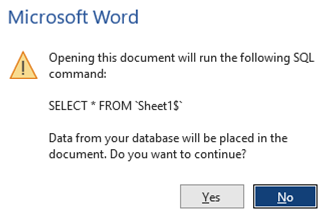
- Open the Word Mail Merge Example.docx file. Choose YES when asked to run the SQL command. This is necessary to use Excel as the data source.
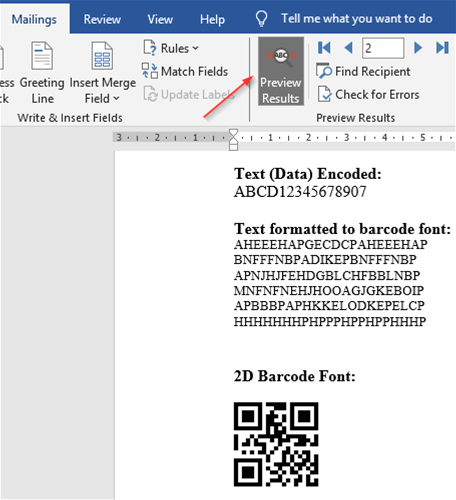
- Verify the example works by scanning the barcode. The free Barcode Data Decoder App may be used to test and scan the barcode symbol. To view the result without actually performing the mail merge, choose Mailings > Preview Result. When preview mode is enabled, you should see "Text formatted to the barcode font" and a "Barcode Font" area below that containing the barcode symbol. The barcode symbol is created from the text formatted to the barcode font when the barcode font is selected for that text.
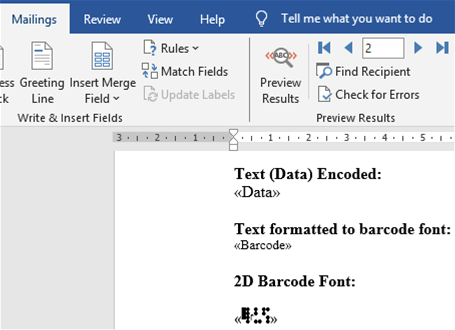
- Disable preview mode to see the actual fields that are being populated from the Excel spreadsheet. Notice that the fields <<Data>> and <<Barcode>> are from the top column of the associated Excel spreadsheet.
- IDAutomation recommends modifying the Word document and Excel example as necessary because the VBA is already embedded within the example file, and the Word file is already connected to the Excel file. If this is not possible, refer to the Custom Spreadsheet Integration section below. IDAutomation also provides a video demonstrating the easy method of modifying the example to use barcode fonts in Excel.
- Open your existing spreadsheet and click on the uppermost far left cell to select the entire spreadsheet and choose Copy.
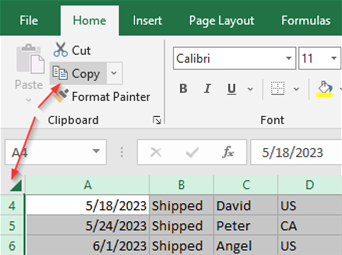 Switch to the Excel Example spreadsheet, select a new sheet at the bottom, such as "Sheet 2", click on the uppermost far left cell, and choose Paste. After this, you should be able to copy the cell that contains the barcode from "Sheet 1" and paste it into "Sheet 2". Be sure to modify the formula so the proper data is encoded in the barcode and size the cell containing the barcode so it is wide enough to contain the entire symbol. Rename Sheet1 to Barcode Example and then rename Sheet2 to Sheet1 because only Sheet1 is connected to the Word merge document. You will also need to ensure that Sheet1 contains a column titled Barcode in row 1.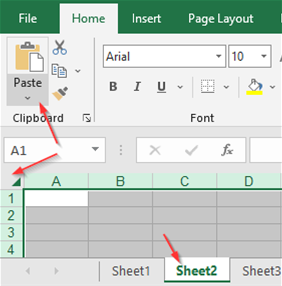
- To populate an entire column or row with barcodes, copy the cell containing the barcode and paste it into a selection so the formula adjusts appropriately. More information about this is provided on the OfficeBarcode page about how to populate a column with barcodes in Excel.
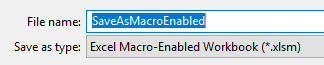
- Note: It is suggested to save the spreadsheet as an Excel Macro-Enabled Workbook (XLSM) type of file.
- Modify the existing Word document as necessary for the mail merge.
- If problems are encountered, copy the example to a different folder and use a process of elimination to locate the issue.
Custom Spreadsheet Integration
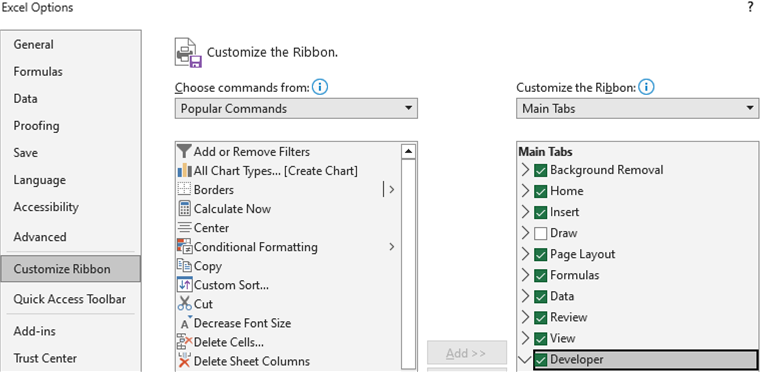
- If possible, IDAutomation recommends modifying the Excel example provided because the VBA is already embedded within the example file. If it is desired to use an existing spreadsheet, the VBA must first be imported. To do this, add the Developer tab if it is not already there. Go to File - Options - Customize Ribbon, select Developer under Main Tabs on the right-hand side, and click OK.
Next, choose Developer - Visual Basic - File - Import File and import the VBA file. The VBA file will be located in the integration folder of the downloaded zip file. After the VBA is imported, it should show up in the Modules folder.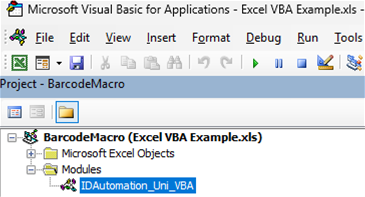
- Enter the formula in the cell to generate the text that is formatted to the barcode font. This is the text that creates the barcode when combined with the appropriate barcode font.

- Change the font in the cell to the appropriate barcode font, and the barcode should appear. Many barcode fonts are difficult to select from the font menu. If this is the case, right-click on the cell and choose Format Cells, choose the Font tab, and select the font this way. Be sure to select the correct point size for your application and size the cell large enough so there is an appropriate white space around the symbol.
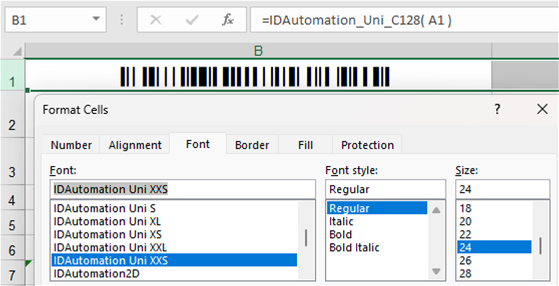
- To populate an entire column or row with barcodes, refer to the OfficeBarcode page about how to populate a column with barcodes in Excel.
- Save the spreadsheet as an Excel Macro-Enabled Workbook (XLSM) type of file.
More Info:
- An Excel Font Encoder App is also provided to easily copy and paste barcodes into other programs or for custom VBA modification.
- Using Code 39 Fonts in Excel.
- ActiveX barcodes in Excel.
