

Barcode Font Encoder Formulas for Crystal Reports
-
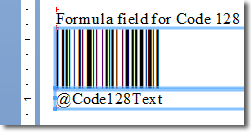 Easily create barcodes in Crystal Reports using fonts without
installing UFLs* or DLLs.
Easily create barcodes in Crystal Reports using fonts without
installing UFLs* or DLLs. - Embeds the font encoder as a formula that is part of the .rpt report file, which stays embedded in the report when it is distributed.
- Compatibility with Crystal 9 and up.
- Complete source code included.
- Supports generation of Code 128, GS1-128, Code 39, DataBar, Interleaved 2 of 5, UPC, EAN, USPS IMb, Data Matrix ECC200, DotCode, MaxiCode, QR-Code, PDF417, and others.
- Royalty-free.
- Available with the purchase of a Developer license or higher for applicable font/encoder packages.
Font Formula Overview
IDAutomation's Font Encoder Formulas for Crystal Reports are saved as part of the report file (.rpt) and do not have any external dependencies (except the required barcode font). When distributing Crystal Reports, IDAutomation suggests using this method.
Crystal Font Formulas are currently supplied with the following 1D font packages:
- Code 128 & GS1-128
- Code 39
- Code 93
- Interleaved 2 of 5
- GS1 DataBar
- GS1 UPC and EAN
- Universal
Barcode Font Advantage
- USPS Intelligent Mail IMb *
Crystal 9 and up Font Formulas are currently supplied with the following 2D font packages:
- Data Matrix with GS1 Data Matrix
- DotCode
- MaxiCode
- PDF417
- QR-Code with GS1 QR Code
* Due to limitations within Crystal Reports formulas, USPS Intelligent Mail IMb requires the installation of the associated UFL (dated 2014 or later) to perform a portion of the complex calculations required for proper barcode generation. Installation of this UFL is automatic when running the installer for the associated font product. In addition, a silent installer is provided with all developer licenses to easily install the UFL when distributing reports.
Font Formula Tutorial
Each formula that is to be used with the font is supplied in the purchased barcode font package. The font formulas are included in the Crystal Reports Example Report and must be copied out of the example report into any new reports. Be sure to have the barcode font installed first so that the barcode will appear in the report after adding the formulas.
- This Crystal Report Barcode tutorial uses Code 128 from the Code 128 Font Advantage Package.
- Purchase and install the appropriate barcode fonts by running the setup EXE file.
- Open the Crystal Reports Formulas report from the icon in the program group or from the "Crystal Reports Formulas" folder within the Developer Tools product ZIP file.

- Choose View - Design to switch to design mode.
- Select the desired formula field and choose Edit - Copy.
If the formula copied also contains a separate text field below the barcode, and the human-readable interpretation is desired, both formulas should be copied to the destination report.
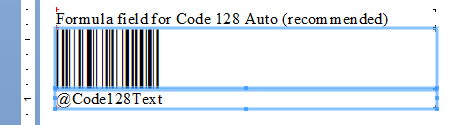
Note: The barcode may not appear in the formula field as shown above if the font for the formula it is intended for is not installed. - Open the destination report in design mode and choose Edit - Paste to paste the formula object where it is needed.
- Highlight the object and choose Edit - Edit Formula.
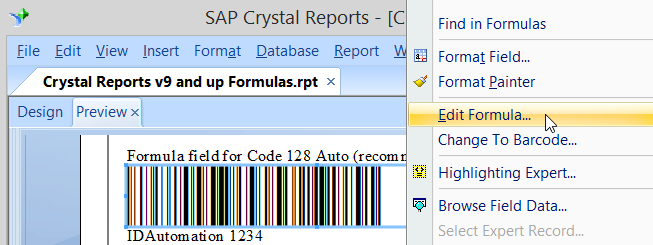
- If more than one barcode will be on the same report, it is necessary to rename the formula. Right-click on the formula name (in the formula workshop) and choose rename. Add a descriptive name to the end, for example, IDAutomation_C128_ClientData.
- Modify the "DataToEncode ="
line of the formula to equal the data that is to be encoded in the barcode. If a separate text field was also copied, the same changes should also be made to that formula.
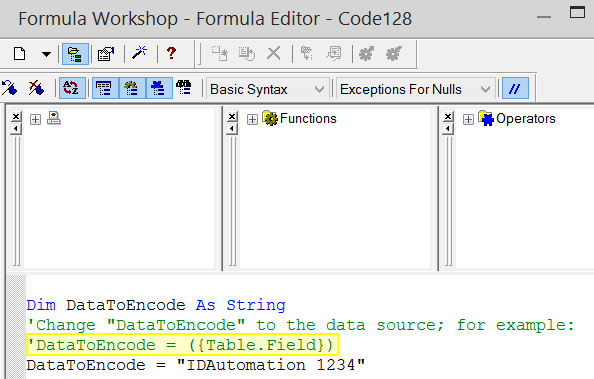
If an error such as "A string is required" appears, the data will need to be converted to a string with a crystal function such as cStr. For example: DataToEncode = cStr( {Table.Field},0 ) - Run the report to verify barcodes are being properly created. Ensure the formula field object has been sized properly to contain the entire barcode width. If the width of the barcode is larger than the object, the result will be a truncated barcode that will not scan.
- When the Preview tab (or File - Print Preview) is selected,
barcodes should be seen in the report. Print one page of the report and test it with a barcode scanner. If a scanner is needed, IDAutomation
suggests the
IDAutomation USB Barcode Scanner, which scans all popular linear, GS1
DataBar, and PDF417 barcodes.
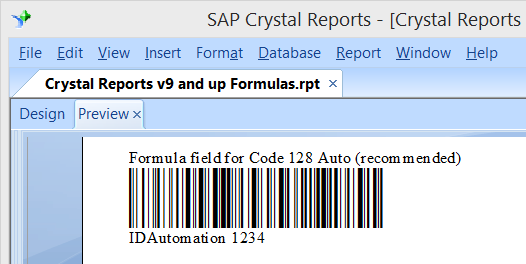
- It is also possible to combine multiple fields and place functions
in a single barcode when using the Code 128 Auto formula in a report.
For example, the following formula combines two fields in a single
barcode and places a tab function between them:
DataToEncode =({Table1.DataField1} & CHR(9) & {Table1.UPC})
The following formula places a return function after the barcode:
DataToEncode = ({Table1.DataField1} & CHR(13))
Use CHR(9) for a tab and CHR(13) for a return.
Creating Report Custom Functions
Report Custom Functions may be easily created from the formulas provided for special purposes, such as to replace an older UFL function. The Report Custom Functions may also be placed into the Repository of Custom Functions. Follow the procedures provided in the Crystal Reports documentation to create the function in the formula workshop, choose Basic Syntax, and paste the formula into the function. For example:
Function IDAutomationCode128 (DataToEncode as String) as String ... Existing Function Code ...IDAutomationCode128 = PrintableString
End Function

In the Crystal Report, call the function as you would any other function from a formula field:
IDAutomationCode128 ( {Table1.DataField1} )
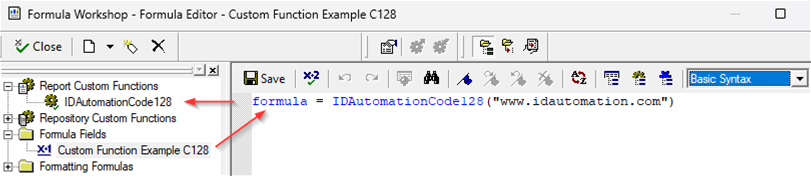
IDAutomation can also create these customized functions by request with any Developer License Purchase of a barcode font product and active Level 2 Support. Once the functions are created, they must be copied into each report where they will be used.
Technical Support
Priority support is also provided up to 30 days after purchase. Additional priority support may be obtained if the Priority Support and Upgrade Subscription is active. Free product support may be obtained by reviewing articles that are documented on IDAutomation's Barcode Font Support page and by searching resolved Public Forum Threads. For assistance with other Crystal Report issues, refer to the SAP Crystal Reports Support Portal.
Common Problems and Solutions:
- How to Rotate the Barcode Image 90 degrees
- Create PDF417 Barcodes with Crystal Reports Font Formulas
- Video: Create DataMatrix Barcodes with Crystal Reports Font Formulas
- Video: Create UPC Barcodes with Crystal Reports Font Formulas
