

Visual Basic Barcode Font Encoders
Legacy Notice: This page provides documentation for legacy code, that is included in the "Legacy" folder of the Developer Tools zip file. To obtain the latest documentation and code, refer to one of the following:Legacy Documentation
IDAutomation provides several products and options for implementing barcodes in VB 6 and Visual Basic .NET with flexible license agreements to meet a variety of needs with royalty-free developer licenses.
- Self-Checking fonts in VB6
- Self-Checking fonts in VB.NET
- Visual Basic Barcode Module Integration
- Visual Basic 6 Module Example
- Visual Basic .NET Module Example
Note: Use of this VB Module, requires a Developer License or above. This font encoder is supplied with the purchase of a Developer's License or above of any Barcode Font Package.
Self-Checking Fonts in VB 6:
Self-Checking Barcode Fonts (including MICR and OCR fonts) are compatible with Visual Basic and may be used with ease. To use a self-checking font such as Code 39, insert an asterisk "*" before and after the data encoded. Therefore, to encode TEST3OF9 in a barcode, the text of *TEST3OF9* would need to be present in a field with the Code 39 font selected. When using the Codabar Font for numbers only, use the 'A' character instead of the asterisks.
The following is a VB 6 example of printing the Code 39 barcode font from Visual Basic, where variable is a string to encode in the barcode:
Printer.FontName = "IDAutomationHC39M"
Printer.CurrentY = 3000
Printer.FontSize = 12
Printer.Print  "*" & variable & "*"
Printer.FontSize = 10
Printer.FontName = "Helv"  'Switch to a text font
Printer.Print "The above barcode is code-39"
Printer.EndDoc 'This tells the printer to eject the page
Barcode may also be printed from a field in a database via the data control, for example:
Printer.Print "*" & Data1.Recordset("field1") & "*"
The start and stop characters may also be appended to the variable, for example:
variable ="*" & DataString  & "*"
Printer.Print  variable
When printing with Crystal Reports, refer to the Crystal Reports Integration Guide for the best implementation method.
Self-Checking Barcode Fonts in VB .NET:
Data is easily formatted to the barcode font by appending asterisks to the beginning and end of the data being encoded; no other DLLs or source code are needed. When using the Codabar Barcode Font for numbers only, use the 'A' character instead of asterisks. The following source code is an example of printing a barcode from VB.NET with the Code 39 Barcode Font, where VariableToPrint is a string that needs to be encoded:
Import the System.Drawing.Printing class and define a class level variable:
Imports System.Drawing.Printing
Private PrintFont As Font
'Class level variable
private VariableToPrint as string
'class level variable representing the data to print
Place code in an object event to generate the page(s) to be printed:
'****Code within the object generating
the print, such as a toolbar button...
'Initialize the Print Document object that will be sent to the printer
Dim PrintDoc As New PrintDocument()
Dim VariableToPrint as string
'variable that we are printing
'Set the font of the font object and the data to encode
PrintFont = New Font("IDAutomationHC39L", 12)
VariableToPrint = "*" & "128-39-200-128" & "*"
'Add an event handler that will be called for each page that is generated
AddHandler PrintDoc.PrintPage, AddressOf Me.PrintDoPrintPage
'Initiate the printing of the document
PrintDoc.Print()
'****
The following code should be placed in the event handler, which places the data on the page:
Dim linesPerPage As Single = 0
'Number of lines (bar codes) that you will be able to fit on the page
Dim yPos As Single = 0
'yPos on the page of the bar code
Dim leftMargin As Single = ev.MarginBounds.Left
'left margin of bar code
Dim topMargin As Single = ev.MarginBounds.Top
'top margin of bar code
Dim line As String = Nothing
'String that font will be applied to and printed
'Calculate the number of lines to print per page that we can fit based on the height of the font
linesPerPage = ev.MarginBounds.Height / PrintFont.GetHeight(ev.Graphics)
'Set the y position of the font (how far down on the page it prints
yPos = 100
'Set the text that we will print
line = VariableToPrint
'Send the string to the printer. An empty string format variable is passed in. This variable can do any formatting
'on the string that is necessary
ev.Graphics.DrawString(line, PrintFont,Brushes.Black, leftMargin, yPos, New StringFormat())
When printing with Crystal Reports, refer to the Crystal Reports Integration Guide for the best implementation method.
Visual Basic Barcode Font Module Integration
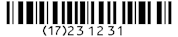
New functionality in VB Code allows
Human Readable text and
GS1-128 AIs to be generated within the IDAutomation Code
128 Font
The IDAutomation VB Font Module (or source code from the module) calculates the start, stop and check digits for the barcode and returns a text string, that when combined with the appropriate IDAutomation Barcode Font, creates a correct barcode. VB developers may add this module to their Visual Basic applications and access the functions directly. Using this module, there is nothing to distribute with the application except the barcode font because the functions of the module are compiled into the EXE file.
Note: Depending on the method used, a parameter may be required. For example, Code128("123456",0,True).
| VB Functions for Standard Barcode Fonts (VB 6 & VB .NET) | ||
| Barcode Type | Method(s) & Notes | Font to use |
| Code-11 | Code11 (DataToEncode) | IDAutomationC11 |
|
Code-128 (Auto Mode) |
Code128 (DataToEncode,
C128 ReturnType,
ApplyTilde) Human Readable text is enabled when ReturnType = 6 Example: Code128("123456789012", 6, 0) |
IDAutomationC128 |
|
Code-128 (Manual Mode) |
IDAutomation recommends using
Auto Mode for most situations. Code128a (DataToEncode, C128 ReturnType) Code128b (DataToEncode, C128 ReturnType) Code128c (DataToEncode, C128 ReturnType) Example: Code128b("12345678", 6) |
IDAutomationC128 |
| Code-39 |
Code39
(DataToEncode) Code39Mod43 (DataToEncode, ReturnType) Example: Code39Mod43("12345678", 0) |
IDAutomationC39 |
| Code-93 | Code93 (DataToEncode) | IDAutomationC93 |
| Codabar | Codabar (DataToEncode) | IDAutomationCB |
| EAN-13 | IDAEAN13 (DataToEncode) | IDAutomationUPCEAN |
| EAN-8 | IDAEAN8 (DataToEncode) | IDAutomationUPCEAN |
| GS1-128 |
Code128 (DataToEncode,
C128 ReturnType,
1) GS1-128 is enabled in Code 128 Auto by setting ApplyTilde to True. Human Readable AIs may be created by setting the C128 ReturnType to 6. Example: Code128("(12)3456789012", 6, 1) |
IDAutomationC128 |
| Interleaved 2 of 5 |
I2of5 (DataToEncode) I2of5Mod10 (DataToEncode, ReturnType) Example: I2of5Mod10("123456789", 1) |
IDAutomationI25 |
| MSI / Plessey | MSI (DataToEncode, ReturnType) | IDAutomationMSI |
| RM4SCC | RM4SCC (DataToEncode) | IDAutomationRM |
| UPC-A | UPCa (DataToEncode) | IDAutomationUPCEAN |
| UPC-E | UPCe (DataToEncode) | IDAutomationUPCEAN |
| USPS IntelligentMail | IntelligentMail (DataToEncode) ** |
IDAutomationPOSTNET or IDAutomationIMB or IDAutomation_Uni |
Visual Basic 6 Module Example:
- Install the desired IDAutomation Barcode Font package. If unsure of which is needed, IDAutomation recommends the Code 128 Font Advantage Package due to its variety of fonts in differing heights and automatic encoding of all letters and numbers.
- Download the Visual Basic Barcode Font Module, which is free to use with the purchase of a Developer's License or above of any IDAutomation barcode font package, and extract the IDAutomation.bas file into the VB project directory.
- Open Visual Basic; Choose Project - Add Module.
- Select the IDAutomation.bas file.
- Now that the module is part of the project, the methods of the
module used to format text to the barcode fonts may be called. For
example:
Printer.FontName = "IDAutomationC128L"
Printer.CurrentY = 3000
Printer.FontSize = 16
Printer.Print Code128(Data1.Recordset("field1"), 0)
Printer.FontSize = 10
Printer.FontName = "Helv"  'Switch back to a text font
Printer.Print "The above barcode was printed with the IDAutomation Code 128 Font"
Printer.EndDoc 'This tells the printer to eject the page
Visual Basic .NET Module Example:
- Install the desired IDAutomation Barcode Font package. If unsure of which is needed, IDAutomation recommends the Code 128 Font Advantage Package due to its variety of fonts in differing heights and automatic encoding of all letters and numbers.
- Download the Visual Basic Barcode Font Module, which is free to use with the purchase of a Developer's License or above of any IDAutomation barcode font package, and extract the IDAutomation.vb file into the VB project directory.
- In Visual Basic .NET, Choose Project - Add Existing
Item.
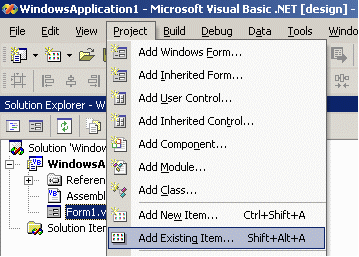
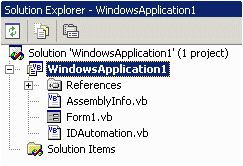
- Select the IDAutomation.vb file. After adding
the module, it should show up in the IDE.
- Now that the module is part of the project, the functions of
the module may be used to format text to
IDAutomation
Barcode Fonts. For example:
TextVariable = Code128("Code 128 Font Test", 0)
returns a character string, that when combined with the barcode font, creates a correct barcode. - The following code example prints a barcode in VB.NET:
Import the System.Drawing.Printing class and define a class level variable:
Imports System.Drawing.Printing
Place code in an object event to generate the page(s) to be printed:
Private PrintFont As Font
'Class level variable
private VariableToPrint as string
'Class level variable representing the data to print'****Code within the object generating the print, such as a toolbar button...
The following code should be placed in the event handler, which places the data on the page:
'Initialize the Print Document object that will be sent to the printer
Dim
PrintDoc As New PrintDocument()
Dim VariableToPrint as string
'variable that we are printing
'Set the font of the font object and the text to encode
PrintFont = New Font("IDAutomationHC39M", 12)
VariableToPrint = "*" & "12827384736388" & "*"
'Add an event handler that will be called for each page that is generated
AddHandler PrintDoc.PrintPage, AddressOf Me.PrintDoPrintPage
'Initiate the printing of the document
PrintDoc.Print()
'****Dim linesPerPage As Single = 0
'Number of lines (bar codes) that you will be able to fit on the page
Dim yPos As Single = 0
'yPos on the page of the bar code
Dim leftMargin As Single =
ev.MarginBounds.Left
'left margin of bar code
Dim topMargin As Single = ev.MarginBounds.Top
'top margin of bar code
Dim line As String = Nothing
'String that font will be applied to and printed
'Calculate the number of lines to print per page that we can fit based on the height of the font
linesPerPage = ev.MarginBounds.Height / PrintFont.GetHeight(ev.Graphics)
'Set the y position of the font (how far down on the page it prints
yPos = 100
'Set the text that will print
line = VariableToPrint
'Send the string to the printer. An empty string format variable is passed in. This variable can do any formatting on the string that is necessary
ev.Graphics.DrawString(line,
PrintFont, Brushes.Black, leftMargin, yPos, New StringFormat())
