

Claris FileMaker Pro Barcode Font Encoder Plugin
-
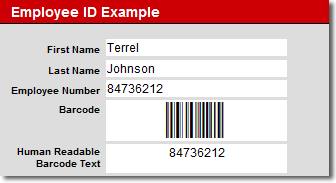 Generate barcodes in FileMaker databases, reports, and forms.
 - Supports many linear barcode types including Code 128, GS1-128, GS1 DataBar, Code 39, Interleaved 2 of 5, UPC, EAN, and USPS Intelligent Mail (IMb).
- 2D plug-ins for Data Matrix, PDF417, and QR-Code are available in their associated Font and Encoder packages.
- Compatible with FileMaker Pro and FileMaker Pro version 8 to version 14 for Windows (32 and 64-bit) and Mac 32-bit environments. Later versions should use the FileMaker Font Encoder Object or Linear Custom Functions instead of plug-ins.
- Encode functions within a barcode to accommodate a wide variety of needs.
- Includes a database example with a bar-coded form and report that may be easily modified to support barcode types by changing the calculated field.
- Free to use with the evaluation or purchased version of any IDAutomation barcode font.
Legacy Notice: IDAutomation recommends using the FileMaker Font Encoder Object or Linear Custom Functions instead of plug-ins because (1) they are cross-platform compatible, (2) remain embedded within the database, (3) generate barcodes on 32 and 64-bit systems and multiple platforms, including FileMaker Go, and (4) they are compatible with the latest versions of FileMaker.
Download Now Function List Support

FileMaker Barcode Plug-In Overview
This FileMaker Barcode Font Plug-In easily integrates into FileMaker databases, reports, and forms as a dynamically calculated field, without using special scripts when used with licensed or evaluation IDAutomation barcode fonts. This FileMaker encoder tool supports many linear barcode types, such as Code 128, Code 39, Interleaved 2 of 5, UPC, EAN, Postnet, Intelligent Mail, and more. The 2013 version of the plugin tool now includes GS1 DataBar, Data Matrix, PDF417, and QRCode. This tutorial covers barcode fonts, plug-ins, and extensions for FileMaker versions 8 and higher on Windows and Mac platforms.
NOTE: FileMaker 14 and up should use IDAutomation's FileMaker Font Encoder Object or FileMaker Custom Functions.
Installation assistance and tutorial for FileMaker Versions before 8.
- Integrating Barcode Fonts with FileMaker
- Windows Installation for FileMaker Pro 8 and up (Versions before 8)
- Mac Installation FileMaker Pro 8 and up (Versions before 8)
- Encoding Functions and
Combining Multiple Fields
- Barcode Method Names
- Barcode Function Method Descriptions
- FileMaker Barcode Font Plug-In Support
- Other Barcode Software Products
FileMaker Pro Barcode Font Integration Tutorial
"With the plug-in I was able to make the barcodes and print them on Avery 6464 labels. The site also has a pretty good tutorial (with lots of pictures) on how to implement a Barcode solution using their fonts and plug-ins. I'd recommend this plug-in it works fine.”
- ISO FileMaker Magazine Forum
IDAutomation's barcode fonts may be easily integrated into FileMaker as dynamic calculated fields without the use of scripts. The barcode fonts and encoder tools used in this tutorial are compatible with FileMaker Pro Advanced 8 and up to 14.
NOTE: FileMaker 14 and up should use IDAutomation's FileMaker Font Encoder Object or FileMaker Custom Functions.
Installation and Setup:
- Determine which barcode font to use:
- Self-checking Barcode Fonts, such as Code 39 or Codabar.
- High-density Barcodes, such as Code 128, Interleaved 2 of 5, and USPS Intelligent Mail IMb.
- Universal Linear Barcode Font is best for Mac platforms and supports multiple languages with double-byte character sets & includes barcode types such as Code 128, GS1-128, Interleaved 2 of 5, and Intelligent Mail.
- 2D Barcodes, such as
Data Matrix,
PDF417, and
QR-Code.
- Install the selected barcode font and restart FileMaker to verify that the fonts are available by viewing them in an application,
such as Word or Excel that allows font selection. If it is not visible, restart the computer and try again. If the fonts still
do not appear, refer to IDAutomation's barcode font problems and resolutions.
-
Download the FileMaker Barcode Font Plug-In if using barcode
fonts other than
Codabar
or
Code 39. Codabar and Code 39 are
self-checking
and do not require the use of the plugin. 2D plug-ins for
Data Matrix,
PDF417,
and
QR-Code are available in the Integration folder of the associated package.
-
Windows
- FileMaker Versions 8 to 14: Open the downloaded
IDAutomationFMplugin.zip file and copy
any files from
the "Windows Plugin\Version 8 and above" folder to the appropriate
Extensions
subfolder:
- Copy the Plugin ending in .fmx to any 32-bit FileMaker installations that exist in the Program Files (x86)\FileMaker directory.
- Copy the Plugin ending in .fmx64 to any 64-bit FileMaker installations that exist in the Program Files\FileMaker directory.
- For Example, copy
IDAutomation.fmx64
to "C:\Program Files\FileMaker\FileMaker Pro 14 Advanced\Extensions". It will require administrative rights to add the plugin to the Extensions folder.
- FileMaker Versions 8 to 14: Open the downloaded
IDAutomationFMplugin.zip file and copy
any files from
the "Windows Plugin\Version 8 and above" folder to the appropriate
Extensions
subfolder:
-
Mac
- FileMaker 8 to 14:
Open the downloaded
IDAutomationFMplugin.zip and copy the IDAutomation.fm plugin file from the "Mac Plugin\version 8 and above" folder to the 'Extensions' folder inside the FileMaker folder. Example:
"Applications-FileMaker Pro 10 Advanced-Extensions".
NOTE: For support of the 64-bit Mac versions of FileMaker 14 and up, the following solutions are available:- Use IDAutomation's Font Encoder Custom Functions instead of the plugin, which works on 32 and 64-bit systems and multiple platforms.
- Use self-checking fonts without the plugin.
- Allow a Windows PC to generate the calculated fields of the barcode and store the results; when used on the Mac, the barcode field will show properly since the result was stored.
- Use the Dynamic Barcode Generator Service, which works on 32 and 64-bit systems and multiple platforms. Our FileMaker Pro Barcode Tutorial shows how simple it is to be up and running in minutes. By request, IDAutomation will offer the Dynamic Barcode Generator Service free of charge until the Mac version is available in 64-bit to all customers with a 5-user license or greater and active support.
- Use a previous version of FileMaker on the Mac or start the Mac application in 32-bit.
- FileMaker 8 to 14:
Open the downloaded
IDAutomationFMplugin.zip and copy the IDAutomation.fm plugin file from the "Mac Plugin\version 8 and above" folder to the 'Extensions' folder inside the FileMaker folder. Example:
"Applications-FileMaker Pro 10 Advanced-Extensions".
-
* FileMaker Pro 14 and up should use IDAutomation's FileMaker Font Encoder Object or FileMaker Custom Functions.
-
Windows
- If FileMaker is running, restart the application.
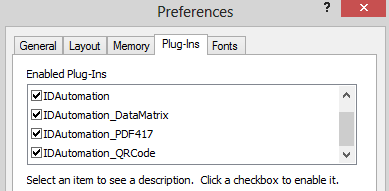
- To verify that the plug-in is enabled, either create a "New
Database" or Open" a preexisting one off of the File menu.
- Then select Edit - Preferences - Plug-in
on a Windows platform. On Mac OS X, select FileMaker Pro Advanced
- Preferences - Plugins. Click on the Plug-Ins tab to ensure that the IDAutomation plug-in is enabled. Click the checkbox in front of the plugin to enable it, if not already enabled.
Working with Self-Checking Barcodes
Self-checking barcode fonts are the easiest to work with because they do not require any encoding other than adding the start and stop characters to make the barcode scannable. To encode numbers and uppercase letters, consider Code 39; strictly numbers, consider Codabar.
- With a database open,
choose File - Manage
- Database - Fields. For the field name, enter Code 39 Barcode
as in this example or another descriptive name. For the field type,
select Calculation, and then Create.

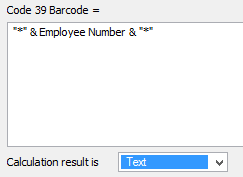
- On the Specify Calculation screen, in the field that
was named on the previous screen, for this example, enter
"*" & Field & "*" for Code 39
or "A" & Field & "B" for Codabar
so that the start/stop characters are appended to the beginning
and end of the field will be encoded. Then at the bottom, choose
TEXT as the calculation result. The calculation that
is entered depends on the font used.
- FileMaker 9 and Prior: Apply the barcode font by right-clicking
on the Barcode Field and selecting the appropriate barcode font.
FileMaker 10 and above, while in layout mode highlight the Barcode
field, choose Format - Font - Configure/More Fonts,
and select the appropriate font.
In this case, select IDAutomationHC39M for the Code 39 font.
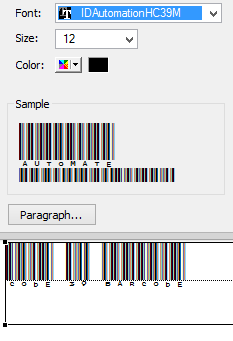
- In the layout view, the Field Name will be barcoded,
but when switched to Preview View, the data itself is barcoded.

"It is simple and easy to integrate IDAutomation's fonts into FileMaker Pro and as a Developer, I can't spend hours with a simple Barcode - which in fact - technically spoken - is quite complex. Therefore, it makes sense to first use the Demo font and then simply buy the product.” |
Working with High-Density Linear Barcodes
High-density barcodes, such as Code 128, Interleaved 2 of 5, and DataBar, require additional encoding over and above what self-checking fonts require. To encode numbers, punctuation, uppercase, and lowercase characters on a Windows platform and inside the USA, Code 128 is suggested. When creating complex barcodes, such as GS1-128, or encoding functions such as Return or Tab, the Universal Barcode Font should be used with the IDAu_Uni_C128 function of the plug-in extension.
- Install the linear plug-in and install the desired font. Mac users should use the Universal Barcode Font with the appropriate IDAu_Uni function to avoid compatibility issues with character sets.
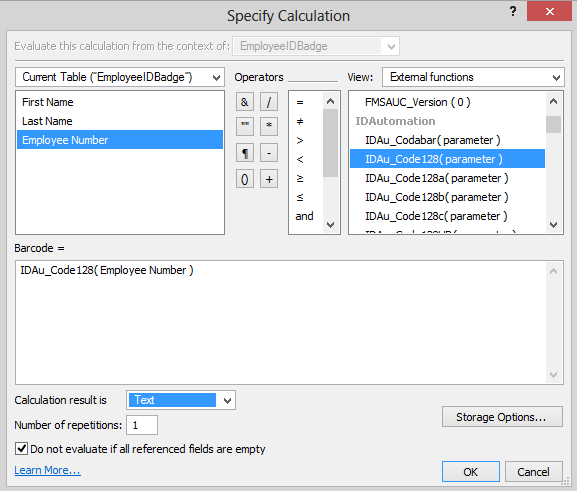
- With a database open, after creating the new field as outlined above, choose External Functions from the view of functions on the Calculation screen and select the IDAu function that formats the data for the barcode font chosen. In this example, the IDAu_Code128 function was used in conjunction with the Code 128 Font. Double-click on the function to have the formula appear in the formula box.
- Replace the text "parameter" with the field to be encoded in the barcode from the Current Table options. Be sure to keep
the parenthesis as is and only change the parameter name.
- Select TEXT as the Calculation Result and click
OK. If the database size is a concern, select Storage
Options and choose not to store the result in the database.
- IDAutomation's Code 39, UPC, EAN, MSI, and
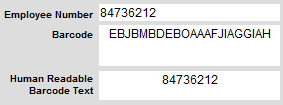
Interleaved 2 of 5 barcode fonts all have an equivalent Human Readable version that may be used to display the text interpretation of the encoded data. If Human Readable fonts are not being used but there is still a need to have the text interpretation appear below the barcode, select Insert - Field to add a special field that consists of the data that will be encoded. This example used "IDAu_Code128HR( Employee Number )" as the calculation field.

- With the barcode fields now in the FileMaker report, choose
View - Browse Mode to confirm that the data is being
pulled dynamically from the fields and properly formatted to the
barcode font. Make sure that the data changes after moving to the
next record. When using the FileMaker Barcode Font Encoder Plug-in,
strange characters may appear in the field data, before applying
the font. This is the normal encoding for the barcode font. When using
the
Universal
Barcode Font, a large number of letters will appear and this
is normal as well.
Working with the Universal Barcode Font
When working on a Mac platform, the Universal Barcode Font creates multiple Linear barcode types, such as Code 128, GS1-128, Interleaved 2 of 5, Code 39, MSI, Codabar, Postnet, Planet and USPS Intelligent Mail IMb from a single font and is the preferred font when creating barcodes outside of the USA to avoid language and locale incompatibilities.
2D Barcodes: Data Matrix | PDF417 | QR-Code
To encode large amounts of data, 800 characters or less, IDAutomation recommends the Data Matrix symbology. When it is necessary to encode links to marketing information or meCard data, IDAutomation recommends QR-Code.
- Install the desired 2D plug-in from the font and encoder package (Data Matrix, PDF417, or QR-Code) and install the IDAutomation 2D Font.
- Go to File - Manage - Database, create a new Field
Name, choose "Calculation" as the Type field, and
Click Create.

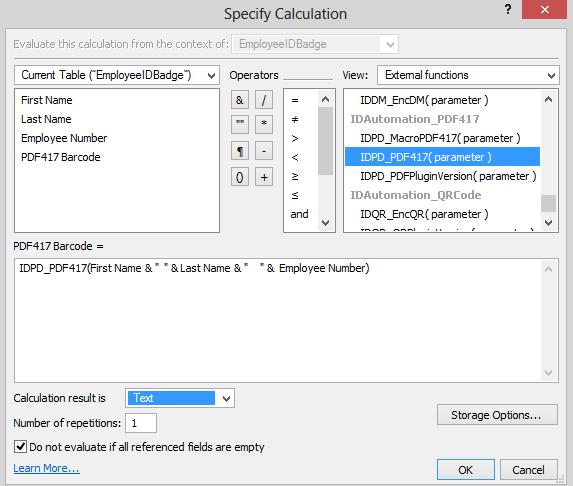
- Choose External Functions from the view of functions
and select the IDDM for Data Matrix, IDPD for PDF417, or IDQR for the QR-Code function that formats the data for the barcode font chosen. Double-click the function so the formula appears in
the formula box. Select TEXT as the Calculation Result and choose OK. If the database size is a concern, select Storage
Options and choose not to store the result in the database.
- With the database form or report open, choose View -
Layout Mode. Choose Insert - Field, select
the field named Barcode from the list of fields, and choose
OK. After the barcode field appears on the form, size the
edges appropriately, if necessary, so the barcode can fit on it.
If this field is not large enough, the barcode will display a rectangle
instead of a barcode or a corrupted barcode may be created that
will not scan.

- While in Layout Mode, which
can be selected under the View Menu, highlight the Barcode
field and choose Format - Font - Configure/More Fonts.
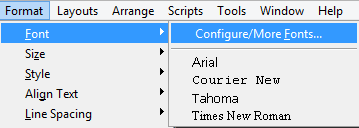
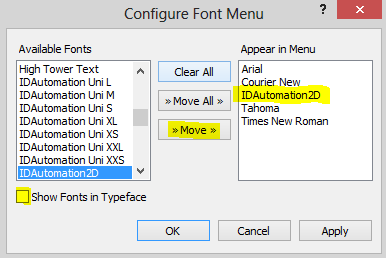
On the next screen, select the appropriate barcode font, move it over to the Appear in Menu column, and click Apply to have the barcode font applied to the field selected. If the fonts are not in a readable format, deselect the "Show Fonts in Typeface" checkbox.
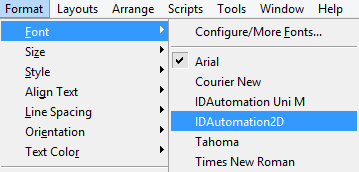
Once the font has been moved, it will be listed under Format > Font for future barcoding needs.
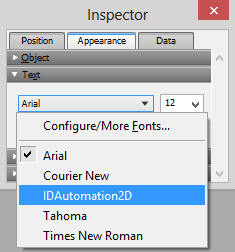
The "Inspector" window that can be accessed under the View menu will also allow users to configure and apply the barcode font.
- Change to Preview Mode and confirm the barcode is complete.

- Choose Format - Align Text - Center to move the barcode
to the middle of the field, and then select the 12-point font size
or another size of choice.

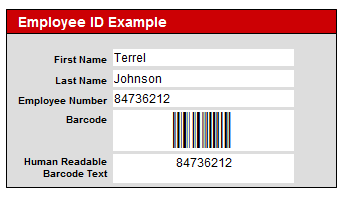
- Choose View - Browse to verify that a barcode
displays in the FileMaker form or report. After printing, the barcode
may be accurately scanned with an
affordable
barcode scanner.
- If the FileMaker application that is being created is also going to be distributed, the FileMaker Barcode Font Encoder Plug-in and appropriate barcode font must also be distributed along with the database.
"We just purchased the product. I am using your fonts with FileMaker and doing a software inventory for the Government. It works great and I have found it very easy to set up. Thanks again"
- David Sinclair, APV4 Contractor (FPI)
Creating GS1-128 Barcodes
The best way to generate GS1-128 barcodes is using the
IDAu_Uni_C128 function with the IDAutomation
Universal
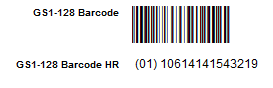
Barcode Font. In the example below, the
~202 adds the FNC1 character before
the data and the |1 is the parameter
that sets the "apply tilde" to true, enabling the encoder to interpret
the ~202 correctly.

Human-readable text may be generated
beneath the GS1-128 barcode by inserting a new field and selecting the
plug-in function of IDAu_Uni_C128HR. In the example below, the following
string was used in the calculation field
IDAu_Uni_C128HR("~2020110614141543219").
Functions and Combining Multiple Fields
Combining multiple fields into a single FileMaker barcode is easily
achieved when ApplyTilde is enabled. For example,
the following would encode "File" <Return> "Maker" <Tab> "Pro":
IDAu_Uni_C128 ("File~013Maker~009Pro"
& "|1")
IDDM_EncDM("File~013Maker~009Pro"
& "|1")
Combining two data fields with a tab between:
IDAu_Uni_C128 (Field_1
& "~009" & Field_2 & "|1")
With supporting symbologies, tabs may also be added by copying an
actual tab out of an application, such as Microsoft Word, and adding
quotes around it, for example “
”.

Barcode Function Method Names
The barcode functions listed below are available in the FileMaker Barcode Font Encoder Plug-in and are only valid when used with the font listed in the "Font to Use" column. Functions beginning with IDAu_Uni should only be used with the IDAutomation Universal Barcode Font Advantage package.
Some of the barcode functions below have multiple parameters. When this occurs, use the '|' (pipe) as the dividing character for these additional parameters. If the additional parameters are omitted, defaults will be used.
| Barcode Type | Functions & Notes | Font to Use |
| When using the IDAutomationC128 or IDAutomationI25 fonts outside of the USA, consider using the Universal Barcode Font with the appropriate Universal Function to avoid language and locale incompatibilities. | ||
| Code 128 | IDAu_Code128(DataToEncode)
Examples: NOTE: Consider using the Universal Barcode Font with the IDAu_Uni_C128 function in the following situations:
|
IDAutomationC128
*
|
| Text Interpretation | IDAu_Code128HR(DataToEncode) | Text Font |
| Code 128 | IDAu_Code128a(DataToEncode) | IDAutomationC128 * |
| IDAu_Code128b(DataToEncode) | IDAutomationC128 * | |
| IDAu_Code128c(DataToEncode) | IDAutomationC128 * | |
| Interleaved 2 of 5 | IDAu_I2of5(DataToEncode) |
IDAutomationI25 * IDAutomationHI25 * |
| Interleaved 2 of 5 | IDAu_I2of5Mod10(DataToEncode) |
IDAutomationI25 * IDAutomationHI25 * |
| * When using the IDAutomationC128 or IDAutomationI25 fonts outside of the USA, consider using the Universal Barcode Font with the appropriate Universal Function to avoid language and locale incompatibilities. | ||
| Code 39 | IDAu_Code39(DataToEncode) |
IDAutomationC39 IDAutomationHC39 IDAutomationXC39 IDAutomationXHC39 |
| Code 39 | IDAu_Code39Mod43(DataToEncode) |
IDAutomationC39 IDAutomationHC39 IDAutomationXC39 IDAutomationXHC39 |
| Code 93 | IDAu_Code93(DataToEncode) | IDAutomationC93 |
| Codabar | IDAu_Codabar(DataToEncode) | IDAutomationCB |
| USPS Postnet & Planet | IDAu_Postnet(DataToEncode) |
IDAutomationPOSTNET IDAutomationPLANET |
| MSI Plessey | IDAu_MSI(DataToEncode) |
IDAutomationMSI IDAutomationHMSI |
| UPC-A | IDAu_UPCa(DataToEncode) | IDAutomationUPCEAN |
| UPC-E | IDAu_UPCe(DataToEncode) | IDAutomationUPCEAN |
| EAN-13 | IDAu_EAN13(DataToEncode) | IDAutomationUPCEAN |
| EAN-8 | IDAu_EAN8(DataToEncode) | IDAutomationUPCEAN |
| Universal Barcode Font Functions | ||
| Function Name | Notes and Examples | Fonts to Use |
| Code 128 |
IDAu_Uni_C128(DataToEncode
| ApplyTilde) Examples: Standard encoding: IDAu_Uni_C128(Field_1) GS1-128 Encoding: IDAu_Uni_C128("~202" & Field_1 & "|1") NOTE: Parentheses may not be used to encode the FNC1 character within this function. |
IDAutomation_Uni or IDAutomation DataBar |
| IDAu_Uni_C128HR(DataToEncode
| ApplyTilde) This method returns the human-readable text for Code 128 barcodes, such as with GS1-128. |
Text Font | |
| Additional Code 128 Functions: IDAu_Uni_C128A(DataToEncode) IDAu_Uni_C128B(DataToEncode) IDAu_Uni_C128C(DataToEncode) |
IDAutomation_Uni or IDAutomation DataBar |
|
| Code 39 |
IDAu_Uni_C39(DataToEncode|
N_Dimension |
IncludeCheckDigit) Examples: Standard encoding: IDAu_Uni_C39(Field_1) N=2 with check digit: IDAu_Uni_C39(Field_1 & "|2|1") N=3 with no check digit: IDAu_Uni_C39(Field_1 & "|3|0") |
IDAutomation_Uni or IDAutomation DataBar |
| Codabar | IDAu_Uni_Codabar(DataToEncode| N_Dimension, StartChar, StopChar) |
IDAutomation_Uni or IDAutomation DataBar |
| Interleaved 2 of 5 |
IDAu_Uni_I2of5(DataToEncode|
N_Dimension |
IncludeCheckDigit) Examples: Standard encoding: IDAu_Uni_I2of5(Field_1) With check digit: IDAu_Uni_I2of5(Field_1 & "|2|1") N=2.5 without check digit: IDAu_Uni_I2of5(Field_1 & "|2.5") |
IDAutomation_Uni or IDAutomation DataBar |
| MSI Plessey | IDAu_Uni_MSI(DataToEncode| N_Dimension | IncludeCheckDigit) |
IDAutomation_Uni or IDAutomation DataBar |
| USPS IntelligentMail | IDAu_USPS_IntelligentMail(DataToEncode) |
IDAutomation_Uni (XS, S, or M size) or IDAutomationPOSTNET or IDAutomationIMB |
| USPS Planet | IDAu_Uni_Planet(DataToEncode | IncludeCheckDigit) | |
| USPS Postnet | IDAu_Uni_Postnet(DataToEncode | IncludeCheckDigit) | |
|
DataBar Font Functions The methods listed below are only to be used with the IDAutomation GS1 DataBar Font. |
||
|
Function Name |
Notes and Examples |
Font to use |
| DataBar | IDAu_DataBar(DataToEncode) | IDAutomation DataBar 34 |
| DataBar Expanded |
IDAu_DataBar_Expanded(DataToEncode|
Segments) Examples: Standard encoding: IDAu_DataBar_Expanded(Field_1) 6 segments: IDAu_DataBar_Expanded(Field_1 & "|6") |
IDAutomation DataBar 34 |
| DataBar Limited | IDAu_DataBar_Limited(DataToEncode) | IDAutomation DataBar 13 |
| DataBar Stacked | IDAu_DataBar_Stacked(DataToEncode) | IDAutomation DataBar 13 |
| DataBar Stacked Omnidirectional | IDAu_DataBar_Stacked_Omnidirectional(DataToEncode) | IDAutomation DataBar 34 |
| DataBar Truncated | IDAu_DataBar_Truncated(DataToEncode) | IDAutomation DataBar 13 |
|
2D
Font Functions 2D plug-ins for Data Matrix, PDF417, and QR-Code are available in their associated Font and Encoder packages. |
||
|
Function Name |
Notes and Examples |
Font to use |
| Data Matrix | IDDM_EncDM(DataToEncode
| ProcessTilde |
EncodingMode |
PreferredFormat) Examples: Standard encoding: IDDM_EncDM(Field_1) Beginning with GS1 FNC1 in ASCII format: IDDM_EncDM("(01)" & Field_1 & "|1|3") Format symbol to type 29 in binary format: IDDM_EncDM(Field_1 & "|0|0|29" ) |
IDAutomationDMatrix or IDAutomation2D |
| PDF417 | IDPD_PDF417(DataToEncode
| EcLevel |
TotalColumns |
TotalRows |
Truncated |
PDFMode |
ApplyTilde) Examples: Standard encoding: IDAu_PDF417(Field_1) Error Correction 2, Total Columns 5: PDF417(Field_1 & "|2|5") Mode = Text and ApplyTilde enabled: PDF417(Field_1 & "|2|5|0|0|1|1") |
IDAutomationPDF417 or IDAutomation2D |
| QR-Code | IDAu_QR(DataToEncode
|
ProcessTilde |
EncMode |
Version |
ErrorCorrectionLevel) Examples: Standard encoding: IDAu_QR(Field_1) ProcessTilde enabled & Encoding mode Alpha-Numeric: IDAu_QR(Field_1 & "|1|1") Version 15 & Error Correction of L: IDAu_QR(Field_1 & "|0|0|15|2") |
IDAutomation2D |
Barcode Function Method Definitions and Descriptions
- DataToEncode: A string value that represents the data that is being encoded. Within FileMaker,
fields may be specified directly and text should be represented in double quotes. Additional parameters are optional and are separated with the "|" pipe character.
- Example:
Standard encoding: IDAu_Code128(Field_1)
Encoding GS1-128: IDAu_Uni_C128("~212" & GS1_Data_Field & "|1")
- Example:
- N_Dimension: Determines the width of the wide bars, which is a multiple of the X dimension.
The X dimension is determined by the font point size. Valid values are 2, 2.5, and 3. The default is 2.
- Example: IDAu_Uni_C39(Field_1 & "|3")
- IncludeCheckDigit: If
this value is 1, a check digit will be calculated automatically
and included in the barcode, if appropriate, for the chosen symbology.
- Example:
IDAu_Code39(Field_1
& "|1")
Universal Font Example: IDAu_Uni_C39(Field_1 & "|3|1")
- Example:
IDAu_Code39(Field_1
& "|1")
- ApplyTilde: In IDAu_Uni_C128, if the ApplyTilde option is set to 1, the tilde will be processed to allow the encoding of ASCII characters and generation of GS1-128 barcodes. Note: Parentheses may not be used to encode the FNC1 character within IDAu_Uni_C128.
- ProcessTilde: In Data Matrix
and QR-Code when set to 1, the tilde will be processed to allow
direct encoding of
ASCII characters according to the format dnnn.
For example; ~d009 is
used to encode a tab and ~d013
encodes a return.
- IDAu_Code128: IDAu_Code128
only functions properly on FileMaker when
the system regional setting is
set to "English" and the 1252 Latin-1 codepage. To overcome
these issues, IDAutomation recommends using the
Universal
Barcode Font with the IDAu_Uni_C128
function. Within IDAu_Code128, the FNC1 character may be included
with the "Ê" ASCII 202
character.
- PDF417 Parameters:
- EcLevel As Integer - This is the Error Correction Level and acceptable values are 1-8.
- TotalColumns As Integer - This sets the number of Columns.
- TotalRows As Integer - This sets the number of Rows.
- Truncated As Integer - Set to 1 for truncated and 0 for non-truncated.
- PDFMode As Integer - The default of 0 is binary mode; 1 is text mode which only encodes ASCII 9, 10, 13, and 32 - 127.
- ApplyTilde As Integer - Set to 1 to enable the ApplyTilde and 0 to disable it.
Support
Common FileMaker Barcode Font Problems and Solutions
- Installing and updating plug-ins in FileMaker Pro
- Be sure that the barcode fits in the targeted field. If the printed barcode cannot be accurately read with a barcode scanner, the barcode may be too wide for the field. This can result in the truncation of the symbol.
- If numbers appear instead of text for a barcode field, ensure that the TEXT option is selected in the Calculation Result drop-down box as outlined above.
- Additional problems and solutions are provided at IDAutomation's barcode font technical support site and by searching resolved public FileMaker forum threads. Priority phone, email, and forum support are provided up to 30 days after purchase. Additional support is available if the Priority Support and Upgrade Subscription is active.
Other FileMaker Barcode Products
- IDAutomation also offers the Dynamic Barcode Generator Service, which is a barcode cloud service that allows barcode images to be streamed into File Maker without the use of fonts or plug-ins.
- Native Barcode Generator for FileMaker Pro allows users to create multiple barcodes from a single distributable cross-platform plugin.
- Full Integration Guide to integrate barcodes into FileMaker Pro.
