

QR-Code Font and Encoder User Manual
- Implementation Options
- Windows Installation
- Encoder Parameters
- 2D Font Specifications
- QR-Code Symbology FAQ
- Technical Support
Implementation Tutorials
- .NET Generator for .NET 6, Standard, Core & more
- .NET Assembly DLL
- .NET Windows Forms Control
- Azure Serverless Function
- C++ .h header file
- Crystal Reports Font Formula
- FileMaker Font Encoder Object
- FileMaker Pro Plugin (Legacy)
- Font Encoder App (FEA)
- Java Class Library
- JavaScript Font Encoder
- Microsoft Access
- Microsoft Excel
- Microsoft Word Mail-Merge
- OpenOffice for Windows
- SSRS Reporting Services
- Swiss QR Bill
- TLV & Base64
- Windows COM DLL (Legacy)
- UTF-8 Encoding
- XML Publisher
- 2022 Product Update: The latest version includes new built-in support for UTF-8 Encoding, TLV and Base64, Swiss QR-Bill, Center Override, and GS1 QR Code.
Buy License Support Download Demo Release Log
QR-Code Implementation Options
Several graphic and font encoders are provided. The font encoders will generate a text string that will create a QR-Code symbol when combined with the Universal 2D Font. In the event the QR font and graphic encoders provided are not supported in the desired application, other implementation options are available:
- QR-Code may be printed on an unsupported system by using a font encoder to populate a database with the "text string to print" and by accessing the database from the other system with the QR-Code font.
- The source code for any single encoder may be provided by request after the purchase of an Unlimited Developer License of the Font and Encoder Suite.
Windows Installation Overview
Extract the files provided with the product and run the installation executable, which will install the following components:
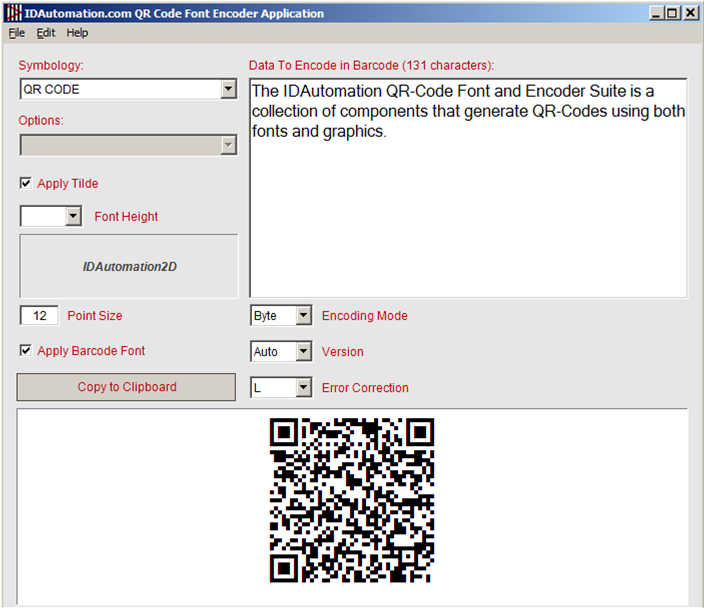
- QR-Code Font Encoder Application - provides an easy method for users to create QR-Code barcodes and paste them into other applications.
- QR-Code Image Generator Application - an easy-to-use application that generates QR codes as a single Windows metafile (WMF) image.
- Universal 2D fonts - used to create QR-code symbols in addition to other 2D barcodes.
- Crystal Reports Formula - allows barcode generation in Crystal Reports versions 9 and above.
- Windows DLLs are installed in the appropriate System folder and are registered by the installation program for COM Interop.
- Examples are installed for FileMaker Pro, Excel, Word Mail Merge, Access, and Crystal Reports.
Microsoft Access
There are two implementation options for Microsoft Access: the ActiveX Control DLL and the VBA Module font encoder. Both methods are implemented in the integration\Examples folder of the package.
Microsoft Excel
 There are multiple implementation options for Microsoft Excel. To display the
ActiveX Control in Excel as a graphic object, refer to the
ActiveX Tutorial. To use Excel as a data source for a Word Mail Merge, refer
to the Word Mail Merge Tutorial.
There are multiple implementation options for Microsoft Excel. To display the
ActiveX Control in Excel as a graphic object, refer to the
ActiveX Tutorial. To use Excel as a data source for a Word Mail Merge, refer
to the Word Mail Merge Tutorial.
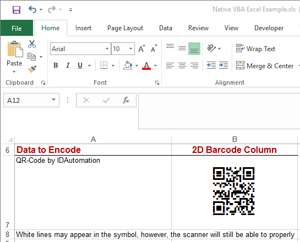
QR codes may also be generated and displayed directly within Excel spreadsheets by implementing the VBA module with the 2D XLS Font. This is the most efficient method to use when multiple barcodes must be generated.
A working example is provided in the package. The data that is formatted for the font will not stack or look correct until the cells are formatted for multiple lines, as described in the 2D XLS font documentation.
The required VBA module is provided in the Integration\Microsoft Office folder of the product zip file.
Word Mail Merge
QR-Code barcodes may be created in a Word mail merge with the included ActiveX Control as a graphics object, or as a VBA font encoder with Excel as the data source. A working example is provided in the \Integration\Examples\ folder included with the package.
OpenOffice for Windows
QR codes may be generated within OpenOffice applications that support VB scripting. A working Calc example is provided in the \Integration\Examples\ folder or the install package. Use the OpenOffice Font Encoder Tutorial with the VB module within the package.
FileMaker Plug-in
NOTE: The 2017 release of this product introduces a new FileMaker Font Encoder Object method that is cross-platform compatible and easier to use than the Plugin. The provided Plugin does not support FileMaker 64-bit on the Mac and will not work with FileMaker Go on iOS. IDAutomation suggests using the font encoder object instead.
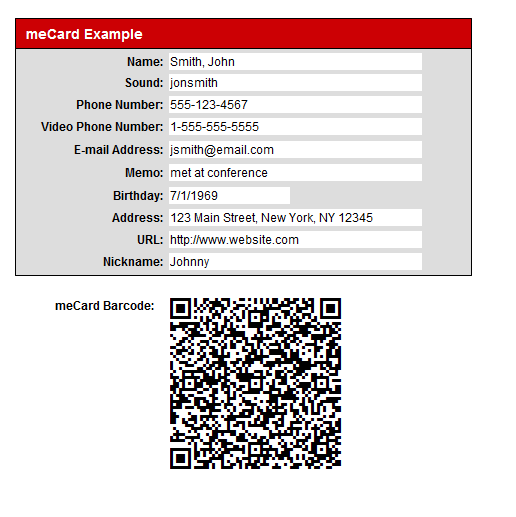
IDAutomation's QRCode Barcode may be integrated into FileMaker using dynamic calculated fields without the use of scripts with the FileMaker Plugin. The plugin is provided in the zip file of the purchased version only. View step-by-step instructions about installing, registering, and using the plugin in FileMaker. A working meCard database example is provided in the \Integration\Examples\ folder within the install package.
Windows COM DLL Font Encoder
The COM DLL is included as a legacy component and does not include the latest QR Code updates for GS1 and Center Override. Install the COM DLL by running the .exe file provided in the package, which will automatically install TrueType fonts, implementation examples, and register the DLL. After the DLL is installed and registered, it may be accessed by any application that can retrieve a text string or graphic object from a COM DLL.
The FontEncode method is used to convert the data to be encoded into a string that will generate a QR barcode when combined with the 2D font. The Excel implementation provides a good example of using the COM DLL. VB and VBA scripting modules making use of the QR-Code COM object are provided in the \Integration\ActiveX Control and DLL\ folder of the product ZIP file.
COM DLL ProgID: IDAuto.QRCode
Code Example:
'Initialize COM DLL
Dim QRFontEncoder As QRCodeFontEncoder
Set QRFontEncoder = New QRCodeFontEncoder
QRFontEncoder.FontEncode DataToEncode,ProcTilde,EncodingMode,Version,ErrorCorrectionLevel,
Result
PrintableBarcodeString = Result
Generating QR Codes with Java Class Integration
The Java class file was compiled with the Sun JDK 1.4 and is compatible with Windows, Mac, Unix, Android, Linux, and any other systems supporting Java. Copy the IDAutomation_JavaFontEncoder_QRCode.jar file from the "Java Class Encoder" folder to the system's classpath. Consult the Java documentation or the company that provides the Java virtual machine for assistance. In Windows, this may be accomplished by setting the CLASSPATH environment variable directly to the JAR file, for example: SET CLASSPATH = C:\CLASSPATH\IDAutomation_JavaFontEncoder_QRCode.jar
Integrate the FontEncode Method
After the directories are copied to the classpath root, the method to format data to the font can then be called from a method in a Java application, as in this example:
import java.io.*;
import com.idautomation.fontencoder.qrcode.*;
class QRCodeBarcodeExample {
   public static void main(String[] args) {
      QRCodeEncoder qre = new QRCodeEncoder();
      String DataToEncode = "www.idautomation.com";
      boolean ApplyTilde = false;
      String EncodingMode = "Byte";      // "Byte", "Alpha", "numeric"
      int Version = 0;                   // [-4 .. 40], -4 = M1, -3 = M2, -2 = M3, -1 = M4
      String ErrorCorrectionLevel = "M"; // "M", L", "Q", "H"
      boolean BestMask = true;           // Best pattern mask
      System.out.println(qre.FontEncode(DataToEncode,ApplyTilde,EncodingMode,ErrorCorrectionLevel,Version,BestMask));
   }
}
To install the font on an operating system, consult the OS documentation or follow the font installation procedures.
Property Definitions: DataToEncode, ApplyTilde, EncodingMode, Version, ErrorCorrectionLevel, BestMask
JavaScript Font Encoder
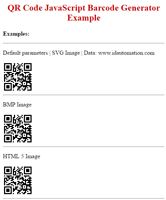
The JavaScript Font Encoder is a complete font encoder in a single JavaScript file, meaning no other components need to be installed to create barcodes beyond the IDAutomation 2D Font. This product is only provided in the purchased version of the Font and Encoder Suite. The following describes how to use the Native JavaScript Font Encoder in HTML:
- Open the HTML document or application that the barcode is to be integrated with.
- Add the following line at the top of the file just before
the </head> line to load the appropriate
JavaScript file:
<script language="JavaScript" src="IDAutomation_QRCode.js"></script>
<script language="JavaScript" src="IDAutomation_GS1_HRI.js"></script> - Add the barcode font as a class to be called in the document for the barcode
to appear just before the
</head> line:
<style type="text/css">
.barcodefont1 {
font-family: "IDAutomation2D", "IDAutomation2D XLS";
font-size: 100%;
}
</style> - Add a script where the barcode is to appear in the HTML
document or text object, which is the file name without the
".js":
<span class="barcodefont1">
<script type="text/javascript">
document.write(IDAutomation_QRCode("~101095011010209171719050810ABCD1234",1))
</script>
</span>
<script type="text/javascript">
document.write(IDAutomation_GS1_HRI("~101095011010209171719050810ABCD1234",1))
</script> - Modify "DataToEncode" with what is to be encoded in the barcode. This may be accomplished with a "variable" in JavaScript or a dynamically generated webpage.
JavaScript Font Encoder Parameters |
| function IDAutomation_QRCode(DataToEncode, ApplyTilde, EncMode, ErrLevel, Version, BestMask, QuietZone, HTML, IDElement) |
| Example: IDAutomation_QRCode("123456789012",1,2,M,1,0,1,1)); |
/** Default values **/// change these lines to set a new default value for parameters in the .js file
var IDAutomation_QRCode_default = {
'ApplyTilde': 1,   //Processes the tilde character for special functions
'EncodingMode': 0, //0=Binary | 1=C40 | 2=Only Numbers
'ErrorLevel': 0,   //0=15% "M" | 1=30% "H" | 2=7% "L" | 3=25% "Q"
'Version': 1,      //Set to -4 for MicroQR
'BestMask': 0,     //Set to 1 to process the mask (slower)
'QuietZone': 1,    //The white space around the symbol
'HTML': 1          //1=use <br> for carriage returns | 0=use CR LF for carriage returns
};
C++ .H Header File
The C++ header file is provided with the purchase of a Developer License or greater. The header file is an unobfuscated C++ source code that makes use of character vectors. It was compiled and tested with Visual Studio and does not contain any OS-specific code. The QRCodeFontEncoder class may be used to return an encoded string that the IDAutomation 2D font can be applied to, to create QR-Code symbols. This class also contains several properties and enumerations that adjust the resulting symbol size and encoding method. Following is a C++ Implementation example:
#include <string>
#include <iostream>
#include <math.h>
#include <fstream>
#include "IDAutomationQRCode.h"
int main ()
{
     QRCodeFontEncoder QR;
     QR.ApplyTilde = true;
     QR.ErrorCorrectionLevel = QR.ECL_M;
     QR.EncodingMode = QR.Enc_Byte;
     QR.Version = QR.V_07;
     QR.DataToEncode = "IDAutomation.com";
     printf(QR.FontEncode().c_str());
}
XML/BI Publisher Integration
IDAutomation provides an Oracle BIP Integration Guide; however, IDAutomation does not directly support integration with BI Publisher.
Encoder Specifications
The
IDAutomation2D Font
is used in this package to create QR-Code symbols and is included in several
formats, including TrueType, PostScript, OpenType, and PCL. To obtain all the
fonts,
download the latest IDAutomation2D Font package.
Support
- Links to common issues are provided below. Support for all graphic encoders is provided in the online manual and support links for that product.
- IDAutomation offers the free Barcode Data Decoder App, which may
be specifically useful when troubleshooting or verifying encoded data.
- Additional support is available on the technical support page, by reviewing resolved IDAutomation forum threads, or by contacting IDAutomation.
Documented Solutions:
- White Lines Appear in a Stacked Barcode Symbol
- Access has Stopped Working Error when using the ActiveX Control
- Object Reference not Set to an Instance of an Object Error
- Run-time error 429; ActiveX Component Can't Create Object.
- Line Spacing Issues with PCL Fonts
- X-Axis Issues and Left Margin Alignment
- Encoding Extended ASCII Characters
- Intelligent Positioning Drive Implementation
