Data Matrix Font and Encoder User Manual
Buy License Support Download Demo Release Log
Implementation Tutorials
- Windows Installation
- Font Encoder Application for Windows
- .NET 6, Standard & Core
- .NET DLL Font Encoder
- .NET Forms Control
- ASP.NET Web Control
- C++ .H Header File
- COM DLL
- Crystal Reports Integration
- Crystal Reports Font Formula
- FileMaker Font Encoder Object
- FileMaker Pro Plug-in
- Internet Explorer
- Java Class Font Encoder
- Java Applet & Servlet
- Microsoft VBA Import for Excel or Access
- Microsoft Access | Excel | Word
- Native JavaScript Font Encoder
- SSRS Reporting Services
- LibreOffice | OpenOffice | Calc
Specifications
2D Matrix Font Support Issues and Solutions
- Support Forum
- Font Installation Procedures
- Data Matrix Barcode Symbology FAQ
- Line Spacing Issues (Too Much Space between Lines)
- X-Axis and Left Margin Alignment Issues
- Encoding Extended ASCII Characters
- Distributing the Font and Encoder
- Benefits of Printing Data Matrix as a Font
- Microsoft Excel Compatibility
- Amount of Data that may be Encoded
- Intelligent Positioning Drive Implementation
- Support for all graphic encoders is provided in the online manual for that product.
- If reading or verifying barcodes, consider the Barcode Decoder App.
Font Encoder Overview and Features
The IDAutomation Data Matrix Font and Encoder Suite is a collection of components that generate Data Matrix ECC200 barcodes using both fonts and graphics. Approximately 800 characters of text and binary data can be stored in a single Data Matrix barcode.
The Data Matrix fonts provided in this package include support for Structured Append, which allows thousands of characters to be encoded into multiple barcode symbols. This advanced Data Matrix barcode font uses IDAutomation Vertical Interleaved Technology™, which allows increased throughput and printing at smaller X dimensions than competitors' products.
The encoders provided in this package will format the data to be encoded into a text string that will create a readable Data Matrix barcode after the appropriate font is applied to it. Please review the Data Matrix Encoder for Windows Tutorial to learn more about how font encoders work.
Graphic encoders are also included in this package. The graphic encoders are components that return a graphic image of the complete symbol instead of text that needs to be combined with a font.
Implementation Options
If the font and graphic encoders are not supported in the application being used, consider the following alternative implementation options:
- Data Matrix may be printed on an unsupported system by using a font encoder to populate a database with the "text string to print" and by accessing the database from the other system with the Data Matrix font.
- The source code for any single encoder (available: .NET, Java, C++, or C#) will be supplied with the purchase of the Unlimited Developer License and a signed Source Code Agreement. Microsoft VBA, OpenOffice VB, Crystal Reports, VB, and JavaScript source code is automatically supplied with any Developer License purchase and consists of about 5000 lines of code.
- IDAutomation Barcode Label Software Pro is a stand-alone label design application with VB scripting support and database connectivity.
- IDAutomation Data Matrix Barcode Image Generators create individual images on Windows systems. Command-line options are also available with this product.
- Streaming Barcode Generators are available that stream barcode images directly into many applications.
Windows Installation
The Windows installation installs the following components:
- Data Matrix Font Encoder for Windows
- IDAutomation 2D Fonts
- Crystal Reports UFL and compatible Font Formula
- FileMaker Plugin for Windows
- ActiveX Control and DLL
- Signed ActiveX CAB File
- VBA Module
- VB Module for use with OpenOffice
- Implementation examples for Crystal Reports, FileMaker, Access, Excel, and Word mail merge.
VBA Module For VB, Excel, and Access
The VBA module is required when using font encoders in VB 6, Excel, or Access; it is provided in two varieties:
- The IDAutomation_VBA_DataMatrix_FE.bas
module is the complete encoder function in "native" Visual Basic
VBA form compatible with Windows and Mac.
This module is only provided with the Font and Encoder Suite license. - The IDAutomation_Datamatrix_Macro.bas module accesses the legacy ActiveX DLL for the encoder function. It is available in the demo version for testing. Created in C++, the ActiveX DLL is faster than the native VBA code. However, the installation executable provided in the package must be installed on each computer.
Importing The VBA Module
- Extract the files provided with the product.
- Open Excel or Access and select Tools - Macro - Visual Basic Editor to open the VB editor.
- If importing the IDAutomation_Datamatrix_Macro.bas module, run the installation executable first. Then, in the Visual Basic Editor, select File - Import File and browse to the Program Files/IDAutomation.com DataMatrix Font and Encoder for Windows folder and select that .bas file.
- If the Project Explorer is not on the left-hand side in the Visual Basic Editor, click View and select Project Explorer.
- Expand the "Modules" folder and double-click "IDAutomation_Datamatrix_Macro"
to see the code.
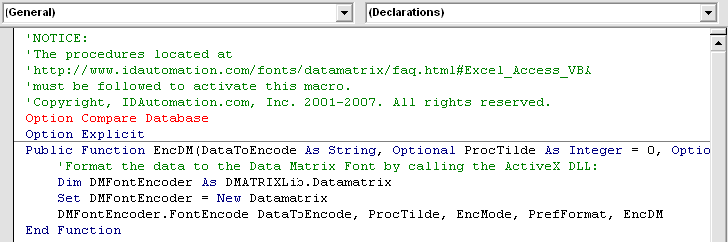
- Place an apostrophe ( ' ) before the "Option Compare
Database" and "Option Explicit" lines.
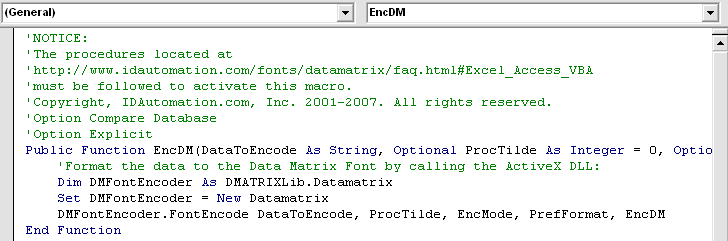
- Select Tools - References and select IDAutomation Data Matrix Barcode, then click OK.
- If importing the IDAutomation_VBA_DataMatrix_FE.bas module, select File - Import File and then the module to import from the VBA folder of the extracted files. The native module, IDAutomation_DM_FontEncoder.bas, is compatible with Windows, and the source code in the IDAutomation_Native_DataMatrix_Mac.rtf is compatible with the older versions of Office for Mac before 2016. These files are supplied in the purchased version of the product.
- If using Excel or Access, select File - Close to close the VB editor and then select File - Save.
- After the file is imported, the function may be called according to the chart below. The zero digit is the default for all parameters (which are optional) and is used for automatic mode or a false setting. The one digit is used for a true setting.
| IDAutomation_Datamatrix_Macro.bas | |
| EncDM(DataToEncode As String, Optional ProcessTilde, Optional EncodingMode, Optional PreferredFormat) | Example: =EncDM([Test Data.data]) or =EncDM([Test Data.data],1,3,0) |
| Mac users must include all parameters available in the IDAutomation_Native_DataMatrix_Mac.rtf. The VBA files are only provided in the purchased version of the Font and Encoder Suite. Note that the RTF file is only for use on Mac with versions of Office before 2016. | |
| IDAutomation_DMatrix_FontEncoder(DataToEncode As String, Optional ApplyTilde, Optional EncodingMode, Optional PreferredFormat) | Example: =IDAutomation_DMatrix_FontEncoder([Test Data.data]) or =IDAutomation_DMatrix_FontEncoder([Test Data.data],1,3,0) |
| VBA Macro Parameters | |
| Result = (DataToEncode As String, Optional ApplyTilde, Optional EncodingMode, Optional PreferredFormat) | |
Microsoft Access Implementation
Font Encoder Implementation
- Run the installation executable file in the package and follow the instructions to complete the installation.
- Import the VBA module into the database.
- Open a report in Design Mode.
- Add a text field to the report where the barcode will live. Adjust the field size to contain the barcode. Change the font point size of the field to 8 points.
- Right-click on the text field and enter the function call
as a formula in the control source property. For example:
=IDAutomation_DMatrix_FontEncoder([Test Data.data])
The following formula combines two fields into a single symbol and inserts a tab function between them:
=IDAutomation_DMatrix_FontEncoder([Test Data.TextData] & Chr(9) & [Test Data.NumberData]) - Save the report and run it. Several numbers should appear in the text field when the report is run. This data will create a correct barcode after the Data Matrix Font is applied.
- Open the report in Design Mode and select the IDAutomation2D or IDAutomationDMatrix font for the text field. The recommended point size is 8.
- Save the report and run it. A correct symbol should appear in the text field.
Word Mail-Merge Implementation (Windows and Mac)
Data Matrix barcodes may be created in a Word mail merge if Excel is used as the data source. A working example is provided in the installation package. Manual procedure:
- Extract the files provided with the product.
- When using Windows, run the installation executable in the package to install the IDAutomation2D font and related components. Mac users should follow the Font Installation Procedures for Mac to install the IDAutomation2D font.
- Import the VBA module into the Excel spreadsheet that will be used as the data source. When using the Mac, the native module, IDAutomation_Native_DataMatrix_Mac.rtf must be used.
- VBA-compatible versions of Office for Mac may not have an import feature. When this is the case, users need to copy the RTF file manually by going to Tools - Macros - Visual Basic Editor. Once the editor window is open, choose Insert - Module and paste the contents of the RTF file.
- Place a title in each column of the spreadsheet on row 1 that will contain the data, and then import the data into the Excel spreadsheet.
- Select a blank column on row 1, to the right of the last populated column in the spreadsheet, and title it "Barcode".
- Add a formula on row 2 of the Barcode column that calls the function as a formula.
- For example, the following formula adds columns A and B to the barcode.
Windows Example:
=SUBSTITUTE(EncNDM(A2&B2),CHAR(10),"")
Macintosh Example:
=SUBSTITUTE(EncNDM(A2&B2,0,0,-1),CHAR(10),"") - The following formula adds just column A to the barcode,
with some optional parameters
=SUBSTITUTE(EncNDM(A2,1,0,3),CHAR(10),"") - The following formula adds columns A, B, and C to the barcode and separates
them with a comma delimiter.
Windows Example:
=SUBSTITUTE(EncNDM(A2&","&B2&","&C2),CHAR(10),"")
Macintosh Example:
=SUBSTITUTE(EncNDM(A2&","&B2&","&C2,0,0,-1),CHAR(10),"") - Highlight the cell with the formula in it and select Edit - Copy.
- Select the entire range of cells to paste this formula into the Barcode column and select Edit - Paste.
- Follow the procedures in Word to add this spreadsheet as the data source for the mail merge.
- Add the mail merge field titled "Barcode" to place the barcode in the document.
- Highlight the «Barcode» merge field and select the IDAutomation2D font.
- After the mail merge is performed, the barcodes should appear in the merged document.
- A working example is provided in the Word Mail-Merge.doc file included with the Windows install package.
Crystal Reports Integration
IDAutomation provides two Crystal Reports font encoder formulas in this package:
- The Native Font Formula is the complete font encoder function with the latest updates that may be embedded in a report, but it is slower than the Crystal UFL when encoding large amounts of data. When distributing a report with this implementation, no other components are required except the 2D font. This formula is only provided in the purchased version of the Font and Encoder Suite.
- The High-Speed UFL Font Formula accesses the Crystal UFL for the font encoder function. Created in C++, the ActiveX DLL is faster than the native formula. However, when distributing the report, the Windows installation executable file must also be installed to activate the UFL.
While not part of this package, IDAutomation provides two other Crystal Reports implementations:
- When using Crystal 9 or greater, the Native Barcode Generator for Crystal Reports generates barcodes without additional fonts.
- When using Crystal Reports 11, Crystal Reports Enterprise 4, or later versions, barcode images may be streamed from a server with any of IDAutomation's Streaming Products.
FileMaker Pro Plug-in
NOTE: 2017 and later releases of this product introduce a new FileMaker Font Encoder Object method that is cross-platform compatible and easier to use than the Plugin. The provided Plugin does not support FileMaker 64-bit on the Mac and will not work with FileMaker Go on iOS. IDAutomation suggests using the font encoder object instead.
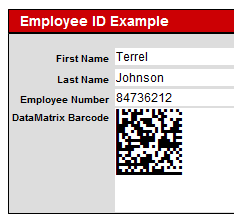
IDAutomation's DataMatrix 2D Font may be easily integrated into FileMaker using dynamic calculated fields without the use of scripts with this FileMaker Plugin. Encode up to 800 characters into a barcode, which is ideal for creating barcodes on badges when concatenating multiple fields into a single 2D symbol.
Note: The Mac plugin is only provided with the Font and Encoder Suite license.
Native JavaScript Font Encoder
The Native JavaScript Font Encoder is a complete font encoder in a single JavaScript file, meaning no other components need to be installed to create barcodes beyond the IDAutomation 2D Font. This product is only provided in the purchased version of the Font and Encoder Suite. The following describes how to use the Native JavaScript Font Encoder in HTML:
- Open the HTML document or application that the barcode is to be integrated with.
- Add the following line at the top of the file just before
the </head> line to load the appropriate
JavaScript file:
<script language="JavaScript" src="IDAutomation_DataMatrix.js"></script>
<script language="JavaScript" src="IDAutomation_GS1_HRI.js"></script> - Add the barcode font as a class to be called in the document for the barcode
to appear just before the
</head> line:
<style type="text/css">
.barcodefont1 {
font-family: "IDAutomation2D", "IDAutomation2D XLS";
font-size: 100%;
}
</style> - Add a script where the barcode is to appear in the HTML
document or text object, which is the file name without the
".js":
<span class="barcodefont1">
<script type="text/javascript">
document.write(IDAutomation_DataMatrix("~101095011010209171719050810ABCD1234",1))
</script>
</span>

<script type="text/javascript">
document.write(IDAutomation_GS1_HRI("~101095011010209171719050810ABCD1234",1))
</script> - Modify "DataToEncode" with what is to be encoded in the barcode. This may be accomplished with a "variable" in JavaScript or a dynamically generated webpage.
JavaScript Font Encoder Parameters |
| function IDAutomation_DataMatrix(DataToEncode, ApplyTilde, EncodingMode, PreferredFormat, HTML, IDElement) |
| Example: IDAutomation_DataMatrix_Font_Encoder("ECC200_123456789012",false,2,29,1)); |
/** Default values **/// change these lines to set new default values for parameters in the .js file
var |
Documentation for the JavaScript Encoder before the 2017 release.
Microsoft .NET Integration for Windows Forms (WinForms)
Data Matrix barcode generation in .NET applications may be accomplished with graphic or font encoders. Integration into ASP.NET and other web applications is best implemented as a graphic encoder with the ASP.NET Web Component provided in this package. Information about printing from the .NET Forms Control without using fonts is provided in the .NET Forms Control Manual.
.NET Font Encoder Example
The following is an example that uses the font encoder to obtain the data, which, when printed with IDAutomation's Data Matrix Font, will create a correct barcode. The source code for this font encoder example is provided in the package for testing and reference.
VB.NET Example:
- In a .NET project, add a reference to the DLL and place
the import statement in the declarations section of the project.
For example:
Imports IDAutomation.Windows.Forms.DataMatrixBarcode - Obtain the string of data that, when printed with IDAutomation's 2D
Data Matrix Font, will create a correct symbol:
Dim NewBarcode As DataMatrixBarcode = New DataMatrixBarcode()
	TextBox2.Text = NewBarcode.FontEncode(TextBox1.Text, True, EncodingModes.Ascii, PreferredFormats.Auto)
C# Example:
- In a .NET project, add a reference to the DLL and place the using statement
in the declarations section of the project. For example:
using IDAutomation.Windows.Forms.DataMatrixBarcode; - Obtain the string of data that, when printed with IDAutomation's 2D
Data Matrix Font, will create a correct symbol:
DataMatrixBarcode NewBarcode = new DataMatrixBarcode();
	textBox2.Text = NewBarcode.FontEncode(textBox1.Text, true, EncodingModes.Ascii, PreferredFormats.Auto);
.NET Encoder Method |
| IDAutomation.DataMatrixAssembly.DataMatrixEncoder.FontEncode(DataToEncode as String, ProcessTilde as Bool, IDAutomation.DataMatrixAssembly.EncodingModes, IDAutomation.DataMatrixAssembly.PreferredFormats) |
Java Integration
This section describes the font encoder process in Java. Implementation in Java as a graphic encoder is described in the Java Barcode User Manual.
Install the Encoder Class Library
Copy everything in the "Java Class Encoder" directory to the root directory of the system's Java classpath. Consult the Java documentation or the company that provided the Java virtual machine for assistance.
Integrate the Font Encode Method
After the directories are copied to the classpath root, the method to format data to the font can then be called from a method in a Java application, as in this example:
import java.io.*;
	import com.idautomation.fontencoder.datamatrix.*;
	class DMatrixTest {
		public static void main(String[] args) {
			String dataToEncode = "Data Matrix Test";
			DataMatrixEncoder dme = new DataMatrixEncoder();
			System.out.println(dme.fontEncode(dataToEncode));
		}
	}
The data string returned by the fontEncode method will create a proper Data Matrix symbol when printed with the Data Matrix font.
Java Encoder Properties and Methods
- fontEncode() is the method that formats and returns a string of data formatted to the Data Matrix font.
- Code is the value to be encoded.
- encoding is the encoding mode; valid values are E_ASCII (default), E_C40, E_TEXT or E_BASE256.
- preferredFormat sets the preferred format represented by a number; valid values are from 0 (10X10) to 23 (144X144) and from 24 (8X18) to 29 (16X48); the default value is -1, which sets this to automatic.
- processTilde If true ("Y"), the tilde (~) will be processed.
C++ .H Header File
The IDAutomationDataMatrix.h is an unobfuscated C++ header file that is provided with any Developer License. Both the method declaration and implementation are in the header file, so no .cpp file is necessary. Include the header file in the source code, and it is ready to use. The header file contains no OS-specific code and has been QA-tested with C++ on Ubuntu Linux and Visual Studio.
The following is an implementation example that will display the encoded text at the command prompt:
#include < string > #include < iostream >
	#include "IDAutomationDataMatrix.h"
	int main() {
		string DataToEncode = "IDAutomation.com";
		string EncodedData = "";
		int ApplyTilde = 0;
		int EncodingMode = 0;
		int PreferredFormat = 0;
		EncodedData = IDAutomation_DMFontEncode(DataToEncode, ApplyTilde, EncodingMode, PreferredFormat);
		printf("Data Matrix Encoded Data:\n%s\n", EncodedData.c_str());
	}
The function declaration is as follows:
string IDAutomation_DMFontEncode(string DataToEncode, int ApplyTilde, int EncodingMode, int PreferredFormat)
Using the ActiveX COM DLL Font Encoder
Install the Font and Encoder for Windows by running the EXE file provided in the package. To register the DLL manually, perform the following:
- Copy the DLL to the \System directory.
- Register the DLL by going to the command prompt, changing to the \system directory, and typing the following command: REGSVR32 "IDAutomationDMATRIX.DLL".
- After the DLL is installed and registered, it may be accessed by any application that can retrieve a text string or graphic object from a COM DLL.
When using the COM DLL as a graphic encoder, refer to the instructions in the ActiveX Control Manual. When using the COM DLL as a font encoder, the FontEncode function is used to convert the data to be encoded into a string, which, when combined with the Data Matrix font, will create a correct barcode. The following is Visual Basic 6 code that places the result in the "PrintableBarcodeString" variable:
DataToEncode = InputString.Text
Dim DMFontEncoder As DMATRIXLib.Datamatrix
Set DMFontEncoder = New Datamatrix
DMFontEncoder.FontEncode DataToEncode, 0, 0, 0, Printable_string
PrintableBarcodeString = Printable_string
A Visual Basic project example is included with the package. These files are placed in the destination directory upon installation.
ActiveX Encoder Parameters |
| DataToEncode, ProcessTilde, EncodingMode, PreferredFormat, Result |
OpenOffice & Calc
Data Matrix may be generated within OpenOffice applications that support VB scripting. A working Calc example is provided in the \Integration\Examples\Calc Example.ods file included with the install package. The required VB module is provided in the Integration\OpenOffice VB folder of the product zip file. Use the OpenOffice Font Encoder Tutorial with the VB module within the package.
Support and FAQ
Popular Forum Post Resolutions:
- How to install Data Matrix Fonts
- Access has Stopped Working Error when using the ActiveX Control
- White Lines Appear in a Stacked Barcode Symbol
- Mail Merge Barcodes Look Incorrect
- Create Data Matrix Barcodes in Access
- Encode Data Matrix Barcodes using VBA in Excel
- Encode the FNC1 Character and GS1-DataMatrix barcode using Crystal Reports
- Generate Data Matrix Barcodes for the MIL-STD-130N Standard
- Encoding Mode Options for the Data Matrix Font Encoder
You may also view or submit support requests in the support forum.
Benefits of Printing the Data Matrix Barcode as a Font
The benefits include high scalability with operating system, application, and printer independence; these are best described in IDAutomation's Font Quality and Customer References Statement.
Encoding Extended ASCII Characters
It is possible to scan and encode extended characters, provided these rules are followed:
- Encode the data using BASE256. This option encodes ASCII 0 to 255 of the ASCII character set. To encode ASCII 0, the format ~d000 should be used. When encoding over 1024 characters of data, ASCII 127-160 must also be encoded in the format ~dNNN.
- Scan the data via the serial interface option (data bits have to be 8N) on a scanner. Normally, keyboard wedges and USB scanners do not support extended characters above ASCII 128, and they can only scan characters that are actually on the keyboard. Contact the scanner vendor for more information on how to do this; some internal settings may have to be modified on the scanner.
Amount of Data that may be Encoded
IDAutomation's Data Matrix product will encode the amount of data specified in the Data Matrix Formats section. However, in most situations, it is difficult to scan data over 800 characters. The ActiveX and COM DLL provided have an encoding limitation of about 800 characters, which is necessary for compatibility.
Microsoft Excel Compatibility
Microsoft Excel may be used as a data source for the font; however, it is difficult to use the Data Matrix font in Excel. To overcome this problem, the Data Matrix DLL supplied also works as an ActiveX Control and may be used in this way when fonts are not required. To use it in this manner, see the ActiveX Control tutorial for instructions.
Line Spacing Issues (Too Much Space Between Lines)
Some implementations of PostScript fonts can cause a small space to appear between rows in the symbol. The only way to overcome this issue is to make sure the printing application is not adding additional line feeds, or, in the case of PCL fonts, change the vertical motion index as indicated below.
When using 12 or 14-point PCL fonts, adjusting the vertical motion index is not usually necessary. If other sizes are being used, however, adjustments may be needed to close the gap between rows. To set the vertical motion index, issue the command before printing with the Data Matrix font. The code for the vertical motion index command is Escape "<Ec>" + "&" + lowercase L "l" + Number Index + Capital "C". Use the chart below to find the command for the correct font size. The number may be adjusted as necessary for the printer.
| PCL Font Point Size | Vertical Motion Index Command to Use |
| 10 | <Ec> &l6.5C |
| 8 | <Ec> &l5.2C |
| 6 | <Ec> &l3.9C |
In the example above, <Ec> represents the escape character for the software used. In DOS Edit, Ec is represented by holding down the CTRL key and pressing the letter P, releasing both keys, and then pressing the ESC key.
X-Axis Issues or Left Margin Alignment Issues
This issue may arise when moving the barcode to the right on the X-axis using a programming language such as Visual Basic. When using the printer.currentX specification to set the X-axis, only the first line of the barcode would print in the new position, and the remaining lines would print at zero (all the way to the left). This is because the printer.currentX specification is reset every time a return is performed. A return must be performed to print the font on the new line.
The best resolution is to find a command that could move the left margin so that a new line will return the insertion point to the correct position. Since Visual Basic does not have a command such as this, a small piece of code must be written to set the currentX for each line.
Step 1. Declare and initialize a variable with the desired X position. Example: my_x = printer.currentX
Step 2. Replace the "Printer.Print OutputString" command with something similar to the following:
For i = 1 To Len(Output)out1 = out1 & Mid(Output, i, 1)
If Mid(Output, i, 1) = Chr(10) Then
out1 = Replace(out1, Chr(10), "")r> out1 = Replace(out1, Chr(13), "")
Printer.CurrentX = my_x
Printer.Print out1
out1 = ""
End If
Next i
Specifications
Data Matrix Formats
If the Data Matrix Format is specified, the encoder will generate the symbol in the size requested, provided that the encoder does not need more space in the symbol to encode the data.
Encoding Modes
The data encoded in the barcode may be compressed by changing the encoding mode if certain text is being encoded. Valid values are 0 for BASE256, 1 for C40, 2 for TEXT, and 3 for ASCII.
Control Characters and Use of Tilde
When ApplyTilde is equal to 1 or TRUE, the tilde (~) may be used to recognize some special characters in the input data. The following possibilities are available:
- GS1-DataMatrix may be generated when the Encoding Mode is set to "3" or ASCII.
- The format ~dNNN may be used to encode an ASCII character where NNN refers to a three-digit number. For example, ~d065 represents the character 'A'.
Intelligent Positioning Drive Implementation
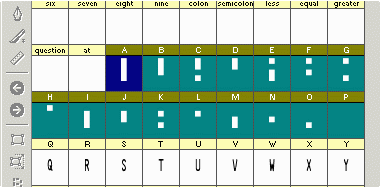
The data returned from the Data Matrix Encoder may be used for other purposes, such as using intelligent positioning drives to stamp codes into metal parts. The images in the characters of the 2D font are 4 squares stacked on top of each other, left to right in each row. The sequence is a binary 0 (0000) at character "P" to a binary 15 (1111) at character "A". Zero is referenced as a white space or no impression, and 1 is a dark space or an impression. For example, multiple A's (1111) stacked create a vertical line of 4 squares.