

Crystal Reports Barcode Font Encoder UFL
-
 This UFL is available with any Developer License or greater and is provided in the Developer Tools file.
 - The UFL is a font encoder that formats text for IDAutomation barcode fonts in SAP Crystal Reports.
- Compatible with all Crystal Reports versions 9 and up.
- Compatible with both Designer and .NET (Redistributable) Crystal Reports varieties.
- Compatible with Windows 32-bit and 64-bit versions.
- This encoder is free to use with any IDAutomation barcode font package and supports linear barcode fonts, USPS IMb fonts, GS1 DataBar barcode fonts, and the Universal Barcode Font. 2D barcode fonts such as Aztec, Data Matrix, PDF417, and QR-Code must use the UFL supplied with that specific font package.
NOTE: The UFL is a legacy product that should only be used when other options are not available. In most IDAutomation font packages, a Crystal Report example with a Font Encoder Formula is provided in the package for easy integration. IDAutomation recommends using the Font Encoder Formula Tutorial before trying to use the UFL directly as described here.
UFL Tutorial Index:
- Linear UFL Installation
- Usage Instructions
- UFL Barcode Functions (API):
- UFL Redistribution
- UFL Support
- Previous Versions (Deprecated)
UFL Installation
Pre-Installation Requirements:
- Compatibility:
- Crystal Reports Versions: 9 and higher.
- Crystal Reports Varieties: Designer and .NET (Redistributable).
- Windows: 32-bit and 64-bit versions, Windows 7 or greater.
- .NET Framework: Any of the following versions: 2x, 3x, and 4x. A separate installer is provided for systems that do not have .NET 2x-3x installed; this is provided in the ".NET Framework 4.5 UFL Installer" folder of the downloaded zip file.
- An IDAutomation Font Package (demo or purchased): Code 128, Code 39, Code 93, Codabar, DataBar, EAN-13, EAN-8, Interleaved 2 of 5, MSI Plessey, UPC-A, UPC-E, USPS Intelligent Mail IMb, USPS Postnet, USPS Planet, QR-Code, Data Matrix, PDF417, or Universal Barcode Fonts.
Installation Notes:
- When using Code 128 or Interleaved 2 of 5 barcode fonts, if the character set is not US English, 1252 Latin-1, 1250 European, 1251 Cyrillic, 1253 Greek, 1254 Turkish, 1255 Hebrew, or 1256 Arabic, the Universal Barcode Fonts must be used.
- The installer detects the .NET version if Windows is 32/64 bit, and registers the UFLs automatically.
- Various .NET versions installed on the same machine do not affect functionality.
- Use of the Silent Installer (including the accompanying setup files) requires the Developer License (or above) for any Barcode Font Package. With a Developer License or above, a complete setup application source is also provided to create custom installations.
- For registration specifics and redistribution usage, refer to the Linear UFL Redistribution.
Installation Steps:
- Close all programs.
- Install the IDAutomation demo or purchase the barcode fonts of choice.
- Download the Crystal Reports Barcode Font Encoder UFL.
- Extract the IDAutomation_CrystalUFL.zip file and then run the included .exe file that begins with IDAutomation_CrystalUFL. This will automatically install the DLLs in the proper Windows System folders.
- Included in the zip file are folders for distribution if needed to install on multiple computers on the network.
An alternate method of installation would be to place the IDAutomation 32-bit Linear UFL DLL in the following folder: C:\Program Files (x86)\SAP BusinessObjects\SAP BusinessObjects Enterprise XI 4.0\win32_x86 folder.
Barcode UFL Usage Instructions
NOTE: In most IDAutomation font packages, a Crystal Report example or a Font Encoder Formula is provided in the package for easier implementation. IDAutomation recommends using the Font Encoder Formula Tutorial before trying to use the UFL directly as described here. Therefore, the tutorial described here should be performed only by advanced users and developers.
- This UFL is available with any Developer License or greater and is provided in the Developer Tools file; install the UFL.
- Access the report in Crystal Reports.
- Choose the Design tab to enter the design mode of the report.
- Open the Field Explorer (In Crystal 9, select View - Field
Explorer. In versions before 9, select Insert - Formula Field).
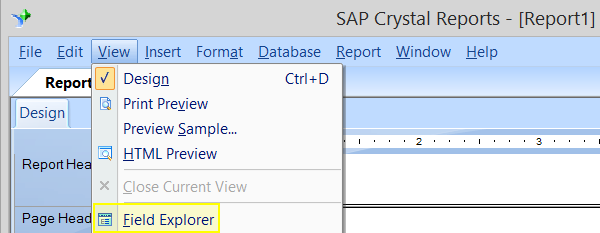
- Right-click on Formula Fields and select New.
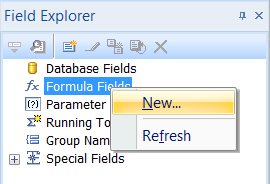
- In the Formula Name dialog box, enter a name to identify the formula field. In this example, the formula is simply named "Barcode."
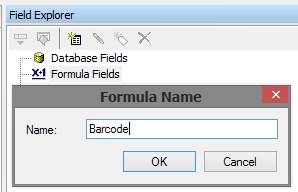
- Click OK and select Use Editor if asked. The Formula Editor should now be open.
- In the Functions column, expand the Additional Functions, then expand the Visual Basic UFLs section to
select the appropriate function:
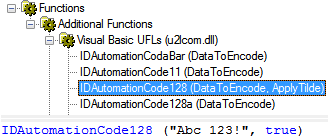
Newer versions will find the Barcode Functions under Additional Function/COM and .NET UFLs (u212.com.dll)
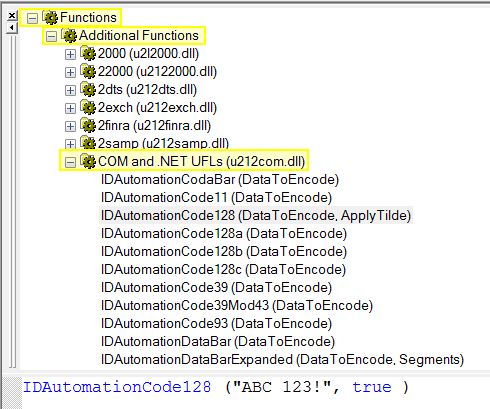
- With the cursor positioned between the parentheses of the function, select
the data field that is to be encoded. Data fields used in this formula must be
formatted as text. If the data fields are not text, use
ToText or
cStr for conversion. The syntax of the
formula should look similar to one of the formulas below:
- Static Text (useful in testing scenarios): IDAutomationCode128 ("ABC 123!", true)
- Dynamic Data source: IDAutomationCode128 ({Table1.Field1}, true)
- Dynamic Data source (non-text field): IDAutomationCode128 (cStr({Table1.Field1}, 0), true)
- Choose Save and then Close.
- To include a text interpretation of the encoded data below the barcode,
consider creating an additional formula field using the function
IDAutomationUniC128HR, which returns the human-readable (HR) text.

For example, to display the human-readable (HR) interpretation of {Table1.Field1} as GS1-128 text, the field BarcodeHR is created with the formula IDAutomationUniC128HR ({Table1.Field1}, true). - Return to the Field Explorer dialog box.
- Click on the formula field and drag it onto the report.
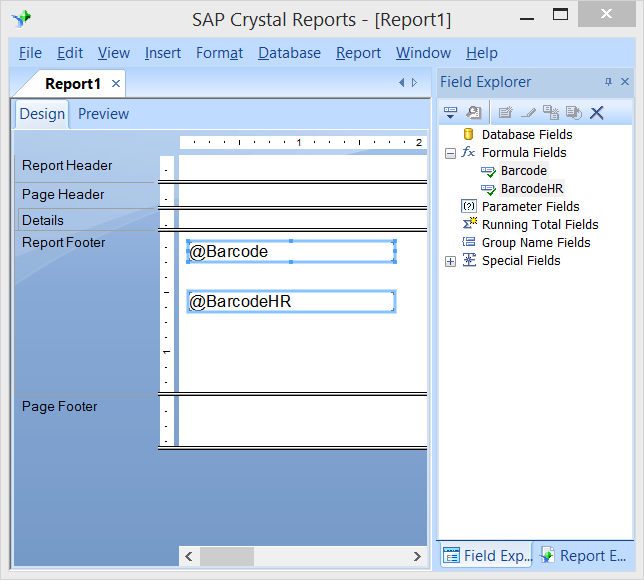
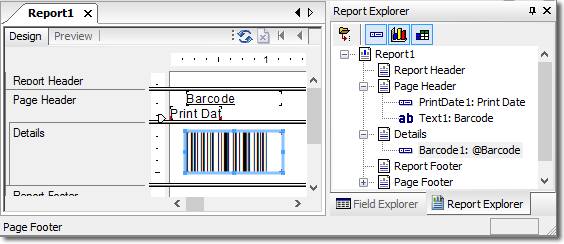
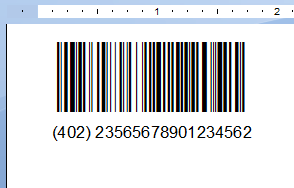
In the graphic above, the @Barcode formula produces formatted data for Code 128, and the @BarcodeHR formula produces the human-readable, as shown in the graphic below. - Once the fields are created, choose the Preview tab to verify that the data is pulled and properly formatted to the barcode font.
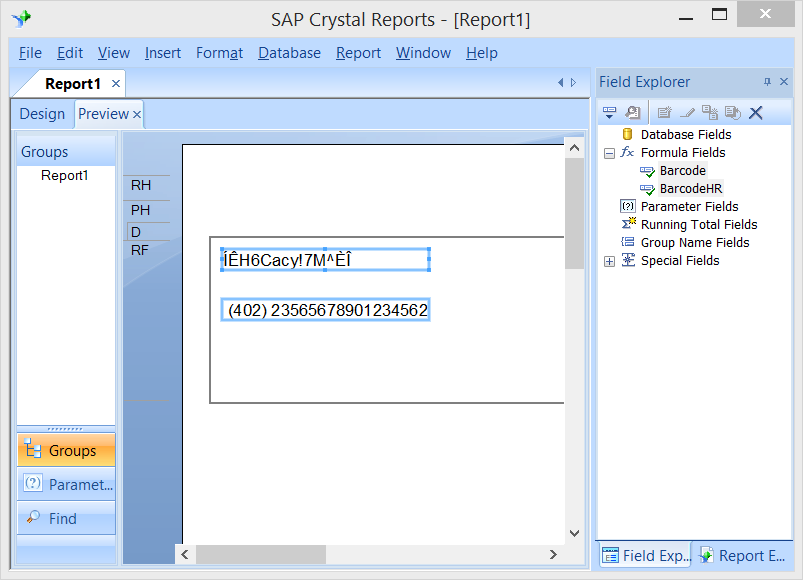
Note: Depending on the symbology used, unrecognizable characters may appear as the data from the fields - this is the formatted data. - Select the Design tab again and size the barcode formula field to display the appropriate barcode font in the report.
- Change the formula field to the appropriate barcode font and set the size to
12 points or another appropriate size.
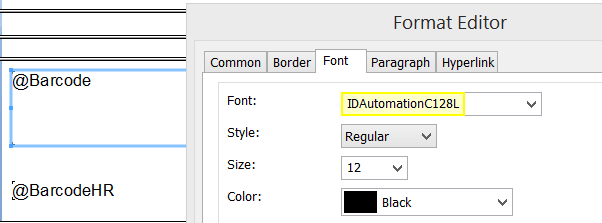
Ensure the formula used matches the font listed in the Format Editor. For example, only use the IDAutomationCode128() function with the IDAutomationC128 font. This is a very important step because the barcodes will not be properly created if this step is performed incorrectly. - Select the Preview tab (or File - Print Preview) to view the barcodes in the report. Print one page of the report and test it with a scanner.
Consider testing with the easy-to-use IDAutomation USB Barcode Scanner, which reads all popular linear and GS1 DataBar barcodes.
UFL Barcode Functions List
The methods listed below are available in the Linear UFL, serve as the application programming interface (API), and are valid only when used with the font listed in the Font to Use column.
| Linear Barcode Font Functions | ||
| Barcode Type |
Function (name preceded with
IDAutomation) (Examples shown - view Method Descriptions for more information) |
Font to Use |
| Code 11 | Code11 (DataToEncode) | IDAutomationC11 |
|
Code 128 (Auto Mode) |
Code128 (DataToEncode,
ApplyTilde) IDAutomationCode128 ( "123456789012", FALSE) |
IDAutomationC128 |
|
Code 128 (Manual Mode) |
Consider using Auto Mode for most situations. Code128a (DataToEncode) Code128b (DataToEncode) Code128c (DataToEncode) |
IDAutomationC128 |
|
GS1-128 (UCC/EAN/SCC/IMpb) |
Code128 (DataToEncode,
ApplyTilde) GS1-128 is enabled in Code 128 Auto by setting ApplyTilde to True: Parentheses: IDAutomationCode128 ( "(12)3456789012", TRUE) Tilde: IDAutomationCode128 ( "~212123456789012", TRUE) |
IDAutomationC128 |
| Code 39 |
Code39 (DataToEncode) Code39Mod43 (DataToEncode) |
IDAutomationC39 |
| Code 93 | Code93 (DataToEncode) | IDAutomationC93 |
| Codabar | Codabar (DataToEncode) | IDAutomationCB |
| EAN-13 | EAN13 (DataToEncode) | IDAutomationUPCEAN |
| EAN-8 | EAN8 (DataToEncode) | IDAutomationUPCEAN |
| Interleaved 2 of 5 |
I2of5
(DataToEncode) I2of5Mod10 (DataToEncode) |
IDAutomationI25 |
| MSI Plessey | MSI (DataToEncode) | IDAutomationMSI |
| UPC-A | UPCa (DataToEncode) | IDAutomationUPCEAN |
| UPC-E | UPCe (DataToEncode) | IDAutomationUPCEAN |
| Intelligent Mail IMb | ||
| The method listed below can be used with the USPS Postnet, USPS Intelligent Mail IMb, and the IDAutomation Universal Barcode Font Packages. | ||
| Barcode Type |
Function (name preceded with
IDAutomation) |
Font to Use |
| USPS IntelligentMail | IntelligentMail (DataToEncode) |
IDAutomationPOSTNET or IDAutomationIMB or IDAutomation_Uni |
| Universal Barcode Font Functions | ||
| The methods listed below are only to be used with the IDAutomation Universal Barcode Font Advantage Package. | ||
| Barcode Type |
Function (name preceded with
IDAutomation) |
Font to Use |
|
Code 128 (Auto Mode) |
UniCode128 (DataToEncode,
ApplyTilde) IDAutomationUniCode128 ("123456789012", FALSE) |
IDAutomation_Uni |
|
Code 128 (Manual Mode) |
Consider using Auto Mode for most situations. UniCode128a (DataToEncode) UniCode128b (DataToEncode) UniCode128c (DataToEncode) |
IDAutomation_Uni |
|
GS1-128
(UCC/EAN/SCC/IMpb) |
UniCode128 (DataToEncode,
ApplyTilde) GS1-128 is enabled in Code 128 Auto by setting ApplyTilde to True: Parentheses: IDAutomationUniCode128 ( "(12)3456789012", TRUE) Tilde: IDAutomationUniCode128 ( "~212123456789012", TRUE) |
IDAutomation_Uni |
| Code 39 |
UniCode39 (DataToEncode,
N_Dimension,
IncludeCheckDigit) IDAutomationUniCode39 ("12345678", 3, TRUE ) |
IDAutomation_Uni |
| Codabar |
UniCodabar (DataToEncode,
N_Dimension,
StartChar, StopChar) IDAutomationUniCodabar ("12345678", 2, "A", "B" ) |
IDAutomation_Uni |
| Interleaved 2 of 5 |
UniI2of5
(DataToEncode, N_Dimension,
IncludeCheckDigit) IDAutomationUniI2of5 ("12345678", 2, FALSE) |
IDAutomation_Uni |
| MSI Plessey | UniMSI (DataToEncode, N_Dimension, IncludeCheckDigit) | IDAutomation_Uni |
| DataBar Barcode Font Functions | ||
| The methods listed below are only to be used with the IDAutomation GS1 DataBar Font Package. | ||
| Barcode Type | Function (name preceded with IDAutomation) | Font to use |
| DataBar | DataBar(DataToEncode) | IDAutomation DataBar 34 |
| DataBar Expanded | DataBarExpanded(DataToEncode , 22) | IDAutomation DataBar 34 |
| DataBar Expanded Stacked | This symbology includes a Font Encoder Formula. Refer to the included Crystal Reports example and the Font Encoder Formula tutorial. | IDAutomation DataBar 34 * |
| DataBar Limited | DataBarLimited(DataToEncode) | IDAutomation DataBar 13 |
| DataBar Stacked | DataBarStacked(DataToEncode) | IDAutomation DataBar 13 |
| DataBar Stacked Omnidirectional | DataBarStackedOmniDirectional(DataToEncode) | IDAutomation DataBar 34 * |
| DataBar Truncated | DataBar(DataToEncode) | IDAutomation DataBar 13 |
| 2D Functions | ||
| Barcode Type | Function (name preceded with IDAutomation) | Font to use |
| Data Matrix | These symbologies include a Font Encoder Formula that will be embedded into the report, along with the associated UFL included in the corresponding font package. Refer to the included Crystal Reports example for the Font Encoder Formula and the Tutorial for assistance. | IDAutomation 2D * |
| PDF417 | IDAutomation 2D | |
| QR-Code | IDAutomation 2D | |
| Miscellaneous Functions | ||
| Barcode Type | Function (name preceded with IDAutomation) | Font to use |
| Not Applicable | UniC128HR (DataToEncode,
ApplyTilde) This method returns standard text for Code 128 barcodes, such as with GS1-128. |
Text Font |
| Not Applicable | MOD10 (DataToEncode) | Not Applicable |
| Not Applicable | SpliceText (DataToEncode, SpacingNumber, ApplyTilde) | Not Applicable |
* Using this font may require a Line Spacing Adjustment if white lines appear in the symbol.
Function Part Descriptions
- ApplyTilde: If set to True, characters following the tilde may be used to perform additional functions.
- DataToEncode: A string value that represents the data being encoded.
- N_Dimension: Determines the width of the wide bars when applicable, which is a multiple of the X dimension. Valid values are 2, 2.5, and 3. The default is 2. The X dimension is determined by the font point size.
- IncludeCheckDigit: A Boolean value that determines whether a check digit should be automatically calculated and included for the DataToEncode.
- Segments: Reducing segments to a low even number, such as 4, 6, or 8, in a DataBar Expanded symbol can create a stacked barcode. The default is 22.
- Code 39 Mod43 Generation Option
- Interleaved 2 of 5 Mod10 Generation
- Mod10 Barcode Specification
- SpliceText Barcode Property Specification
Symbology-Specific Notes
This procedure inserts a formula field for DataBar Expanded Stacked symbols and is compatible with Crystal Reports version 9 and up. This is a necessary step to ensure that DataBar Expanded Stacked symbols are created properly in Crystal Reports.
- In the report, choose View - Design to switch to design mode.
- Select the code below and copy it to the clipboard:
stringVar DataToEncode:= {Table1.DataField1};
numberVar Segments:= 6;
stringVar CompleteBarcodeString:="";
numberVar i:=0;
numberVar DataSegments:= ToNumber (IDAutomationDataBarExpandedStackedSet(DataToEncode,Segments));
For i:=1 to DataSegments Do
(
CompleteBarcodeString := CompleteBarcodeString + IDAutomationDataBarExpandedStackedGet
(DataToEncode,Segments,i);
);
CompleteBarcodeString
- Return to the report and choose Edit - Paste to paste the field where it is desired.
- Highlight the field and choose Edit - Edit Formula.
- Modify the DataToEncode:= line of the formula to equal the data that is to be encoded in the barcode.
- Change the Segments:= 4; line of the formula to equal the number of segments needed.
Formulas to Combine Multiple Fields or Encode Functions
Functions may be easily modified with formulas to combine multiple fields or append text in a single barcode, as demonstrated in the following examples:
- This formula appends the text "Barcode",
combines two fields in a single
barcode, and places a tab function (which is ASCII 009)
between them:
IDAutomation_Code128 ( "Barcode" & {Table1.DataField1} & "~009" & {Table1.UPC}, TRUE) - This formula adds in the
GS1-128 Application Identifier (~202) and calculates a MOD 10
check digit.
IDAutomation_Code128 ("~202" & {Table1.DataField1} & "~m19", TRUE )
UFL Redistribution
UFL Installation is automatic when running the included installer. Silent installations are also available for all associated font developer licenses with source code to build custom installations. The included source code supports automatic registration of both 32 and 64-bit systems in the 2.0 and 4.0 CLR.
The following are the suggested files, installation locations, and registration commands to aid in the redistribution of the UFL with a custom application or when installing manually.
Notes:
- The Linear UFL is referenced in the chart below; when using 2D UFLs such as QR-Code, Data Matrix, or PDF417, dated 2014 or later, only the names of the UFLs will be different. All of the other registration processes described are the same.
- The user performing the installation must have Administrator rights to install barcode fonts and register the Linear UFL.
- The UFL requires the Microsoft .NET Framework version installed to be 2.0 or greater.
- This UFL supports the 2 primary versions of the
.NET Common Language Runtime (CLR):
- CLR 2.0: .NET 2x and 3x.
- CLR 4.0: .NET 4x
- The UFL, unlike its Win32 counterparts, is not dependent on a specific file location (as in a Windows System folder) for its installation. Instead, it is registered in place with the corresponding assembly registration (RegAsm) commands. The installation locations below are suggested purely for consistency with standard practice.
- While the Linear UFL may be registered in the Global Assembly Cache (GAC), GAC registration is not a replacement for the RegAsm registrations and has no discernible benefit. Therefore, GAC registration is not needed and is outside the scope of this documentation.
- The 32-bit and 64-bit Linear UFL file names are required to be the same, as the report that references the functions expects the same file name across all versions (and varieties) of Crystal Reports in which it runs.
- The QR-Code UFL can log error messages. The .log file name will start with IDAutomation_UFL_Error and will be located in the user's
Temp* directory. If the log file cannot be found, none was generated, and it was not a UFL error in itself.
*The user may enter %TEMP% in the Run command or an Explorer address bar.
| UFL Installation and Distribution: 32-bit Operating Systems | |||
| Type |
File to Distribute (in download) |
Install Location |
Manual Install Command (adjust if different - use the registration command, based on the CLR version) |
| 32-bit UFL | \32bit\CRUFLIDAutomation.dll | %windir%\System32* |
C:\Windows\Microsoft.NET\Framework\v2.0.50727\ RegAsm.exe /codebase C:\Windows\System32\CRUFLIDAutomation.dll - OR - C:\Windows\Microsoft.NET\Framework\v4.0.30319\ RegAsm.exe /codebase C:\Windows\System32\CRUFLIDAutomation.dll |
| UFL Installation and Distribution: 64-bit Operating Systems (Both UFL registrations are required) | |||
| Type |
File to Distribute (in download) |
Install Location |
Manual Install Command (adjust if different - use the registration command, based on the CLR version) |
| 32-bit UFL | \32bit\CRUFLIDAutomation.dll | %windir%\SysWOW64* |
C:\Windows\Microsoft.NET\Framework\v2.0.50727\ RegAsm.exe /codebase C:\Windows\SysWOW64\CRUFLIDAutomation.dll - OR - C:\Windows\Microsoft.NET\Framework\v4.0.30319\ RegAsm.exe /codebase C:\Windows\SysWOW64\CRUFLIDAutomation.dll |
| 64-bit UFL | \64bit\CRUFLIDAutomation.dll | %windir%\System32* |
C:\Windows\Microsoft.NET\Framework64\v2.0.50727\ RegAsm.exe /codebase C:\Windows\System32\CRUFLIDAutomation.dll - OR - C:\Windows\Microsoft.NET\Framework64\v4.0.30319\ RegAsm.exe /codebase C:\Windows\System32\CRUFLIDAutomation.dll |
* %windir% is the Windows directory, which can be found by pressing Windows + R > type in %windir% > Enter
Linear UFL Support
Free product support is available by reviewing the font problems and solutions that IDAutomation has documented and by searching resolved public forum threads.
Additional technical support may be attained with the purchase of the one-year Priority Support and Upgrade Subscription.
Common Problems and Solutions:
- Barcodes Decrease in Size after Exporting to PDF
- Embedding Barcode Fonts in Crystal Reports
- Concatenate Fields in Crystal Reports
- Create an SSCC18 Barcode using the UFL for Crystal Reports
- Create an SCC14 Barcode using the UFL for Crystal Reports
- Create Data Matrix Barcodes using the UFL for Crystal Reports
- Error: "Can't open uninstall log file ../ÿÿuninstall.ini"
- Error "Encoded text over Crystal Reports data limit"
- Error: "The remaining text does not appear to be part of the formula"
- Error "'u25idautomation.dll' that implements this function is missing" when using UFL
- White lines appear in 2D or Stacked barcode symbols
- Additional White Space when Fonts are Right Aligned
- Video Example of UFL used to Format DataToEncode
2D Crystal Report Barcode Font Integration
2D barcode fonts such as Aztec, DataMatrix, PDF417, and QR-Code must use the UFL supplied with that specific package.
- Aztec Barcode Generation in Crystal Reports
- Data Matrix Barcode Generation in Crystal Reports
- PDF417 Barcode Generation in Crystal Reports
- QR Code Barcode Generation in Crystal Reports
Related Products and Information
- Crystal Reports: The Complete Toolset
- Native Generator for Crystal Reports
- Other Products: Crystal Reports Barcode Integration Guide
Previous Versions (Deprecated)
IDAutomation recommends that all reports referencing the following be updated to the latest version of the Linear UFL. These UFLs of the past are listed for completion but are deprecated and no longer officially supported:
- Win32 Linear UFL created from C++ (U25IDAutomation.dll - 32 bit only)
- DataBar UFL (CRUFLIDAutomationDataBar.dll - combined with the Linear UFL 2014 or later)
- COM Linear UFL created from VB6 (CRUFLIDAutomation.dll - 32-bit only)
