

.NET Barcode Font Encoder Assembly & Source Code
The IDAutomation .NET Font Encoder Assembly is a font encoder that formats text for IDAutomation barcode fonts in Microsoft .NET. It is free to use with any Developer License purchase to any IDAutomation barcode font package. The licensed version also includes C# and VB .NET source code that may be compiled into your project without the assembly. The following chart summarizes the files provided with compatibility information.
Version 2021 and later of this product contain DLLs signed with SHA256 and strong names. Previous versions, including any demo versions, contain only MD5 signatures.
| Distribution File | Folder | Compatibility |
| IDAutomation_<symbology>FontEncoder.cs | C#.NET | .NET Standard, Core & Framework |
| IDAutomation_<symbology>FontEncoder.vb | VB.NET | .NET Standard, Core & Framework |
| IDAutomation.LinearFontEncoder.dll | .NET Standard Assembly | .NET Standard & Core |
| IDAutomation.LinearFontEncoder.dll | .NET 4 Assembly | .NET Framework 4 |
| IDAutomation.LinearFontEncoder.dll | .NET 2 Assembly | .NET Framework 2 |
Index:
Note: This font encoder is supplied with the purchase of the Developer's License or above of any compatible Barcode Font Package.
Installation and Tutorial
These steps outline the process for setting up the .NET Barcode Font Encoder Assembly & DLL Tool in Visual Studio .NET. The example uses two textboxes: txtDataToEncode to input the data and txtEncodedData to display the encoded data. A command button executes the font encoder and places the txtDataToEncode encoded data into the txtEncodedData textbox. The example uses the IDAutomation.LinearFontEncoder.dll to encode data for a Code 128 barcode in C#.
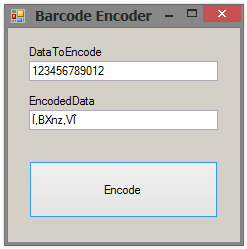
- Copy the IDAutomation.LinearFontEncoder.dll to the project directory. To use the source code instead of the DLL, copy the source code file that is needed to the project directory.
- Create the reference. In Visual Studio .NET, this is accomplished by accessing the Solution Explorer. If Solution Explorer is
not visible, select View - Solution Explorer.
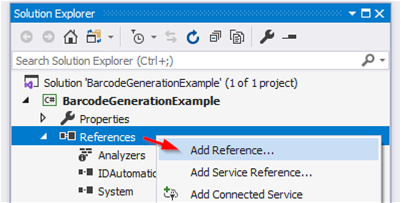
- To add the assembly DLL as a reference, right-click References in Solution Explorer and choose Add
Reference.
To add a source code file instead of the assembly DLL, right-click on the project and choose Add - Existing Item.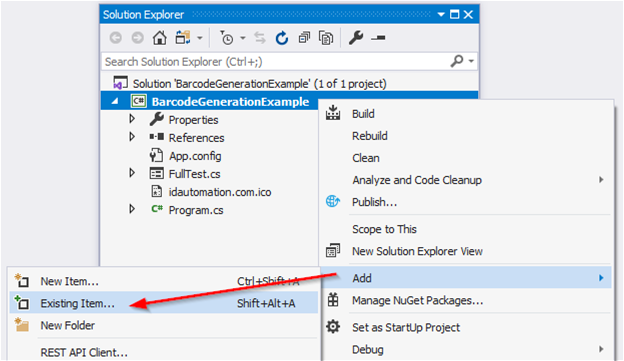
- Browse to the file that is needed and select it. It should now appear in your project.
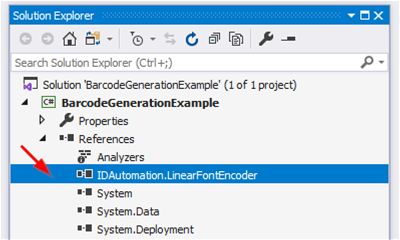
- In the project, create an object of the class:
IDAutomation.Linear.FontEncoder FontEncoder = new IDAutomation.Linear.FontEncoder();
-
Format the data to the font:
txtEncodedText.Text = FontEncoder.Code128(txtDataToEncode.Text);
- Set the encoded data to the barcode font:
txtEncodedText.Font = new Font("IDAutomationC128L", 12, FontStyle.Regular);
// NOTE: The Demo font is named IDAutomationSC128L. - After the text is formatted to the font, print or display the text
with the appropriate barcode font selected. Be sure to include enough space around the symbol so it may be properly decoded.
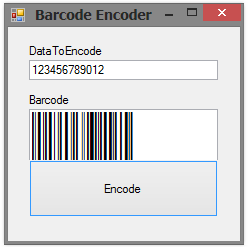
Code 128 Font Example
C# Example:
IDAutomation.Linear.FontEncoder FontEncoder = new IDAutomation.Linear.FontEncoder();
txtEncodedText.Text = FontEncoder.Code128(txtDataToEncode.Text);
txtEncodedText.Font = new Font("IDAutomationC128L", 12, FontStyle.Regular);
//Demo font is named "IDAutomationSC128L"
VB.NET Example:
Dim FontEncoder As New IDAutomation.Linear.FontEncoder
txtEncodedText.Text = FontEncoder.Code128(txtDataToEncode.Text)
txtEncodedText.Font = new Font("IDAutomationC128L", 12, FontStyle.Regular)
'Demo font is named "IDAutomationSC128L"
Universal Font Example
C# Example:
IDAutomation.Linear.UniversalFontEncoder UniversalFontEncoder = new IDAutomation.Linear.UniversalFontEncoder();
txtEncodedText.Text = UniversalFontEncoder.IDAutomation_Uni_C128(txtDataToEncode.Text, false);
txtEncodedText.Font = new Font("IDAutomation Uni L", 12, FontStyle.Regular);
//Demo font is named "IDAutomationS Uni L"
VB.NET Example:
Dim UniversalFontEncoder As New IDAutomation.Linear.UniversalFontEncoder
txtEncodedText.Text = UniversalFontEncoder.IDAutomation_Uni_C128(txtDataToEncode.Text)
txtEncodedText.Font = new Font("IDAutomation Uni L", 12, FontStyle.Regular)
'Demo font is named "IDAutomationS Uni L"
USPS IMb Example
C# Example:
IDAutomation.Linear.IntelligentMail IntelligentMail = new IDAutomation.Linear.IntelligentMail();
txtEncodedText.Text = IntelligentMail.FontEncode(txtDataToEncode.Text);
txtEncodedText.Font = new Font("IDAutomationIMB", 12, FontStyle.Regular);
//Demo font is named "IDAutomationSIMB"
VB.NET Example:
Dim IntelligentMail As New IDAutomation.Linear.IntelligentMail
txtEncodedText.Text = IntelligentMail.FontEncode(txtDataToEncode.Text)
txtEncodedText.Font = new Font("IDAutomationIMB", 12, FontStyle.Regular)
'Demo font is named "IDAutomationSIMB"
GS1-128 Font Example
C# Example:
IDAutomation.Linear.UniversalFontEncoder UniversalFontEncoder = new
IDAutomation.Linear.UniversalFontEncoder();
txtEncodedText.Text = UniversalFontEncoder.IDAutomation_Uni_C128(txtDataToEncode.Text, true);
txtEncodedText.Font = new Font("IDAutomationGS1 50", 12, FontStyle.Regular);
//Demo font is named "IDAutomationGS1 50 DEMO"
VB.NET Example:
Dim UniversalFontEncoder As New IDAutomation.Linear.UniversalFontEncoder
txtEncodedText.Text = UniversalFontEncoder.IDAutomation_Uni_C128(txtDataToEncode.Text, true)
txtEncodedText.Font = new Font("IDAutomationGS1 50 DEMO", 12, FontStyle.Regular)
GS1 DataBar Font Example
C# Example:
IDAutomation.Linear.DataBar Databar = new IDAutomation.Linear.DataBar();
txtEncodedText.Text = Databar.IDAutomation_DataBar_DataBarStackedOmniDirectional(txtDataToEncode.Text);
txtEncodedText.Font = new Font("IDAutomation DataBar 34", 12, FontStyle.Regular);
//Demo font is named "IDAutomation DataBar 34 DEMO"
VB.NET Example:
Dim DataBar As New IDAutomation.Linear.DataBar
txtEncodedText.Text = DataBar.IDAutomation_DataBar_DataBarStackedOmniDirectional(txtDataToEncode.Text)
txtEncodedText.Font = new Font("IDAutomation DataBar 34", 12, FontStyle.Regular)
'Demo font is named "IDAutomation DataBar 34 DEMO"
Methods and Properties
The methods listed below are available in the IDAutomation.LinearFontEncoder.dll and source code files unless otherwise indicated, and are valid only when used with the font listed in the Font to Use column. All parameters are optional except DataToEncode.
Function Part Descriptions
- ApplyTilde: If set to 1 or True, characters following the tilde may be used to perform additional functions.
- DataToEncode: A string value that represents the data being encoded.
- N_Dimension: Determines the width of the wide bars when applicable, which is a multiple of the X dimension. Valid values are 2, 2.5, and 3. The default is 2. The X dimension is determined by the font point size.
- IncludeCheckDigit: A Boolean value that determines whether a check digit should be automatically calculated and included for the DataToEncode.
- Segments: Reducing segments to a low even number such as 4, 6 or 8 in a DataBar Expanded symbol can create a stacked barcode. The default is 22.
Demo Version
The demo font encoder will have an intermittent pop up message. After the purchase of the Developer License of any IDAutomation Barcode Font Package, the demo version DLL will need to be replaced with the licensed version DLL.
The licensed version also includes C# and VB.NET source code that may be compiled into your project without the assembly.
Creating .NET Barcodes with Other Products
In addition to this product, IDAutomation offers a few other options that create barcode images in .NET without the use of fonts:
- .NET Windows Forms Controls allow the creation and printing of barcodes in local Microsoft Visual Studio.NET applications.
- ASP. NET Barcode Web Forms Server Controls create barcodes in ASP.NET web applications.
- Native Barcode Generator for Crystal Reports generates native barcodes in Crystal with Visual Studio .NET.
.NET Barcode Font Encoder Assembly & DLL Support
Free product support is available by searching resolved public forum threads. Common Issues and Information:
- Importing the .NET Assembly for use with PowerBuilder
- Demo version may not load because of error message
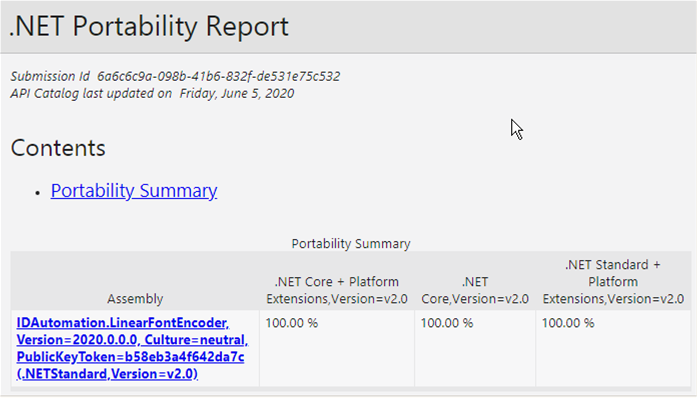
- This product supports .NET Standard, .NET Core, and .NET Framework. Separate assemblies are provided targeting .NET Framework 2 and .NET Framework 4.
Customer support is available by contacting IDAutomation, and additional technical support may be attained with the purchase of the one-year Level 2 Support and Upgrade Subscription.
